
Monitor connection health
How do I monitor and filter connection health in Settings?
Synup doesn't send a connection-health alert. There's no email, no notification and nothing to switch on — so if a publisher connection breaks, you find out by looking. Open Settings → Connections, review the health cards on Connected Accounts, then check Location Connections.
That's worth knowing before anything else, because a broken connection is silent. The listing doesn't disappear; it just stops accepting your changes and keeps showing whatever it held on the day the connection failed. Old hours over a holiday, a phone number nobody answers.
Put the check in your calendar
What Synup gives you instead of alerts is a set of states and filters that make a bad connection quick to find — including Expiring soon, which flags an account before it needs reconnection. Because the check is manual, choose a review frequency based on your portfolio size and how closely your team needs to monitor connection changes.
Start on Connected Accounts
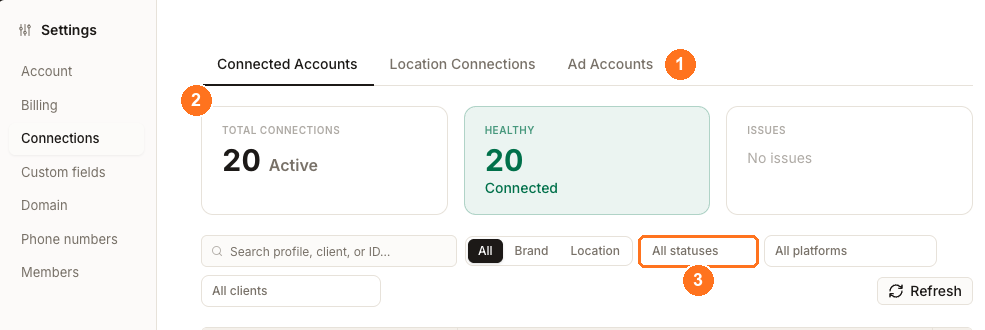
Connected Accounts is the account view — one row per publisher account you have linked. Location Connections is the same health seen per location. The cards answer the first question quickly: Total Connections shows the active connection count, Healthy shows working connections, Expiring Soon shows accounts that need attention before authorization ends, and Reconnect shows accounts that need their connection restored.
Use the search box to find a profile, client, or account ID. The All, Brand, and Location buttons narrow the account type. For a more exact pass, open Filters.
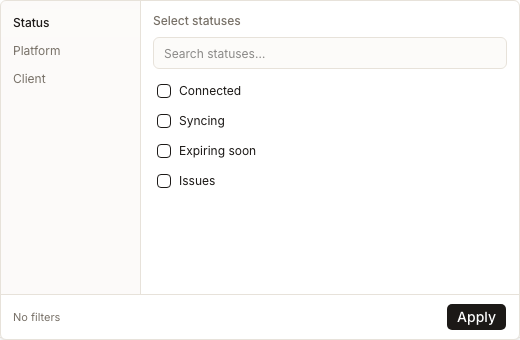
Choose Status, Platform, or Client, select the values you need, then select Apply. The account-level status choices are Connected, Syncing, Expiring soon, and Issues. Work Issues first, then Expiring soon.
The Locations column on each row is your blast radius. One failing account serving eighteen locations is a bigger problem than three failing accounts serving one each, so read that column before you decide what to do first.
Then check Location Connections
The account can be healthy while an individual location's link still needs attention. Location Connections is where that shows up.
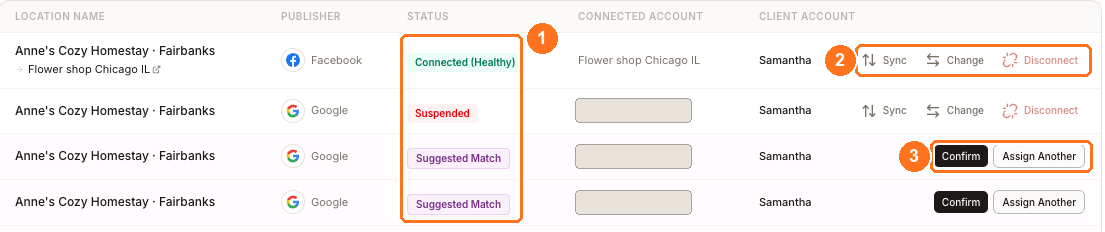
The summary cards separate Total Locations, Connected, Not Connected, Expired, and Listing Inaccessible. Search by location or listing, or open Filters and narrow by Status, Platform, or Client.
At location level, Connected needs no connection repair. Not connected has no active publisher pairing. Expired means the connection authorization is no longer current. Listing Inaccessible identifies a publisher listing Synup cannot currently access; verify the listing and account access before trying to restore the connection.
Use the account view to find a publisher-wide problem and the location view to measure which branches are affected. That distinction keeps a single unpaired location from looking like an account-wide outage.
Questions people ask
What is the difference between Expiring Soon and Reconnect?
Expiring Soon is an advance warning. Reconnect means the account connection already needs to be restored. Both deserve attention, but Reconnect is the more urgent queue.
Next
To investigate a directory this screen has surfaced, open the location's directory listings.