
Track website rankings
How do I track where my website ranks in Google and AI Overviews?
In SEO, choose a client and its website (a website entity, not a physical location). The Search rankings page lists your tracked keywords with their Google rank, change, ranking page and whether Google's AI Overview includes your site. Select Add keywords to track more. A dash means Synup couldn't determine the rank; it is not the same as >100, which is a confirmed result outside the top 100.
Key facts
| Where it lives | SEO with a website entity selected. The page title is Search rankings |
| What it measures | The line under the title shows the market, currently Website · Google · United States · English · Desktop |
| Separate from | Local rank grids for physical locations. A website's rankings don't appear on a location's grid |
| Table size | 100 keywords per page |
| Keyword limit | No total limit on a website's tracked keywords. Long lists are added 100 at a time, and each phrase can be up to 200 characters. Every keyword you add is checked, so cost grows with the list |
| Updates | On the website's schedule in Settings → Data updates, or when you use Refresh ranks |
| One-off check | Check rank in a keyword's row menu. The dialog shows the most it can cost before you run it |
| Search volume | Monthly volume shows available measurements for tracked keywords |
Why this matters
An organic rank tells you whether people searching for what you sell can find your website, and the AI Overview column tells you whether Google's AI summary mentions or cites you. Reading the states correctly matters: treating an unknown result as not ranking can send a team to rewrite a page that is doing fine.
Steps
Open SEO, choose the client, and choose the website in the picker. The Search rankings page opens.
Select Add keywords. On Enter keywords, type keywords separated by commas or new lines, then select Add N keywords. The Suggested keywords tab offers ideas from your website and business profile instead. Nothing is tracked until you add it. Adding starts a first rank check for each new keyword straight away, and those checks use credits. If there aren't enough credits for them, the keywords aren't added. This first check runs even when the website's schedule in Settings → Data updates is Never.
Use the focus buttons above the table to narrow the list: All, No Google result, Growing or Missing data. These choices are temporary. To keep search, filters, columns and sorting, select Save view.
Read each row using the tables below. Select a keyword's row to expand it and see its Search results and Relevant page.
To check one keyword now, open the row's three-dot menu and select Check rank (see below).
To stop tracking a keyword, open the row menu and select Stop tracking.
Reading the Google rank
| What you see | What it means |
|---|---|
| #7 | Your website was found at that position in the last check |
| >100 | Measured, and not in the top 100. This is a confirmed result |
| Check incomplete or — | Synup could not establish a rank. An earlier known position may appear as Last #N |
| Not checked yet | No check has finished for this keyword |
| Checking… | A check is running. If an earlier result exists it stays visible beside the spinner |
| Check failed | The first check failed and there's no earlier result |
| A warning triangle beside Last checked | The latest check failed. The time shown is the last successful check |
The Change column shows movement since the previous check: an arrow with the number of places, New, Entered top 100, Dropped out, a flat line for no change, or a dash when the two checks can't be compared.
Reading the AI Overview column
The Your site in AI Overview column has two lines. The first is about your site, the second about Google.
| First line | Meaning |
|---|---|
| Cited | Google's AI Overview cited your website |
| Mentioned | The Overview mentioned your brand |
| Present | Your site was present in the Overview |
| Not included | An Overview was checked and your site wasn't in it |
| Presence unavailable | Synup couldn't tell. Unknown is not a negative result |
The second line reads Google: shown, Google: not shown or Google: unknown, telling you whether Google displayed an AI Overview for that search at all.
Ranking progress charts
Above the table, Ranking progress summarises Organic rankings and AI Overviews over time. Choose a range and a Comparison period to compare months. Search Console shows Google Search Console average position for the selected period when that data is available. The Google rank column shows Synup’s checked position for an individual search. Only keywords checked in both months are compared; new, missing or incomplete checks don't count as wins or losses. Select a month to inspect its keywords in the table; the overview itself doesn't change.
Check one keyword's rank
- Open the keyword's row menu and select Check rank.
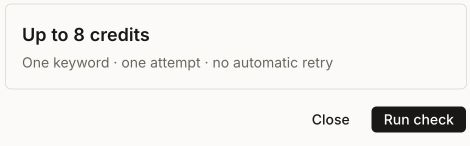
- The Check Google rank dialog loads the limit, for example Up to 3 credits, with One keyword · one attempt · no automatic retry.
- Select Run check to start it, or Close to leave. When it's accepted you see Keyword rank check queued.
If the dialog says A check is already pending, or We couldn't confirm this request. View its status before starting another check., select View keyword status and don't start another. If the price or your credits changed, select Review new quote. Check rank is unavailable while a keyword is already checking or when search data isn't connected.
Read monthly search volume
Use Monthly volume to see available measurements for the keywords you track. Eligible tracked keywords can receive volume data through the monthly collection. A missing measurement leaves the volume unknown. Google Ads can share one measurement across close variants, so avoid adding those values together.
Search results and Relevant page
Expand a keyword to see Top 10 Google results for it. Synup resolves where each result's link leads; while it works you may see Resolving destination links… or Destination not resolved. If Synup couldn't verify your own rank from the saved results, it says Couldn't verify this rank. Retry without a new search.
Relevant page shows the first organic result Google returns when Synup searches for the keyword within your site.
| Status | What it means |
|---|---|
| Top Google result | Google returned this page first in the search restricted to your site |
| No Google result | Google returned no organic page for this keyword in that check |
| Not checked | Synup has no saved check for the relevant page |
| Result unavailable | Synup could not confirm a relevant page from the check |
Use the result as a page to inspect. To check what the page says, open it. For your position in the broader Google results, use Google rank. A missing result leaves open whether your site has content for the keyword.
Worked example
A plumbing company's website tracks "emergency plumber near me". Its Google rank shows Check incomplete and Your site in AI Overview reads Presence unavailable. The marketing lead checks for newer data before deciding whether to rewrite the service page. Both fields are reporting missing evidence.
To check for a fresh result, they open the row menu, select Check rank, read the most the check can cost in Check Google rank, and select Run check. After Keyword rank check queued, they can watch that keyword's Last checked time. A position or a confirmed result outside the top 100 shows where the site stands. An incomplete result leaves the rank unknown, and a warning triangle means the check failed.
What you'll see when it's done
- Each new keyword in Tracked keywords, first as Not checked yet, then with a rank after its first check
- Last checked times that move forward after each update
- Volume figures in Monthly volume where a measurement is available
Watch out for
- Check rank uses credits. The dialog shows the maximum for that check before you start it.
- No automatic retry. A single Check rank is one attempt. If it fails, review a new quote before trying again.
- Check the status of an unconfirmed rank request before starting another.
- Adding keywords here starts paid checks. Each keyword you add with Add keywords gets its first check as soon as it's added, even when the schedule is Never.
- More keywords cost more per update. Each scheduled update checks every tracked keyword.
- If search data isn't connected, keywords you add are saved and checked once it's connected.
Questions people ask
What's the difference between >100 and a dash?
>100 means the check ran and your site wasn't in the top 100. A dash means the check couldn't determine a rank. Wait for the next update or use Check rank.
Why doesn't my website's ranking show on my location's rank grid?
They are different things. The rank grid measures a physical location's local results. Website rankings are organic results for the website entity.
What does an empty Monthly volume cell mean?
There is no volume measurement to show for that keyword. The cell leaves volume unknown.
Why is Check rank greyed out?
The keyword may already be checking, search data may not be connected, or the table is still loading.
Next
- See SEO results across your workspace: ranking analytics overview
- Add keywords for physical locations: add keywords
- Read local results for a location instead: read the rank grid