
Configure a branded domain
How do I configure and verify the agency’s branded domain?
Use the Domain card in the Sydekick setup conversation to choose and claim an available branded domain. Then open Settings → Domain to confirm where it is active and whether email authentication is verified. The domain supplies the portal, scan-tool and invite-email addresses. It requires white-label access, and switching an active domain requires Synup Support.
Key facts
| Where it lives | The Sydekick setup conversation for the initial claim; Settings → Domain for status and repair |
| What you need first | White-label access and an available Synup-managed pool domain |
| What it changes | The addresses used by the client portal, scan tool and review-invite email |
Why this matters
A branded domain keeps customer-facing surfaces under one agency identity. Synup provisions the domain's DNS and SSL, while the Domain page separates an active web address from the DKIM status used to authenticate outbound email.
Steps
Open the Domain card in the Sydekick setup conversation. It lists the domains currently available to your agency.
Search by name or top-level domain, select one option and review the domain shown on the confirmation button.
Select Claim domain. Wait for the card to confirm the claim before leaving the conversation.
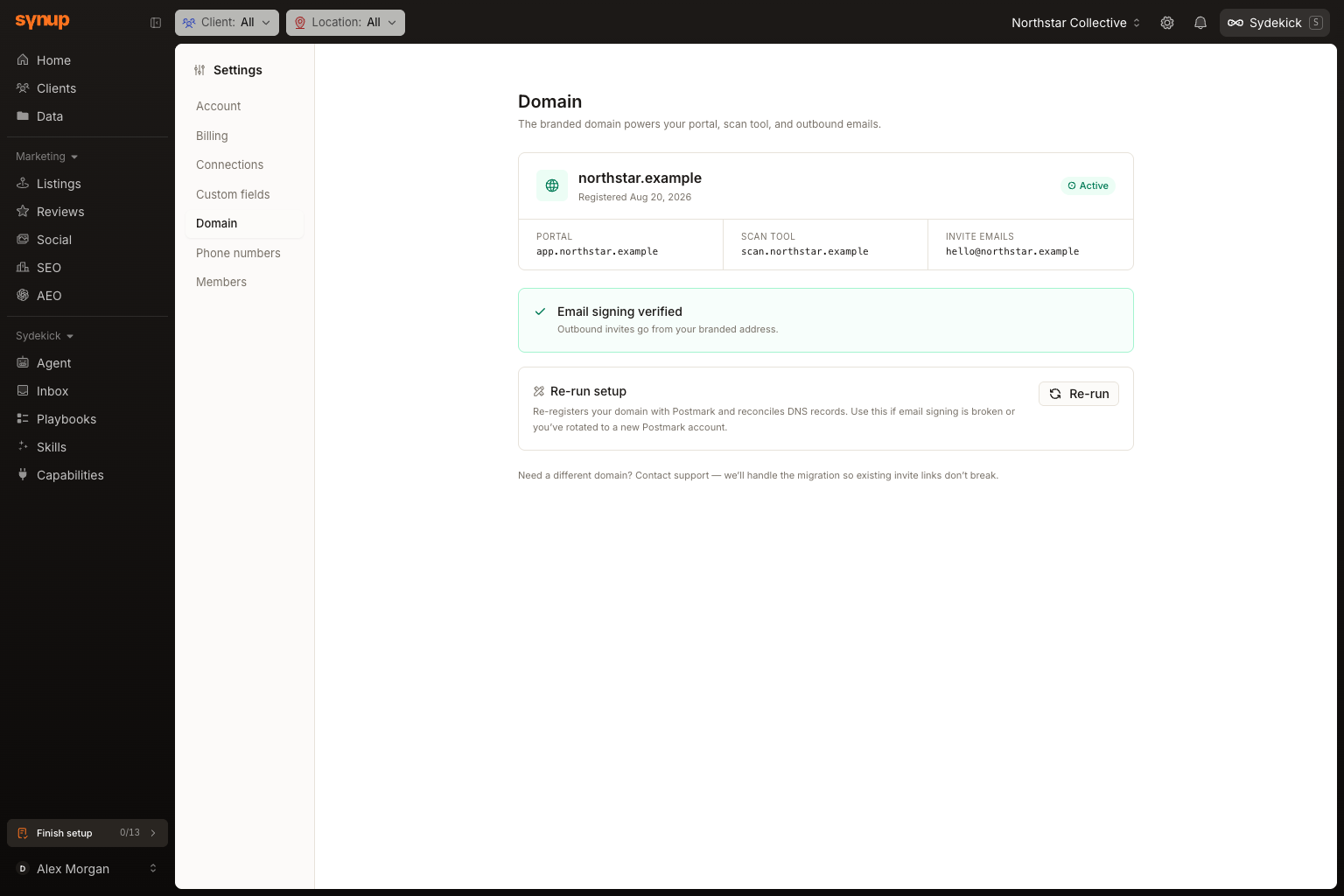
Open Settings → Domain. The active-domain card should show the claimed domain and the addresses for Portal, Scan tool and Invite emails.
Check the email-authentication panel. If it reads DKIM setup pending, use Re-check after provisioning has had time to finish.
If the domain is active but its setup is damaged, use Re-run setup only after confirming that a repair is needed. This reconciles the current domain's email and DNS configuration.
What you'll see when it's done
- The domain card shows Active.
- The three customer-facing addresses use the same branded domain.
- The email panel shows DKIM verified when authentication is ready.
Watch out for
Questions people ask
What should I check before I begin?
Confirm that the workspace includes white-label access and that you are ready to use the selected name across customer-facing surfaces. An active domain cannot be switched from the picker; contact Synup Support to migrate it.
How will I know the workflow is complete?
The Domain page shows the selected name as Active. Web surfaces can be active while DKIM is still pending, so check the email-authentication panel separately.
Next
Set the logo, favicon and primary color in agency branding.