
Configure Client Portal branding
How do I configure client-app branding?
Use Client app settings to turn an entitled agency's client portal into a consistent branded experience. Set the default logo, favicon and primary color, review them in the live preview, then save. You can start from the agency's existing branding or configure the Client App separately. A client's White Label tab can override this agency default.
Key facts
- Access: this page is not currently listed in normal Settings navigation. While signed in, open
ai.synup.com/settings/client-appdirectly. - Prerequisite: Client App branding requires white-label access. Synup shows a plan-locked panel when the agency is not entitled.
- Agency default: saved values become the default presentation for every client portal.
- Per-client control: a client's White Label tab can override the default for that client.
- Preview before save: the page's preview reacts to the values in the editor, but customers do not receive the change until you select Save changes.
Why this matters
A Client App is more useful when customers recognize whose workspace they are entering. A clear logo, browser icon and primary color connect the portal to your agency while leaving room for a client-specific presentation when needed. The on-page preview lets you check the overall result before making it the agency default.
Steps
While signed in to Synup, open
ai.synup.com/settings/client-app. The page is currently available only through this direct Product address, not through the Settings menu.Choose your starting point:
- Select Use my branding to copy the agency's current logo, favicon and primary color into the editor.
- Or add a separate Client App presentation with the controls under Branding.
Add a Logo as a PNG or SVG under 500 KB. Add a square Favicon as a 32×32 or 64×64 PNG under 128 KB.
Under Primary color, select the swatch and choose the color used for buttons, links and active navigation states.
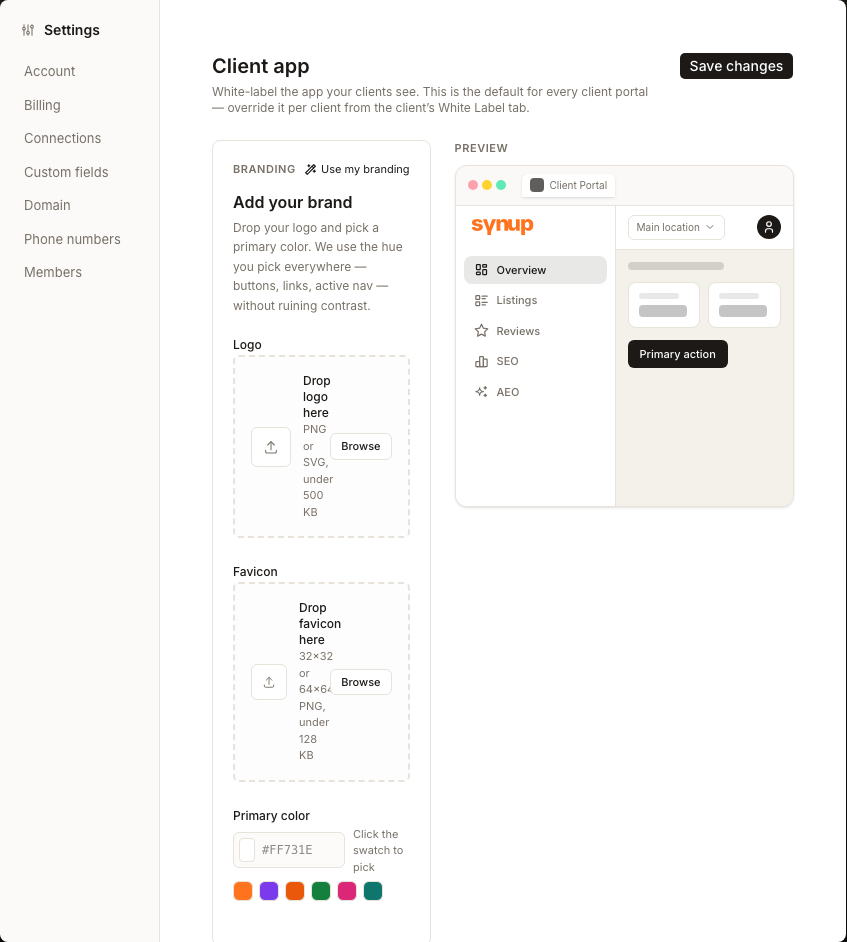
Review the Preview. Check that the logo remains clear, the favicon is recognizable at a small size and the primary color keeps text and controls easy to read.
Select Save changes only when the preview is correct. If a specific client needs a different appearance, open that client's White Label tab and set the override there.
What you'll see when it's done
- Synup displays Client app branding saved after the agency default is accepted.
- The preview reflects the configured logo, favicon and primary color.
- Client portals use the agency default unless a client has its own White Label override.
Watch out for
Questions people ask
What should I check before I begin?
Confirm that the agency has white-label access, prepare correctly sized logo and favicon files, and choose a primary color with readable contrast. Decide whether every client should inherit this default or whether a particular client needs an override.
How will I know the workflow is complete?
Look for the Client app branding saved message. Reopen the page and confirm the editor and preview show the intended default. Where a client has a White Label override, verify that client separately.
Next
Continue to configure Client App token sales, or update the broader agency branding.