
Invite and manage members
How do I invite members and manage their access?
Open Settings → Members to see who can use the workspace. From there, a workspace owner or Admin can invite someone, choose the pages they may open, edit an active member's access, unlock an eligible locked member, or remove access. Any teammate can resend a pending invitation.
Key facts
| Where it lives | Settings → Members |
| What you need first | Workspace owner or Admin access for invitations and access changes |
| What it changes | Workspace membership and the pages each member can open |
Why this matters
Page access should match the work a teammate actually performs. Reviewing it when someone joins or changes roles prevents unnecessary access to account, customer and agent data.
Steps
Open Settings from the top bar, then select Members.
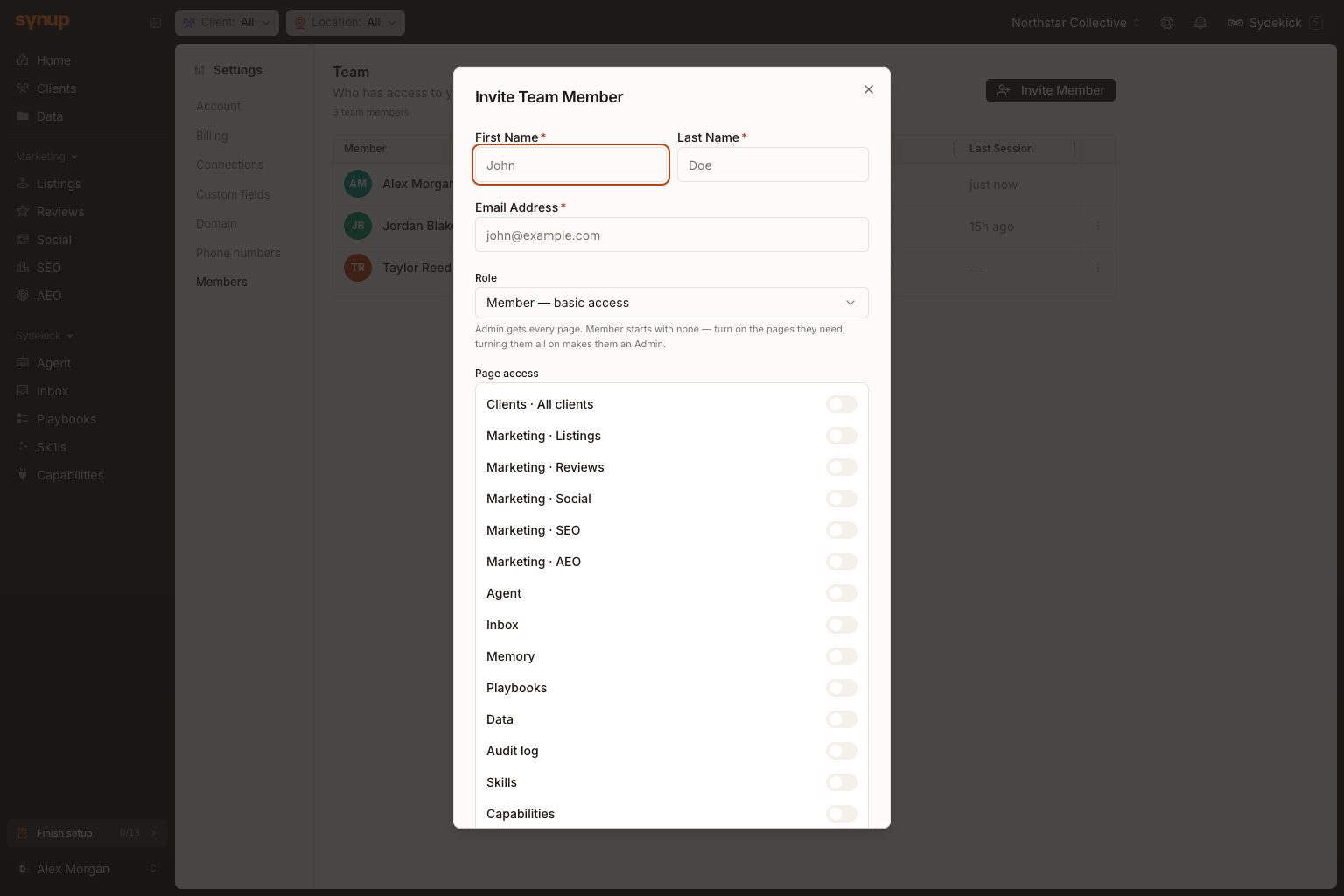
Select Invite Member and enter the person's first name, last name and email address.
Choose an access preset, then review the switches under Page access. Admin — full access switches on every listed page. Member — basic access starts with no pages selected, so enable only what the person needs.
Select Send Invitation. Synup emails the invitee a link to join the workspace. If that email is already associated with another Synup workspace, Synup can link the invitation to the existing account so the person can use multiple workspaces with the same login.
Manage an existing invitation or member
The Team page shows Member, Email, Role, Status and Last Session. Open the three-dot menu at the end of a row to see the actions available for that member's current state.
- For an Invited member, any teammate can use Resend Invitation to replace the old link with a fresh seven-day link. A workspace owner or Admin can use Delete User to cancel the pending membership.
- For an active member, use Edit Permissions to change page access or link their Slack identity when the workspace has Slack connected. Revoke Access removes the membership; restoring access requires a new invitation.
- Unlock account appears for an eligible locked Member. Locked Owner or Admin accounts require Synup Support rather than this row action.
A successful resend shows a confirmation message. If resend or unlock fails, Synup shows an error and leaves the current state in place. Delete User and Revoke Access ask for confirmation; the row is removed only after the action succeeds.
What you'll see when it's done
- A new row with the status Invited after an invitation is sent.
- A Role value of Member or Admin that reflects the selected page access.
- Page-access switches that reflect the selected preset.
- State-specific actions in the member's three-dot menu.
Watch out for
Questions people ask
What should I check before I begin?
Confirm the person's email address and the minimum pages they need. Sending an invitation creates account access; revoking or deleting removes it.
How will I know the workflow is complete?
The person appears in the Members table. New invitations show Invited until the recipient joins; active members show Active.
Next
Return to Settings whenever a teammate changes responsibilities and review their page access again.