
Connect a custom MCP server
How do I connect a custom MCP server?
Capabilities is where you give your agent reach beyond Synup — your CRM, your inbox, your calendar. Five capabilities come with the plan, and you can search for hundreds more in Discover. Search there first. Use Add server when the tool is not in the catalogue and publishes its own MCP address.
Four parts of one page
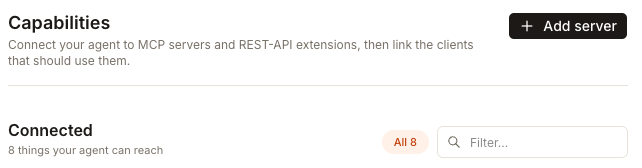
The page's own subtitle names two kinds of connection — MCP servers and REST-API extensions — and that is as far as the distinction goes in practice. Both end up as a card under Connected, both are linked to clients the same way, and the page does not ask you to choose between them. Take the route the tool offers.
Read the page in four parts and it stops being a wall of cards.
Included
Comes with your plan, already agency-wide. Web scraping, SEO data, Synup itself, demographics, local events. Nothing to set up and no key to find.
Ready
Something you connected. The card names the account it is using and gives you Reconfigure, Linked clients and Disconnect.
Discover
A searchable catalogue of apps, with a Connect button on each one. Try here before you think about a server.
Add server
For a tool with no catalogue entry. You supply its name and address, and credentials only if the vendor needs them.
Included and Ready are not the same thing
The badge on a card tells you who is responsible for it.
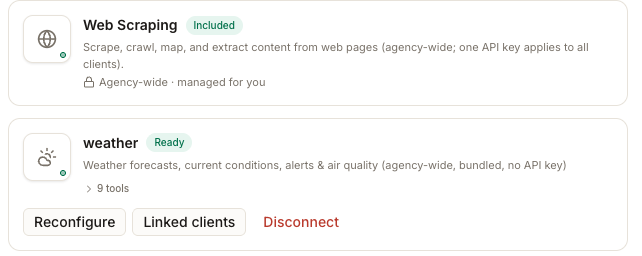
Included means it comes with your plan and there is nothing to set up — the lock line reads "Agency-wide · managed for you". Ready means your agent can use it now because someone here connected it, and that card carries the controls: Reconfigure to update credentials, Linked clients to choose who it applies to, Disconnect to remove it.
Two other states show up on a card and both mean the agent is not using it. Needs setup is waiting on credentials. Not working means the agent tried and was refused, which usually means a key was rotated or access revoked at the other end — Reconfigure is the fix for both.
Search Discover before you add a server
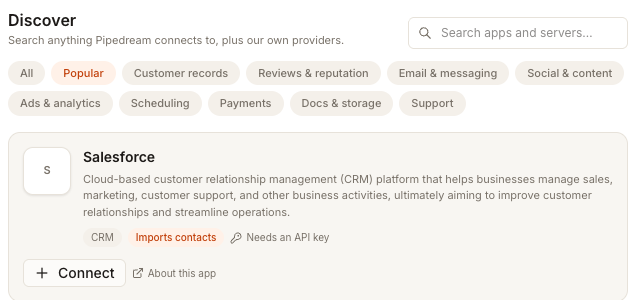
Filter by what you are trying to do — customer records, reviews and reputation, email and messaging, scheduling, payments — or type a name. The tags on each card tell you what the connection will cost you in effort before you start: Sign in, no keys hands you off to the provider's own login, Needs an API key means go and fetch one first, Imports contacts warns you that data will move.
Anything you connect here appears under Connected as Ready. This is the path for nearly everything.
Adding a server of your own
Add server, top right, opens Add a custom MCP server — and it asks for less than people expect.
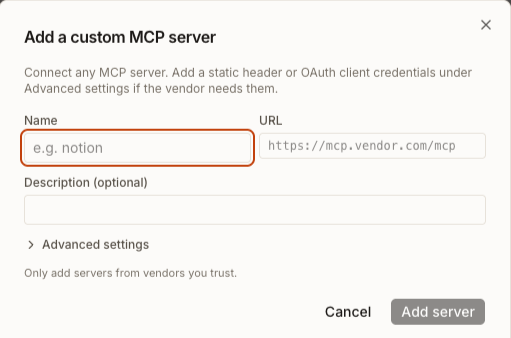
Name is a short label for your own reference. URL is the server address the vendor publishes. Description (optional) is for whoever reads this page after you. Then choose Add server: Synup tries to connect on its own first, and most servers need nothing else.
Advanced settings is collapsed for a reason. Open it only if the vendor's own documentation says you have to — a Header(s) row for a plain API key, or an OAuth client ID and OAuth client secret if the vendor issued you a pair. Its own note is the honest summary: "Most servers need none of this — Sydekick tries to connect automatically first. Fill these in only if the vendor's own docs say you need to register an app." If a first attempt reports that it did not connect automatically, that is the moment to open Advanced settings, add the client ID, and try again.
Choose which clients can use it
A connection is not automatically for everyone. Linked clients on a Ready card is where you decide — link a client, and the agent may use that capability while working on them. Included capabilities skip this; they are agency-wide by design.