
Configure and run a playbook
How do I configure a playbook and run it now?
A playbook is a repeatable routine your agent can run on demand or on a schedule. Playbooks in the sidebar lists what you have, what is active, and what runs next. Anything you find yourself asking Sydekick for every week belongs here instead.
Find the one you want

Under the header, a week strip shows what is due in the next seven days, and Month view widens it.

Four counts, and each answers a different question. Active is what is genuinely running. Paused is what someone stopped. Custom is what your team wrote, as opposed to the ones Synup ships. The list is ordered by next run, so the top of it is what happens soonest.
Reading a card
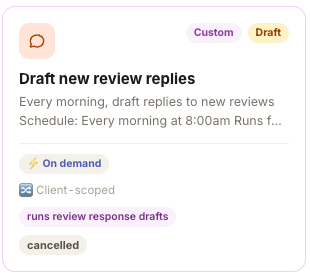
Everything you need to judge a playbook at a glance is on the card.
The badges top right say where it came from and whether it is live: Built-in for Synup's, Custom for yours, Draft for one that has been saved but never switched on. The chips along the bottom say how it behaves — ⚡ On demand or a schedule such as ⏰ Weekly 9am, 🔀 Client-scoped meaning it runs against one client at a time, and runs … naming the skill it uses.
The last chip is its history. ✓ 4/4 means every step of the last run finished. ⚠ partial · 1/3 means it got part of the way. cancelled means someone stopped it. A partial or cancelled chip is the signal to open it before you rely on it again.
A draft never runs on its own
This is the single thing people get caught by, so the product says it twice: on the card as a Draft badge, and again in a banner when you open it.
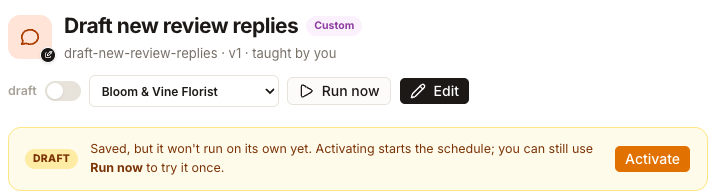
"Saved, but it won't run on its own yet. Activating starts the schedule; you can still use Run now to try it once."
Read try it once literally rather than generously. It means one real run, not a rehearsal.
- Run now starts the playbook immediately rather than waiting for its schedule. It does the whole job for the client in the selector beside it — real work, real output, real credits — and leaves the schedule off.
- Activate starts the schedule. From then on it runs without you.
Run now is not a preview. Review the playbook's scope and instructions before using it: check which client the selector is pointing at, and read The flow — what happens each run so you know what it will actually do. If what you want is to see the output without anything leaving Synup, that is Rehearse in the create flow, below.
Creating one
Create a playbook opens a five-step flow, and the header states the reassuring part before you type: nothing is created yet.
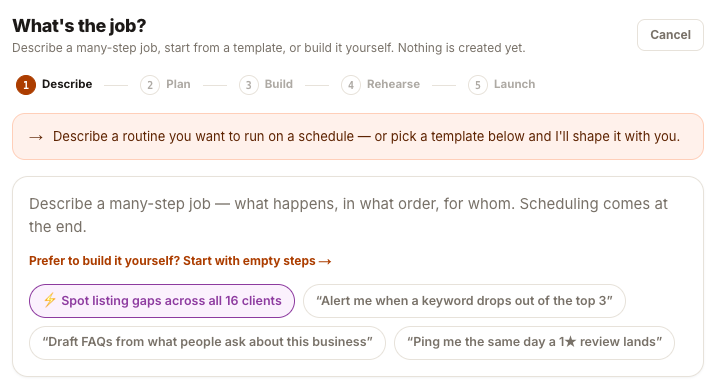
Describe the routine the way you would explain it to a colleague — what happens, in what order, for whom. Scheduling comes at the end, so do not try to specify it up front. The chips underneath are working examples, and below them are ready-made routines tagged SMALL · SAFE TO TRY or NEEDS SEARCH DATA so you can see what a starting point costs before you pick it.
Rehearse is the step worth using. A practice run has the agent try the routine for real so you can see what it would produce — the flow labels it "Dry run · nothing is sent or saved". It still reads your live data and still spends credits; what it does not do is publish or store anything. Rehearse on a client where an odd result is harmless.
When you save, the routine asks the same question a taught skill does: Ask my approval before anything goes live, on by default. Leave it on and everything the playbook produces waits in Inbox → Approvals. Turn it off and the product tells you exactly what you have chosen — "The agent will act without approval. You can change this anytime."
This is a setting on this playbook, not on Sydekick. Every routine carries its own, and switching one off says nothing about the others.
Watch out for
Questions people ask
Why does the filter say Active 5 when nothing ran today?
Active means the schedule is on, not that it is due today. Use the week strip at the top of the page to see what actually runs each day.
Can one playbook cover all my clients at once?
Not directly. The client-scoped ones run against one client per schedule, so covering several means several entries. That is why the same routine can appear more than once with different targets.