
Understand Sydekick skills
How do I find a skill and understand what it lets Sydekick do?
A skill is one named job your agent already knows how to do — draft replies to unanswered reviews, generate a week of local post ideas, look up a business profile. Skills in the sidebar is the full list, and it is agency-wide: every client sees the same jobs. Open one to find out exactly what it does and which phrases start it.
Finding the one you want

The subtitle counts two things: how many jobs exist, and how many your team taught. In a new workspace they are all Synup's.
Search matches a skill's name, short name, description and trigger phrases. Filter is the one worth knowing, because it has two tabs and they answer different questions.
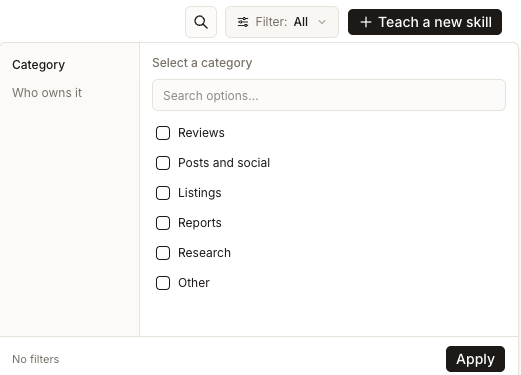
Category groups skills by the work they do — Reviews, Posts and social, Listings, Reports, Research, Other. Use it when you know the outcome you want but not the skill's name. Who owns it splits the list into Yours and From Synup, which is how you find the ones your own team wrote. Tick what you want and choose Apply; the button reads Filter: All whenever nothing is set.
That is the whole browsing model. There is no client filter here, because there is no client-specific version of the library.
What a skill's own page tells you
Choose Open on any card.
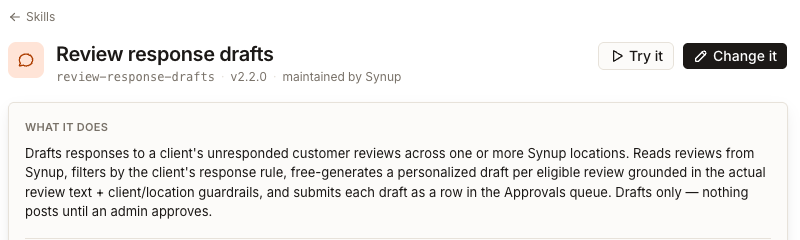
The line under the title is the provenance: the skill's short name, its version, and who maintains it — for example, maintained by Synup, taught by you, taught by a teammate or shared in your workspace. What it does is the plain-English summary. Read it before you rely on a skill; several of them queue drafts for approval rather than publishing, and the description is where that is stated.
When it runs is the part people miss.
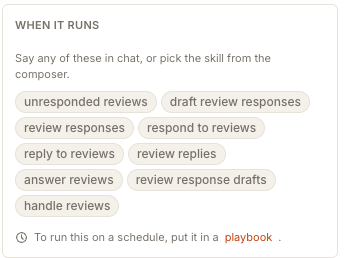
Those chips are trigger phrases. Say any of them in a Sydekick conversation and that skill runs — you do not have to open this page at all. The alternative is picking it deliberately from Skill in the message box. And the footnote is the important boundary: a skill has no schedule of its own. "To run this on a schedule, put it in a playbook."
The panel beside it, How it is doing, is measuring less than it appears to. Its own footnote says scheduled runs only — anything you started by typing a trigger phrase in chat is not counted, so a skill you use constantly can sit at zero. Read it as playbook activity, not usage.
There is no permission setting on a skill
This is the thing most people come here looking for, so it is worth saying plainly: a skill has no access control. There is no per-user, per-client or per-channel permission on it, and no way to grant one person a trigger phrase and withhold it from another. The two filters above are the only controls on this page.
What does decide whether a skill's output reaches a customer is the approval instruction the skill carries — "Ask for my approval before anything goes live" — chosen when the skill is taught. It sits inside the skill's own instructions, so it applies to the work rather than to the person, and everyone gets the same behaviour. Teaching it is covered in teaching a new skill.
You will also not see every skill your agent has. Three always-on skills that carry your agency's standing rules are deliberately kept out of this list, because they are settings rather than jobs. They are not editable from here.
Changing one you did not write
Change it edits the trigger phrases and instructions of a skill your team taught, and saving restarts the agent so it picks the new version up.
Synup's own skills are locked. Choosing Change it on one of those offers you a copy instead — "Built-ins are maintained by Synup and locked, so changing one means keeping your own copy." Your copy takes a new name, and the original carries on unchanged.