
Read the Agent audit log
How do I read the Agent audit log and find one action?
Agent → Audit logs in the sidebar holds every action your agent has taken. Four tiles summarise the period you have selected; the table below lists the most recent actions inside it. Narrow it with search or the Capability, Initiator, Status and Date controls, open any row for its detail, and use Export to download the view you are looking at.
Start by reading the tiles for what they measure
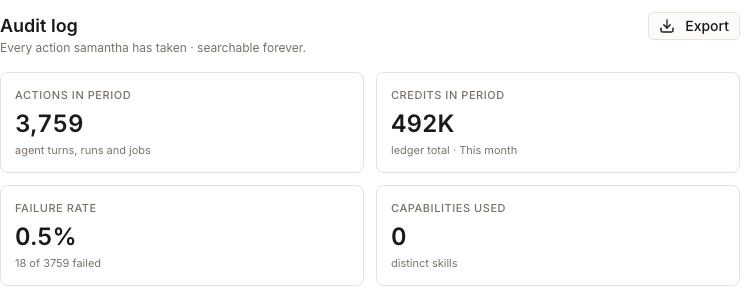
All four follow the Date control, and each answers a different question.
Actions in period counts everything the agent did in the window — chat turns, playbook runs and scheduled jobs together. Credits in period is the credit ledger's own total for that window, not the sum of the rows on screen, which is why it can be far larger than the table. Failure rate prints its own arithmetic underneath, so you can tell 0.5% of a few actions from 0.5% of thousands.
Capabilities used is the one to read carefully, because the sub-label is the accurate part: it counts distinct skills the agent invoked, not how many capabilities you have connected. Zero usually means the period was plain conversation with no named skill pinned to it, and never means your integrations are missing. What is connected lives on Capabilities in the sidebar, which is a different thing entirely.
Narrowing it down

The search box matches an action's name, its target and who started it. Capability and Initiator use values found in the current log. Status filters to Success, Failed, Awaiting or Running, and Failed only is a shortcut to failed actions. Use Playbook runs only when you want to leave chat and other jobs out of the view.
Date — This month, Last 24 hours, Last 7 days, Last 30 days, Last 90 days — does more than filter. It sets the window the tiles measure and how far back rows are fetched. When the line under the controls says most recent only, widen the range to load more, the visible rows are not the whole history for that selection.
A Client control appears only when the current log carries client values. If it is absent, the available actions cannot be narrowed by client on this page.
What one action is, and what is inside it
Each row tells one activity story: a chat conversation, a playbook run or another job. Read across it for the time, conversation, request, initiator, outcome, status, credits and duration. Select the chevron to open one row, or turn on Show step detail to expand the rows in the current view.

The expanded detail shows what was recorded for that activity. Depending on the row, that can include the full prompt, outputs, decision or run context, execution steps and links back to the conversation, run or Inbox item. A row does not need to contain every section: the log shows only the detail that exists for that activity.
Export the audit log
Export downloads the rows you are looking at, in the order you are looking at them, as a CSV. Your filters apply, so a Failed only view of last week exports as exactly that. The file carries the table's columns plus each action's model and capability, and the recorded steps come too when Show step detail is on. The button is greyed out on an empty table, so a click always means something.
Export is manual and per view. There is no scheduled or emailed version of this report, and no setting anywhere that turns one on — if you need it weekly, you download it weekly.
How this relates to your credit usage
Both pages read the same ledger, so for the same window they agree: set Date to This month and the Credits in period tile here is the Credits used headline on Agent → Home. They divide the work, though. Home tells you which service spent your credits; this page tells you which action did. Chasing an unexpectedly large month usually means starting on Home to find the service, then coming here with the range set to match.