
Review Sydekick approvals
How do I review and approve the work Sydekick drafts?
Open Inbox → Approvals to review work Sydekick has drafted. Read the draft and its destination before you decide: Approve authorizes the publishing action, while Reject removes the draft from the pending queue without publishing it.
What the three tabs hold
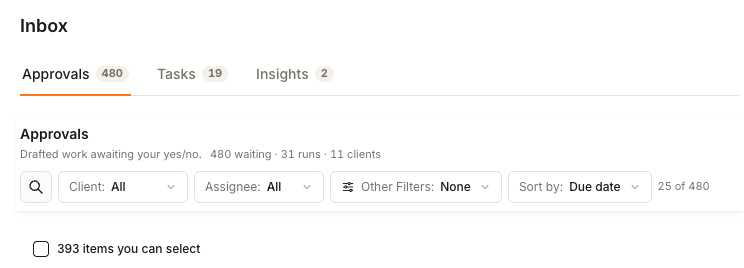
Approvals
- Holds
- Finished drafts — posts and review replies — waiting on a yes or no.
- You
- Approve, reject, or reassign to a colleague.
Tasks
- Holds
- Things the agent suggests you do next, which nobody has picked up.
- You
- Start it, hand it to a colleague or back to Sydekick, give it a date, or mark it done.
Insights
- Holds
- Findings — anything it noticed that is not a draft and not a task.
- You
- Read it, turn it into a task, or hand it to Sydekick to act on.
Each tab badge counts what that tab shows by default. The line beneath Approvals summarizes the pending items, the Sydekick sessions or playbook runs that produced them, and the clients represented in the queue.
Review one draft before deciding
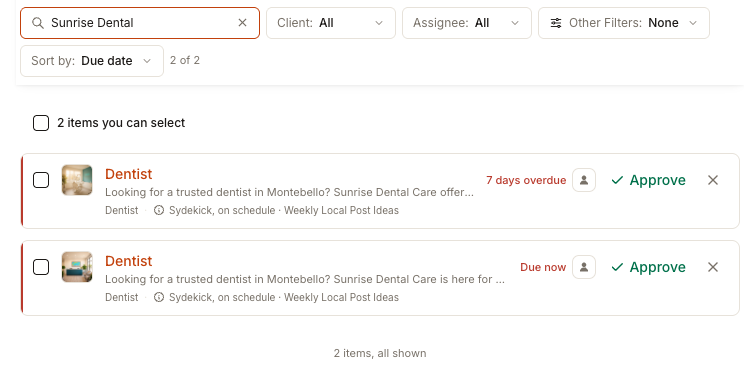
- Start with search, Assignee, Other Filters, or Sort by. Search matches the draft text, client, location, source, due text, and assignee. The Client filter can currently open empty; use search when it does.
- Read the card's draft excerpt, client and location, source line, and due state. Sydekick, on schedule identifies a playbook run; Sydekick, asked by identifies a person who requested the work.
- Select the card to open the full preview. Review the complete draft before you decide; if the content is not available, do not approve it.
- If the draft needs work, assign it or use Tweak on the detail page. A rewrite remains pending for a human decision.
- Select Approve only when the draft is ready to publish. Select the ✕ Reject control when it should not go out.
There is deliberately no keyboard shortcut for approval. The arrow keys can move between drafts, but publishing always requires selecting the on-screen control.
Separate the decision from the publish outcome
Most secondary controls live behind Other Filters.
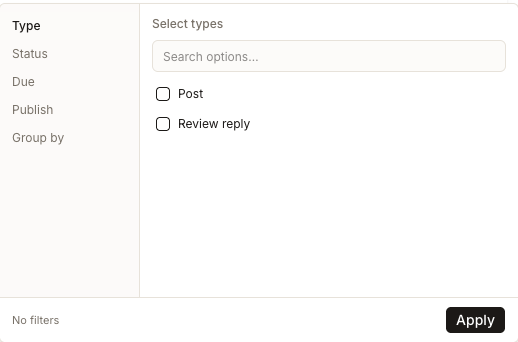
Type separates posts from review replies. Due narrows to Overdue, Today, or This week. Group by can arrange the list by Sydekick session, Client, or Type. Choose the options you need and select Apply.
Status answers whether a person has decided: Pending approval, Approved, or Rejected. Approved and Rejected views are read-only, so their cards no longer show decision controls. Newer decisions show who decided and when that information was recorded; older records show only the decision details the system has.
Publish answers a different question: whether approved content reached its destination. Its states are Published, Saved as draft, Publish failed, and Not published yet. A saved draft may need a publisher connection before it can go live; a failed row retains the publisher's available reason.
The Agent audit log follows the same lifecycle. One approval entry changes from Awaiting decision to its Approved or Rejected result, rather than creating a second, unrelated event.
Approving several at once
Every pending row has a checkbox, and the line above the list selects everything currently filtered — including matching items not mounted on screen yet. Filter first, check the displayed selection count, and then approve, reject, or assign the selection.
Two kinds of row are deliberately left out of a bulk selection, and each says why: one whose last publish attempt failed, and a post with No image. Both need a look on their own. Generate an image on that row makes one before you decide.
Tweak all rewrites a group or selection in place while keeping it pending. When a group contains both posts and review replies, choose one type first so one instruction is not applied across two different kinds of customer communication.
The queue loads the 500 most recent items and says when it has hit that ceiling. Filtering is how you reach the rest.
If the Client filter opens empty
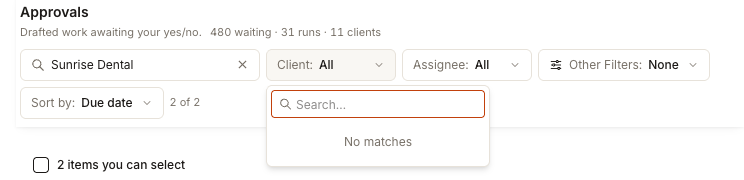
The deployed queue can currently show clients in its summary while the Client filter reads No matches. This is not caused by your setup. Use the search control instead; it reads the approval rows directly and can match a client or location name.
Watch out for
Questions people ask
I approved something. How do I check whether it went out?
Use Other Filters → Status → Approved to find the decision record. Then use Publish in the same panel to distinguish Published, Saved as draft, Publish failed, and Not published yet.
Fifty drafts came through with almost the same wording. Is that a fault?
No — that is one playbook running across many locations. The queue groups near-identical copy together and tells you how many share the same caption, so you can read one, decide once and select the group. If the wording is wrong for all of them, Tweak all beats rejecting fifty.