
Check assistant usage and billing
How does a client check assistant usage and billing?
Open the avatar menu in the Client Portal and select Usage & billing. The current page is a read-only assistant-usage view: it shows Tokens available and Used for the client. It does not expose invoices, payment methods, token purchases, or plan changes, so contact the account manager for those requests.
Why check this page
Assistant tokens are assigned to the client, not to an individual location. Checking the wallet answers a practical question before starting more assistant work: how much capacity is still available for this client?
The entry sits in the account menu instead of the main Overview-to-AEO navigation because it applies to the client account as a whole.
Check assistant usage
- Open the Client Portal.
- Select the avatar in the upper-right corner.
- Select Usage & billing.
- On Your plan, compare Tokens available with Used.
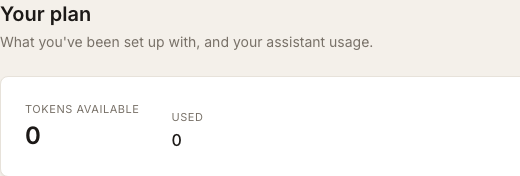
Tokens available is the current balance the client can use. Used is the amount already consumed. These values describe assistant usage; they are not an invoice or payment history.
If Synup marks the balance as low, the page adds a message telling the client to contact the account manager to top up. That message appears only when the balance is in the low-balance state.
For payment or plan changes
The Client Portal does not provide controls to:
- add or replace a payment method;
- view or download invoices;
- buy or top up tokens; or
- change the client’s plan.
Contact the account manager for any of those changes. Include the client name and the Tokens available value shown on the page so the request has the right scope.
Questions people ask
Can I buy more tokens here?
No. Usage & billing reports the current balance but does not provide a purchase or top-up control. Contact the account manager.
Can I check one location’s token usage?
No location selection is needed on this page. The wallet is client-scoped.
Next
For the rest of the Client Portal, see open and navigate the Client Portal.