
Configure client AI-token sales
How do I configure the AI-token packages clients can buy?
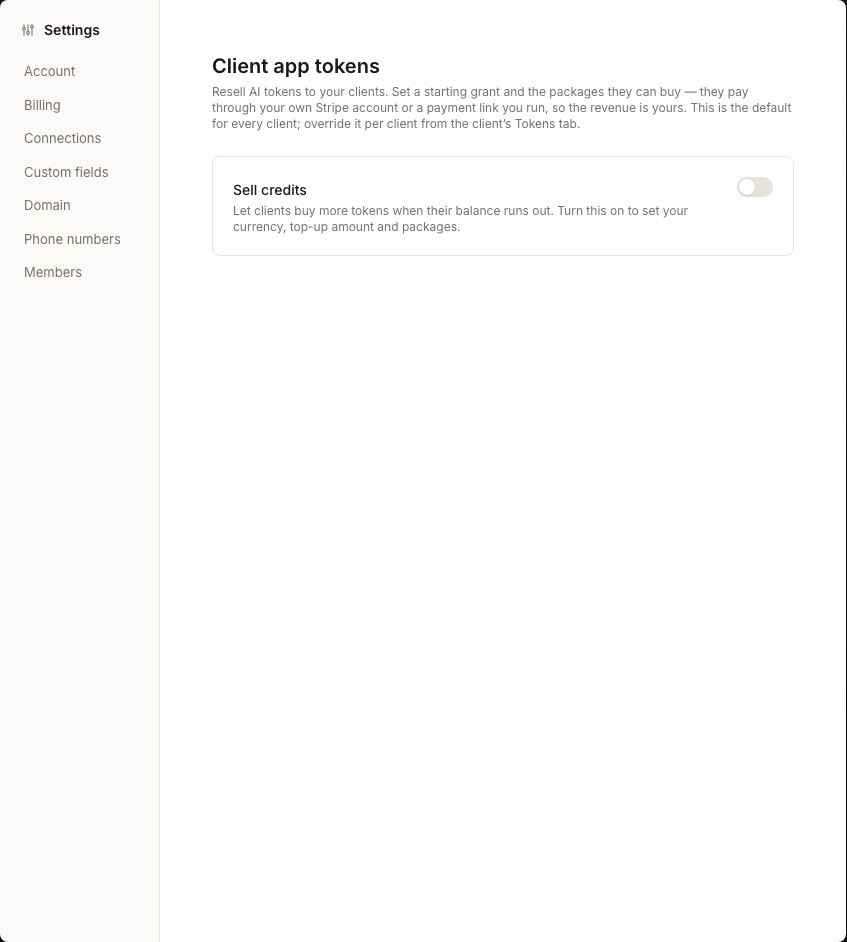
Use Client app tokens when your agency wants clients to buy more AI tokens from the Client App. You control whether sales are available, how clients pay, the currency, their initial grant, low-balance alerts and the packages offered. The agency-level setup becomes the default for every client, while a client's Tokens tab can hold an override.
Key facts
- Access: this page is not currently listed in normal Settings navigation. While signed in, open
ai.synup.com/settings/client-app-tokensdirectly. - Payment prerequisite: connect an agency Stripe account or provide and verify a hosted payment link before saving enabled sales.
- Agency default: the configuration applies to every client unless that client's Tokens tab has an override.
- Separate save behavior: general selling settings use Save. Adding, editing or removing a package saves that package-list change when you confirm it.
Why this matters
Token sales let an agency offer clients a controlled way to replenish the AI capacity they use. A consistent default prevents every client from needing a separate setup, while package prices, currency and the payment path keep the purchase experience aligned with how the agency operates. Per-client overrides remain available when one client needs different terms.
Steps
While signed in to Synup, open
ai.synup.com/settings/client-app-tokens. The page is currently available only through this direct Product address, not through the Settings menu.Review Sell credits. Turning it on opens the selling settings for review but does not save the enabled state until you select Save. Cancel returns to the prior state.
Under How clients pay, choose one payment path:
- Stripe account: connect the agency's Stripe account. Synup requires a connected account before it enables Save.
- Payment link: enter a hosted payment URL and select Verify. Clients open that link to pay; after payment, credit their tokens from the client's Tokens tab.
Choose the Currency, then enter an Initial grant (tokens) and a Low-balance alert at (tokens). Enter
0for the alert to leave it off.Select Save. A change to the agency initial grant is applied only to clients that inherit the agency default and have not spent tokens; clients with overrides or prior usage are left unchanged.
Under Token packages, select Add package, enter a positive token quantity and a non-negative price, then select Save package. Repeat only for packages you actually want clients to buy.
If one client needs a different setup, open that client and use its Tokens tab instead of changing the agency default.
What you'll see when it's done
- Synup displays Token settings saved after the general settings are accepted.
- With sales on, the page shows a read-only Selling settings summary and the available token packages.
- Clients that inherit the default see those packages when they need to top up; a per-client override takes precedence for that client.
Watch out for
Questions people ask
What should I check before I begin?
Decide on your payment path, currency, initial grant, alert threshold and packages. Stripe must be connected, or a payment link must be verified, before enabled sales can be saved.
How will I know the workflow is complete?
Look for the Token settings saved message, then confirm the Selling settings summary shows the intended payment method, currency, grant and alert. Confirm that each intended package appears in the package list.
Next
Continue to configure the Client App, or review agency branding for the wider branded experience.