
Open and navigate the Client Portal
How does a client open the app and which modules can they see?
Open a valid passwordless link in the client’s portal-invite email. In the Client Portal, select the location you want to inspect, then choose Overview, Listings, Reviews, SEO, or AEO. The client’s plan controls which non-Overview modules appear, so two clients may not have identical navigation.
Open the portal securely
The invitation uses a passwordless magic link; Synup does not issue a portal password. Each link is valid for seven days and can be used once. Sending a replacement invitation does not invalidate an older link that is still unused and unexpired.
If the link has expired or has already been used, ask the agency for a new Client Portal invitation. Do not forward a working portal link to another person because it grants access to the client’s reporting view.
Choose the location before the report
Use the picker at the top of the portal to select the branch you intend to inspect. Synup preserves that location as you move between modules, which keeps the Listings, Reviews, SEO, and AEO evidence tied to the same branch.
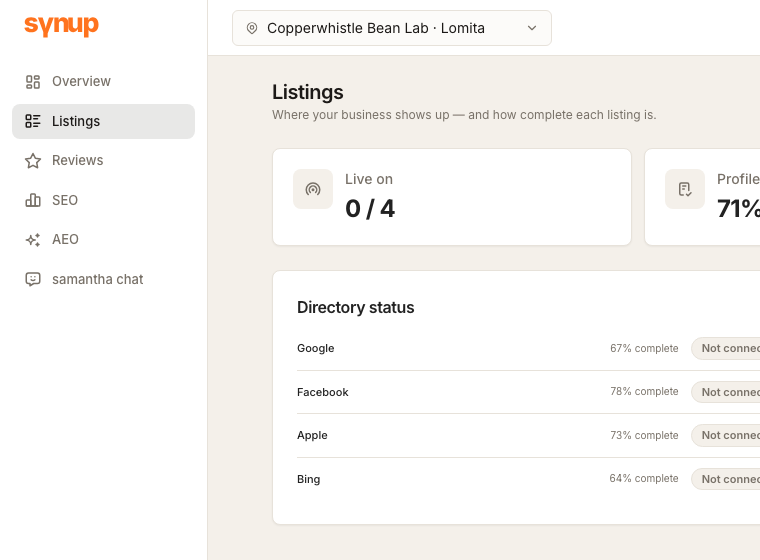
For a multi-location client, checking the location name first matters more than recognizing the business name: two branches can have different publisher connections, reviews, and search performance.
Choose the module that matches the question
| Customer question | Open |
|---|---|
| What is happening across the selected location? | Overview |
| Where is this location live, and how complete is its profile? | Listings |
| What are customers saying? | Reviews |
| How is the location performing in local search? | SEO |
| How visible is the location in AI search? | AEO |
| Can I ask a reporting question conversationally? | Assistant or the agency-branded [name] chat entry |
Overview is always present. The other reporting tabs appear only when the client’s assigned plan makes them visible. A missing tab does not mean the portal failed to load; ask the agency whether that capability is included for the client.
The avatar menu contains Usage & billing and Log out. On a phone, the reporting navigation moves from the left sidebar to a bottom bar, but the module names and selected-location context stay the same.
Questions people ask
Why do I see fewer modules than the screenshot?
The current portal filters Listings, Reviews, SEO, and AEO according to the client’s plan entitlements. Overview remains available.
Does changing modules change the selected location?
No. The portal keeps the selected location in the page address as you move between modules. Still check the picker before interpreting or sharing a result.
Next
To inspect publisher status, see check client listing connections. To review assistant capacity, see check assistant usage and billing.