
Review user-generated media
How do I review and classify user-generated media?
Open Data → Assets, choose UGC, and filter Media status to Needs review. Select each customer photo, verify its location and content, then choose Flag, Spam, or Mark OK. These controls record Synup’s internal moderation state; they do not remove the photo from Google.
Build the review queue
- Open Data → Assets.
- Select the UGC source.
- Set Media status to Needs review.
- If needed, select a client or location in the global scope controls.
This isolates customer-submitted photos that need a human decision. You can repeat the same process with Spam, OK, or Skipped to audit earlier classifications.
Inspect before changing the status
Select a UGC card and compare:
- the photo itself;
- the associated client and location;
- the current moderation status; and
- whether the content actually belongs to that business and branch.
A customer photo may be relevant to the brand but still belong to a different branch. Location identity is part of the moderation decision, not just the image subject.
Record the internal decision
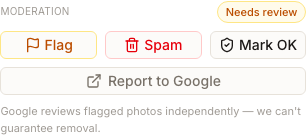
- Choose Flag when the photo should remain in Needs review for another look.
- Choose Spam when the photo is unrelated, inappropriate, or otherwise belongs in the spam queue.
- Choose Mark OK when the photo is acceptable for the associated business and location.
The status pill updates to the selected state. The asset remains in the library and can be found again with Media status.
Report publisher content separately
For a UGC photo, Report to Google opens the applicable Google destination or reporting guidance. This is separate from Synup’s internal moderation state. Google reviews flagged photos independently, and Synup cannot guarantee removal.
Questions people ask
Does Spam delete the photo from Google?
No. Spam changes the status in Synup. Use Report to Google when publisher-level review is needed.
What does Skipped mean?
Skipped is an uncertain automated-classification state. Keep it separate from OK and review it when the photo matters to the business.
Next
To retrieve a specific row first, see find assets. To preserve useful organization after review, see preview and organize assets.