
Find assets in Data
How do I find an asset by source, type, date, scope, or tag?
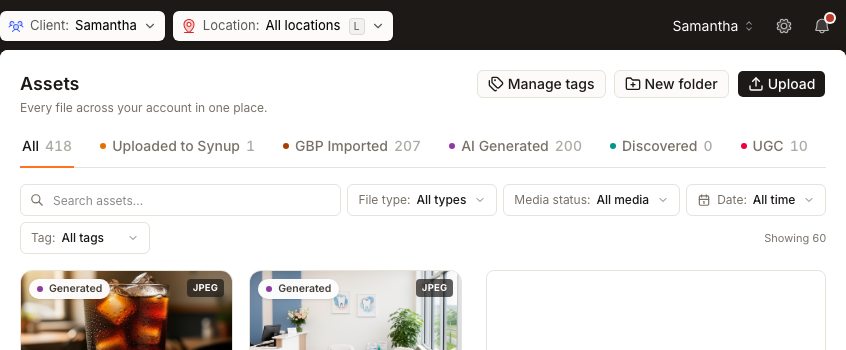
Open Data → Assets. Start with the client and location scope in the top bar, choose the asset’s likely source, then narrow with search, File type, Media status, Date, or Tag. Each added filter should answer one remaining question; combining every filter at once can hide a valid result.
Start with ownership and source
The global Client and Location selectors determine whose library rows are in scope. Leave both at All for an agency-wide search, or choose the client and branch first when the asset must belong to a particular location.
Then choose the source that best describes how the file entered Synup:
- Uploaded to Synup for team uploads and files attached in chat;
- GBP Imported for Google Business Profile media;
- AI Generated for agent-created outputs;
- Discovered for media found from connected web sources; or
- UGC for customer-submitted photos.
Use All when the source is uncertain. The number beside each source is the current count for that view and scope, not a fixed lifetime total.
Narrow only as far as necessary
- Search for a distinctive word from the title or filename.
- Use File type to isolate images, documents, reports, spreadsheets, or video.
- Use Media status when reviewing media classifications such as Needs review, Spam, OK, or Skipped.
- Use Date when the approximate creation period is known.
- Use Tag when the team has already applied a shared label.
The result count updates with the active scope and filters. If the exact card appears, stop narrowing and select it to inspect the preview, source, type, scope, and creation time.
When an older asset is missing
The Date filter works over the assets currently loaded in the browser. If another page is available, select Load more before concluding that an older asset is absent. Loading more reads another page; it does not change an asset.
Questions people ask
Why did the source counts change?
Counts follow the selected client/location scope and the current library. New uploads, generated outputs, imported media, and UGC can change them.
Does clearing a filter change an asset?
No. Search and catalog filters only change which cards are visible.
Next
After finding the file, preview and organize the asset. For customer photos, review UGC moderation status.