
Match unpaired listings to locations
How do I match unpaired publisher listings to my Synup locations?
Bulk matching pairs the profiles inside one connected Google or Facebook account with the correct Synup locations. It is useful when one publisher login covers several branches: Synup can evaluate the account as a group, while you keep the final pairing decision tied to the right branch.
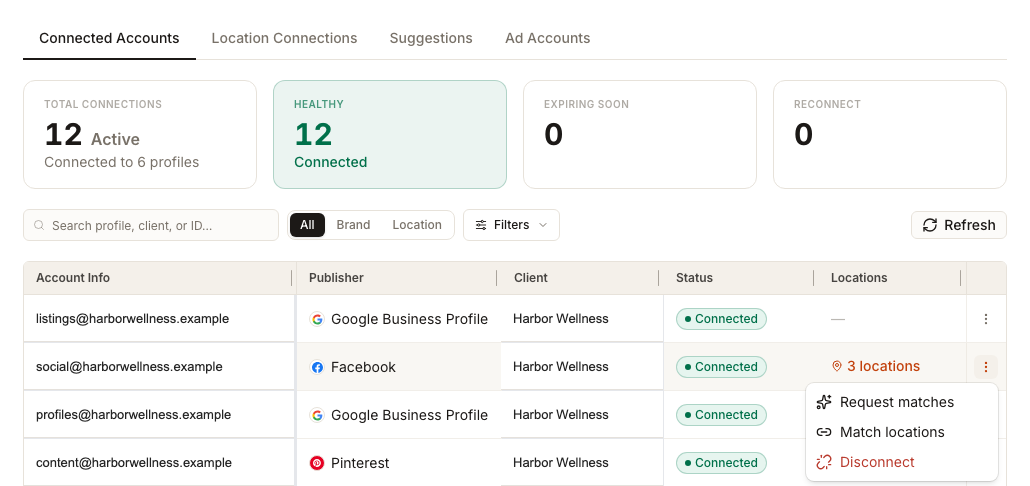
You start from the account, not from the locations: Settings → Connections → Connected Accounts, then the account's own actions menu.
Work from the account outward
One connected account can hold listings belonging to dozens of your locations, which is why the entry point is a row in Connected Accounts rather than anything on a location page.
First, check that the account's Status is Connected. The location count helps confirm that you selected the account covering the branches you expect.
Open the row's actions menu to see the two account-level paths:
- Request matches asks Synup to score publisher profiles already fetched for the account against your current locations. It does not fetch new profiles or create a connection by itself.
- Match locations opens the manual pairing workflow for that account and may refresh its publisher profiles. Each available profile can be paired with the corresponding Synup location, and Confirm all applies only the choices you reviewed.
What Request matches and Find matches mean
Selecting Request matches opens the Find profile matches confirmation. Find matches submits the rescore of profiles Synup already holds for that account. A rescore can produce a potential pairing for review; it does not confirm the pairing.
Use this path after the account's profiles have loaded, especially when locations were added or their business details were corrected. Review the resulting proposals in Location Connections.
Review a potential Suggested Match
When Synup finds a likely pairing, Product labels it Suggested Match on Location Connections. This is a proposal, not a completed connection.
Before proceeding, compare the publisher profile with the Synup location:
- The business names describe the same business.
- The addresses identify the same physical location.
- The branch or neighborhood is correct when several locations have similar names.
Confirm accepts the proposed pairing. Assign Another opens the other available profiles on the account so you can choose a different one. Leave the proposal untouched when the identity is uncertain.
Verify the finished relationship
After Product accepts a pairing, verify it instead of assuming the batch completed. Check the row's status on Location Connections, then open the location's Listings → Premium Listings and confirm that the publisher no longer reads Not connected.
Watch out for
Questions people ask
What is the difference between Match locations and Request matches?
Request matches prepares a rescore of publisher profiles Synup already fetched; Find matches submits that rescore. Match locations opens the manual pairing workflow and may refresh the account's publisher profiles.
Does Suggested Match mean the location is connected?
No. Suggested Match is a proposed pairing. Compare the business name, address, and branch before using Confirm, or use Assign Another to select a different publisher profile.
Next
To confirm the result on a single location, open its directory listings. To keep the connections you've just made from drifting, see monitoring connection health.