
Resolve duplicate listings
How do I find, review, and suppress duplicate listings?
Open a location, then Listings → Duplicates. Synup detects candidates continuously and groups them by the publisher they were found on, so there is no scan to run. Compare each candidate against Your listing, then choose Not a duplicate or Flag for removal. Flagging submits a removal request to that publisher and moves the row to Flagged — it does not delete the listing itself.
Key facts
| Where it lives | A location → Listings → Duplicates |
| Needs first | Nothing. Detection is continuous — there is no scan to start. |
| Lifecycle | Potential → Flagged → Deleted or Failed |
| Grouping | By publisher, each with its own N potential count and View original link |
| Compared fields | Business name, Address and Phone, each tagged Different or Duplicate |
| Confidence | Match score with a band such as High, labelled AI-matched · scores show model confidence |
| Acting in bulk | Tick Select duplicate on each row, then use Mark as duplicate and Submit |
Why this matters
A duplicate splits one business in two. Reviews land on one record and directions on the other, and search engines get two weaker signals instead of one strong one. The queue exists because duplicates are usually created outside Synup — by a publisher importing stale data, or a former tenant's listing still sitting at your address — so they keep appearing even when your own record is correct.
Steps
Open the location, then the Duplicates tab. The Your listing card at the top is the record every candidate is compared against, so check it is right before you judge anything below it.
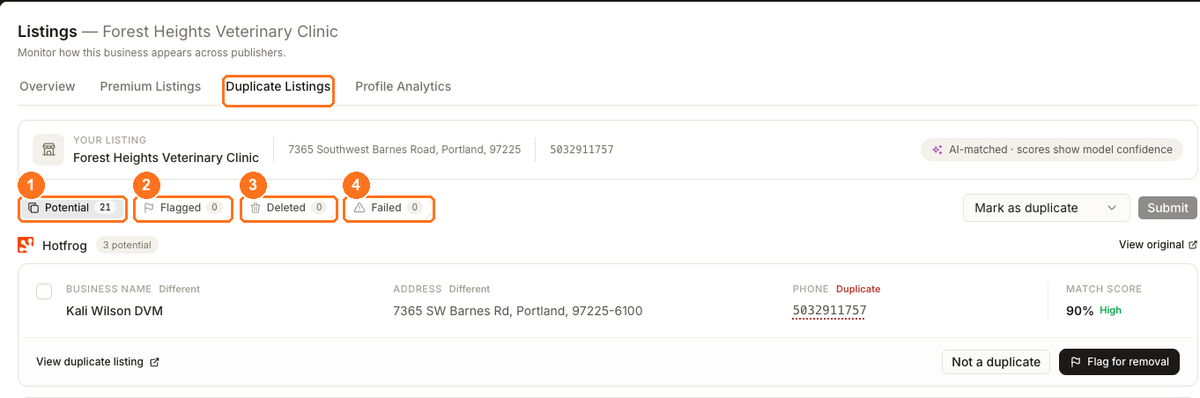
The queue moves from Potential to Flagged, then eventually to Deleted or Failed. The selected tab confirms you are on Listings → Duplicates.
Read the four counts. Potential is your worklist; Flagged is what you have already submitted; Deleted and Failed are outcomes that come back later.
Work through the publisher groups. Each candidate flags Business name, Address and Phone as Different or Duplicate, and shows a Match score with its confidence band.
Open View duplicate listing and look at the real record before deciding. A shared phone number with a different name is often a former tenant or a practitioner listed at your address — not your business twice.
Choose on the card. Flag for removal if it is the same business, Not a duplicate if it only resembles it. Clearing a false match is a real outcome, not a task you failed to finish.
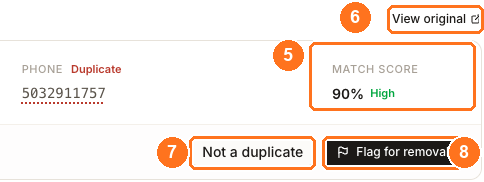
Use ⑤ Match score as confidence, not a verdict. ⑥ View original opens the publisher's current record; ⑦ Not a duplicate clears a false match; ⑧ Flag for removal submits the suppression request.
To handle several at once, tick Select duplicate on each row, then use Mark as duplicate and Submit. Submit stays disabled until at least one row is selected.
Come back to the counts later. Flagged means the request is with the publisher; the row moves to Deleted when the publisher removes the listing, or Failed if it declines or the request could not be completed.
What you'll see when it's done
- The row leaves Potential and Flagged rises
- A candidate cleared with Not a duplicate drops off the list
- Deleted rises once a publisher acts on a request
- Failed rises where a request could not be completed, and you can flag it again
Watch out for
Questions people ask
Why is there no button to scan for duplicates?
Because detection is not something you start. Synup compares your listings against publisher data continuously and surfaces candidates as it finds them, so an empty list means none were found rather than a scan being due.
Why are the same-looking listings grouped under different publishers?
Because a duplicate exists on a specific directory. The same business can be duplicated on several publishers independently, and each one has to be resolved with that publisher — which is why the queue is grouped that way and each group has its own View original link.
A candidate has our phone number but a different name. Is that a duplicate?
Often not. Practitioners listed at a practice address, or a previous tenant, will share the phone or address while being a separate record. Open the listing and decide on what it actually describes rather than on the shared field.
What happens to my own listing when I flag a duplicate?
Nothing. Neither record is edited and your Master information is untouched. The only change is that a removal request is submitted for the other listing.
Next
Duplicates are frequently downstream of something else. If one location keeps producing them, confirm its name, address and phone record is correct, and check that its publisher connections are healthy on connection coverage — a stale or unconnected listing is a reliable way to generate a second one.