
Preview publisher-specific profile values
How do I preview publisher-specific profile values before publishing?
Open a location and switch between its Master, Google, Facebook, Apple and Bing tabs. Each shows the values that publisher will receive — inherited from Master unless a field has been overridden there. This is a view of data, not a picture of the live listing, and Reset to Master removes any override you find.
Key facts
| Where it lives | Locations → a location → the Master, Google, Facebook, Apple, Bing tabs |
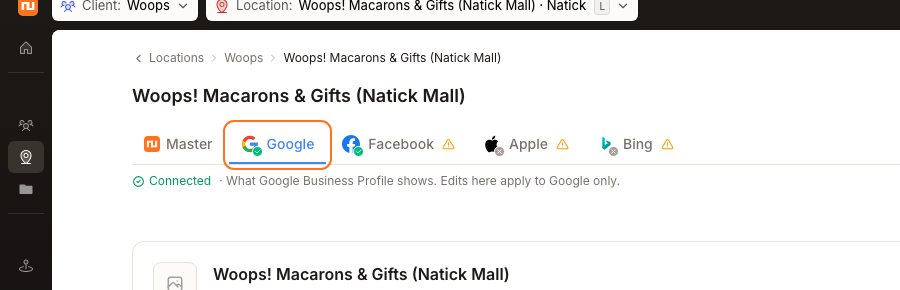
| What each tab shows | That publisher's effective values. What Google Business Profile shows. Edits here apply to Google only. |
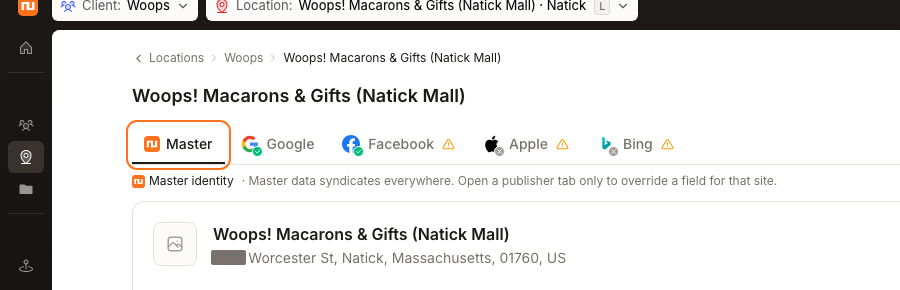
| Where values come from | Master: Master data syndicates everywhere. Open a publisher tab only to override a field for that site. |
| Remove an override | Reset to Master |
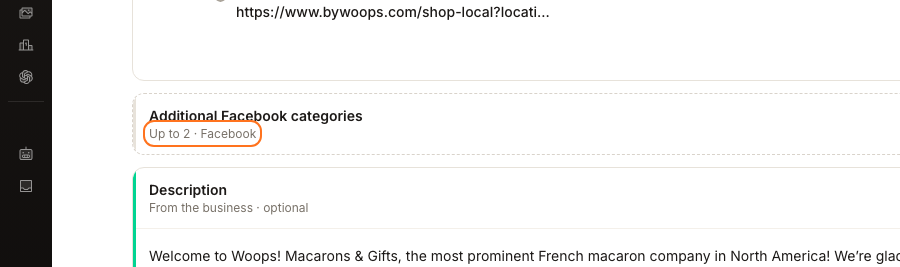
| Per-publisher limits | Category caps such as Up to 9 · Google and Up to 2 · Facebook |
| What it is not | A visual rendering of the listing as it appears on that site |
Why this matters
This screen previews the field values each publisher will receive; it does not reproduce the publisher's final page design. Use it to confirm details such as the phone number before publishing. Check the publisher itself when you need to see final truncation, image cropping, or layout.
Steps
Open Locations and choose the location.
Start on Master. This is the source, and every field here flows outward unless something overrides it.
Switch to Google. Any field matching Master is inherited; any field differing has been overridden for Google specifically. The helper confirms the scope: Edits here apply to Google only.
Do the same across Facebook, Apple and Bing. Each states its own reach — What your Facebook Page shows., What Apple Maps / Business Connect shows., What Bing Places shows.
Watch for the per-publisher caps as you compare. Categories differ by site — Up to 9 · Google against Up to 2 · Facebook — so a Master record with several categories will legitimately arrive shortened on Facebook.
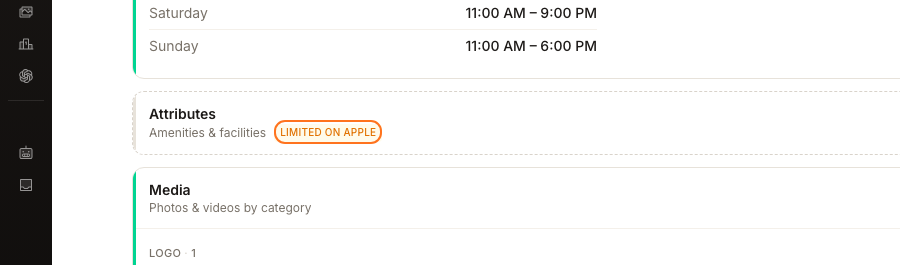
Note anything marked as limited. The Apple and Bing attribute sections carry Limited on Apple and Limited on Bing, meaning those sections accept less than Master holds.
Use Reset to Master on any override you no longer want. The field returns to inheriting, and the Master value resumes syndicating.
What you'll see when it's done
- Every publisher tab reviewed, with overrides identified deliberately rather than by accident
- A field you reset now matching Master on that tab
- An empty section explaining itself, as Google's attributes do: No Google attributes set — map from Master or add below.
Watch out for
Questions people ask
Is this what my listing looks like on Google?
No. It is the set of values Google will receive. Rendering — truncation, cropping, which fields Google chooses to display — happens on Google's side and can only be checked there.
How do I tell an override from an inherited value?
Compare against Master. Matching means inherited; differing means either an override or a per-publisher cap. If Reset to Master changes it, it was an override.
Why does Facebook show fewer categories than Master?
Because of the cap, shown as Up to 2 · Facebook against Up to 9 · Google. Master can hold more than a given site accepts, and the tab reflects what that site will actually take.
What does Limited on Apple mean?
That the section it labels accepts less than Master holds — Apple takes a narrower set of attributes. It is a statement about that section, not about the Apple tab as a whole.
Next
Once you have confirmed the values are right, publishing saved location changes covers how they leave Synup. If a value is wrong everywhere rather than on one site, correct it on the Master identity record so the fix syndicates instead of needing four overrides.