
Reply to several reviews
How do I reply to several reviews at once?
Tick the reviews you want to answer, write one reply, and Synup posts it to all of them at once. You will find it on a single location's All Reviews tab — selection does not exist in the all-locations view.
The catch is which reviews you are allowed to tick.
Which reviews you can actually select
Only reviews Synup can post to on your behalf, which in practice means Google and Facebook.
Everything else — Yelp, Tripadvisor, Airbnb, anything Synup found by scraping — is collected so you can read and track it, but the reply has to be written on that site. Those rows have a greyed-out checkbox and show Respond on {site} instead, which opens the review where you can answer it. Hover the disabled checkbox and Synup says so directly: Replies aren't supported for this source.
So before you plan a bulk reply, look at how many rows can actually be ticked. That number, not the total, is the size of the job.
Send one reply to several reviews
- Open the location's All Reviews tab.
- Tick each review you want to answer, or use Select all.
- Choose Bulk Respond.
- Write the reply once, and confirm.
Synup then works through the selected reviews and reports how many succeeded. Use Deselect all to clear the selection — nothing is sent until you confirm in step 4.
One piece of text goes out under your business name to every review you ticked, so keep it genuinely generic. A line that reads well against a five-star review can read badly against a complaint.
Draft first, or publish straight away
The two buttons in that bar do very different things, and only one of them is reversible.
Generate AI responses
- What it does
- Writes a draft reply for each selected review
- Where it goes
- Saved on the review, visible only to your team
- Can customers see it
- No — a draft is labelled "not visible until sent"
- Undo
- Discard the draft
Bulk Respond
- What it does
- Sends one reply you have written to every selected review
- Where it goes
- Published on Google or Facebook under your business name
- Can customers see it
- Yes, publicly, once the platform processes it
- Undo
- You can edit or delete a reply afterwards, but it was public in between
Generate AI responses is the safe one — it drafts and stops, so you can read each one before anything is sent. AI writes fluently about a review it cannot verify, so read them properly rather than skimming.
Why "Select all" can tick itself and still say 1 selected
This is the most confusing thing on the screen, and nothing is broken when it happens.
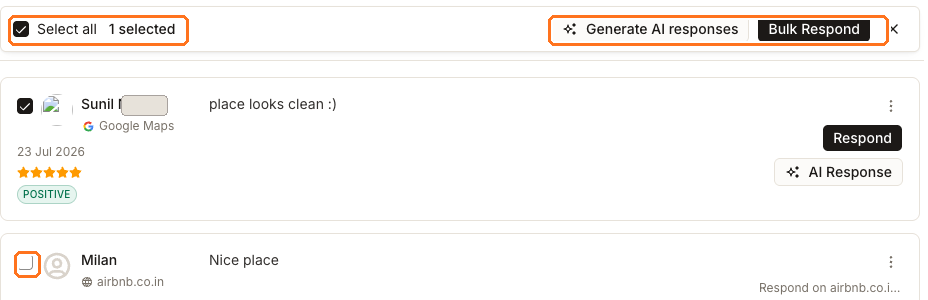
There are three reviews on this page. Select all is ticked and the bar still reads 1 selected, because only one of the three is a Google review. The two Airbnb rows below cannot be selected at all.
Read Select all as all the reviews Synup can currently reply to. If the count looks too low, that gap is the answer: those reviews need replying to somewhere else.