
Find reviews needing attention
How do I find the reviews that need attention?
There is one queue and two doors into it.
Review Inbox shows every location at once. It sits on the all-locations view, alongside Reviews Overview.
All Reviews shows one location. Pick a location first, and it is the tab you land on.
Same reviews, same filters. The only difference is how many locations are in scope.
ASK SYDEKICK
Which reviews still need a response for this location?
Set the scope to the client and location you mean, then ask. Sydekick reads that location's queue and lists what is still unanswered. It only reads — no reply is drafted or sent.
Start with Status → Not responded
That single filter does most of the work, and it is the one people miss — because it is not on the filter bar. It lives inside Other Filters.
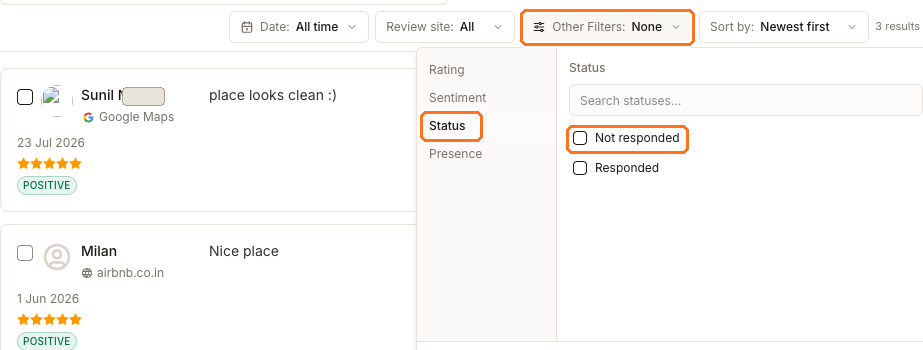
Open Other Filters, choose Status, tick Not responded, then Apply. What is left is your actual work.
The panel holds four categories, and the three you are not using right now are the ones you reach for when the list is still too long:
- Rating — 5★ down to 1★, any combination. Add 1★ and 2★ when you need the worst first.
- Sentiment — Positive, Neutral, Negative. Useful when a 3★ review reads far angrier than its rating.
- Presence — Live or Removed. This one is a choice between two sets, not an extra filter.
Two things on the bar itself are worth knowing. Review site narrows to one source, which is how you answer "have we dealt with the Google ones?". And Sort by defaults to Newest first; switch it to Lowest to highest when you are working down a backlog rather than keeping up.
Your choices are staged until you press Apply — clicking outside the panel discards them rather than applying them quietly.
Two things on this screen that are easy to misread
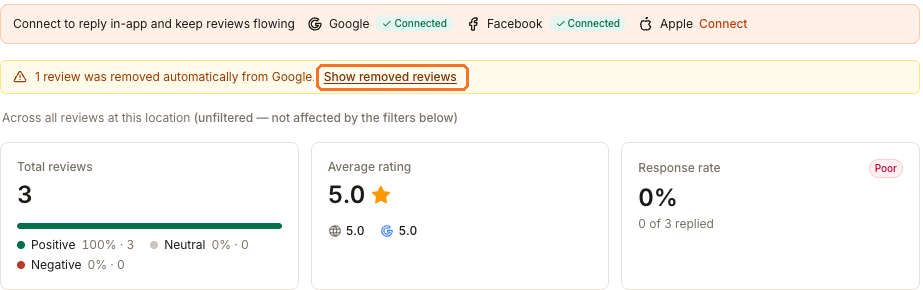
The totals do not follow your filters. The line above them says so: "Across all reviews at this location (unfiltered — not affected by the filters below)". Filter down to two 1★ reviews and the average rating still reads 5.0, because it is describing the whole location. If you want a filtered count, read the result count beside Sort by instead.
Removed reviews are hidden by default. When a review disappears from its source, Synup keeps the record and tells you: "1 review was removed automatically from Google." Choose Show removed reviews to see it. It is worth a look when a client insists a review existed — but you cannot reply to one, and it no longer counts toward the location's rating anywhere.
Nothing on this screen edits a review — filters only narrow what you are looking at.
Questions people ask
Why does the Review site list differ between two locations?
It only offers the sources that location actually collects from. A location with no Tripadvisor source will not show Tripadvisor as an option.
Does Not responded mean nobody has dealt with it?
It means no reply is stored in Synup. If a colleague answered a Yelp review directly on Yelp, Synup has no way of knowing, and the review will still show as unanswered here.
How do I get this out of Synup?
The all-locations Reviews Overview has an Export button that downloads a CSV. There is no PDF export.