
Create a review campaign
How do I send review requests to a list of customers?
Open Reviews → Invite, select Acquire New Reviews, then choose Via Email/SMS. Before the builder opens, choose where the feedback should go:
- Publish to directory asks customers to leave a review on the directories you select.
- Collect internally stores first-party feedback in Synup instead of requesting a public review.
Choose carefully. You cannot change the collection method after the campaign is created.
What the four steps ask for
The builder starts with the communication channel (1), and the rail at the bottom shows the complete sequence (2).
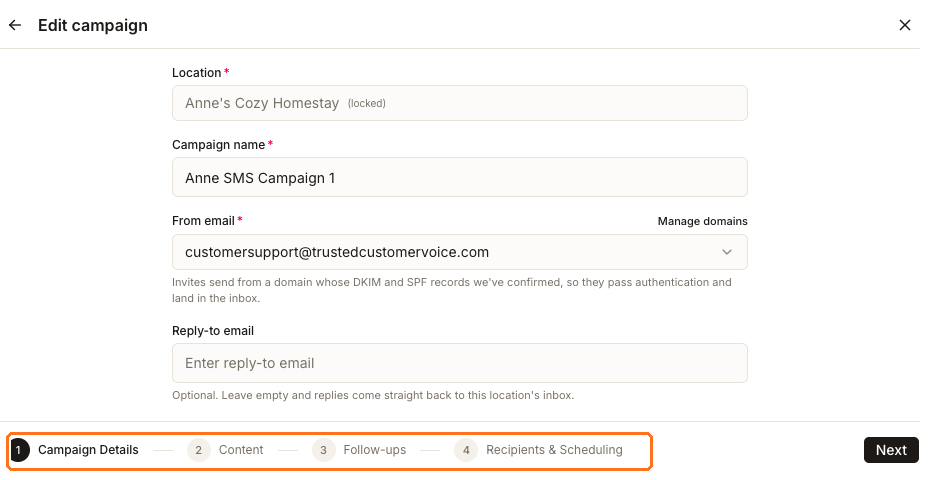
Campaign Details
Confirm the locked location, name the campaign, and choose Email, SMS, or both. Email also requires a verified sending address; SMS-only campaigns do not show the email fields.
Content
Review the email subject and design, SMS message, landing-page copy, and directory destination when the campaign requests public reviews.
Follow-ups
Choose whether and when email recipients receive reminders, whether a link click stops them, and whether respondents receive a thank-you message. This step appears only when Email is selected.
Recipients & Scheduling
Review contacts already associated with the location, add or remove rows, or import a CSV. Then choose immediate delivery or a future date and time.
Your choice in Campaign Details controls both validation and the remaining steps:
- An email campaign cannot advance without a valid sending address on a verified domain.
- An SMS-only campaign skips Follow-ups because follow-ups are email-only.
- A campaign that includes SMS requires the in-person consent attestation before launch.
Selecting Next validates the current step and saves the campaign as a draft. A draft has not launched or contacted recipients.
Check the launch boundary
This is the line that matters, and it is at the very end.
Everything through Recipients & Scheduling is configuration inside Synup. Before the final action, verify the message, recipient rows, channel requirements, delivery timing, and credit estimate shown by the builder.
The final action changes that:
- Schedule campaign launches it for the future date and time you selected.
- Publish campaign launches it for immediate delivery.
Both actions can lead to real email or SMS. Synup also checks the required sending setup at launch: email needs a verified sending domain, and SMS needs a carrier-verified number for the location. If a requirement is missing, the campaign remains unlaunched and the builder reports the problem.
Prepare your recipient list first
Use the builder's downloadable CSV template instead of inventing column names. The available columns follow the channels you selected: email campaigns require email addresses, SMS campaigns require phone numbers, and a campaign using both can show both.
Remove any prefilled location contact who should not receive the campaign. For SMS, select the consent checkbox only when those customers gave their mobile numbers in person and agreed aloud to receive one text about their visit.
Auto-send
Auto-send once published applies the launched campaign to new recipients added later. Leave it off when the campaign should remain limited to the reviewed list. Turning it on for a launched campaign can cause later recipient additions to send, so treat it as a delivery control rather than a draft preference.