
Use your own sending domain
How do I send review requests from my own domain?
You may not need to do anything. Every location already sends from an included, verified domain that Synup owns and maintains — invites go out and replies come back without you configuring DNS at all.
Connect your own domain when you want the emails to come from your business's name rather than a Synup one. Find it at Reviews → Invite → Settings → Assign Domain (DKIM).
What you already have
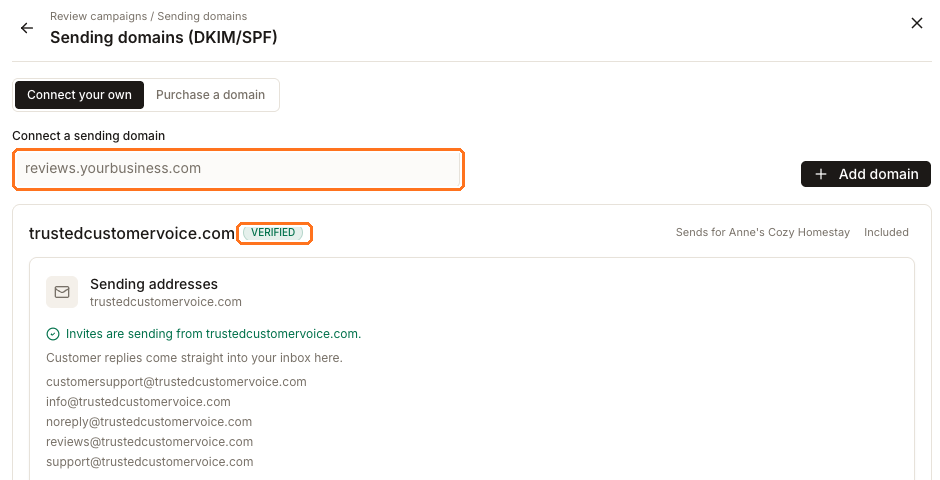
Each location's included domain shows as verified with an Included badge, and the
panel spells out what it is doing: "Invites are sending from …" and "Customer replies
come straight into your inbox here." Underneath is the list of addresses it sends from —
reviews@, support@, noreply@ and similar.
The Included badge also means it is fixed: Synup covers that domain for the location, so it cannot be removed or reassigned. That is the safety net — you cannot accidentally leave a location unable to send.
Connecting your own instead
Two paths sit at the top of the panel:
- Connect your own — you already own a domain and want to use it
- Purchase a domain — buy one through Synup if you do not
For the first, type the subdomain you want to send from into the field — the placeholder
shows the shape, reviews.yourbusiness.com — and choose Add domain.
Use a subdomain, not your main domain. Sending bulk email from yourbusiness.com ties
your review invites to the reputation of your everyday mail; a dedicated reviews.
subdomain keeps the two apart.
The part that happens outside Synup
Adding the domain does not finish the job. Synup then gives you DNS records for DKIM, SPF and DMARC that have to be added wherever your domain's DNS is managed. That is your registrar or hosting provider, and it may well be someone else in your organisation.
What to hand over:
- the exact record names and values Synup shows you, copied rather than retyped
- a note to add each record with the type Synup shows — TXT or, for some DKIM setups, CNAME — on the sending subdomain rather than changing your main website
- a request to tell you once they have been published
DNS changes are not instant. Propagation commonly takes anything from a few minutes to a few hours, so a domain that is not verified immediately afterwards is normal rather than broken.
Knowing it worked
Come back to the same panel. A domain that is ready shows the green verified chip and the "Invites are sending from …" line, exactly as the included domain does. Until then it will not be used for sending.
Nothing breaks while you wait. Campaigns keep going out on the included domain, so there is no window where a location cannot send.