Share a review link or QR
How do I ask for reviews without building a campaign?
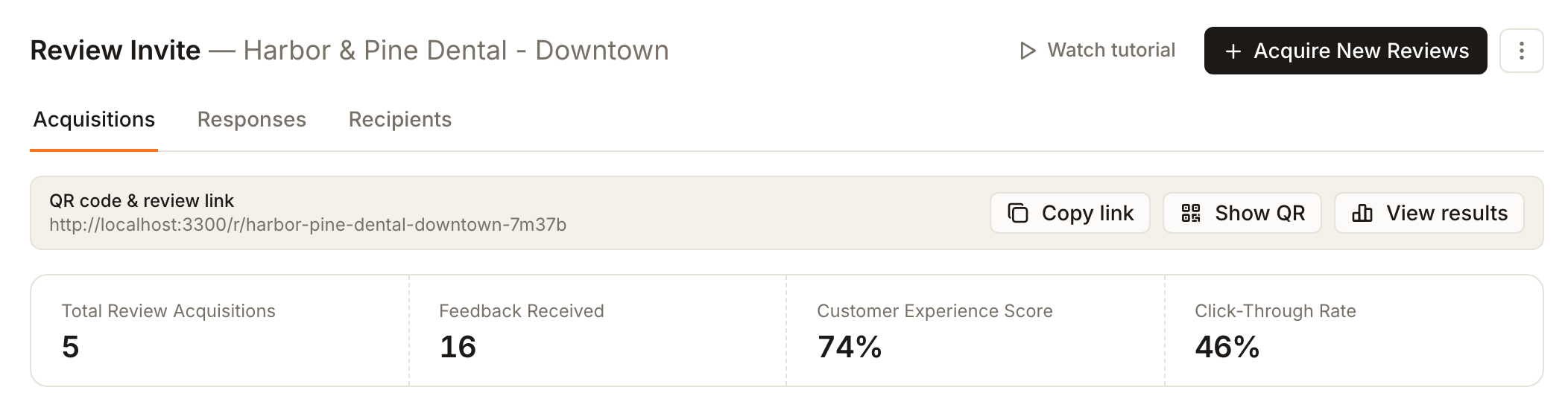
Every location already has a review link. Open Reviews → Invite for one location and look for the strip titled QR code & review link. It sits under the page title and the Acquisitions, Responses and Recipients tabs. It holds one permanent address you can copy, print or share as often as you like.
Nothing needs to be created, no recipient list is required, and nothing is sent on your behalf. What the link records is a different matter, and it depends on how the page is set up. See What the link records below.
Key facts
| Where it lives | Reviews → Invite for one location. It is not on the all-locations Invite Overview |
| What you need | A plan that includes review campaigns. The link itself keeps working for anyone who already has it |
| Buttons | Copy link, Show QR, View results |
| One link per location | Built from the location's name plus a short code, for example /r/harbor-pine-dental-downtown-7m37b |
| Never expires | Nothing needs renewing, so a printed code keeps working |
| Records responses | Only when the page asks for a rating first (see below) |
Steps
Open Reviews → Invite and choose one location. The QR code & review link strip appears under the tabs.
Select Copy link to put the address on your clipboard, or Show QR to see the code.
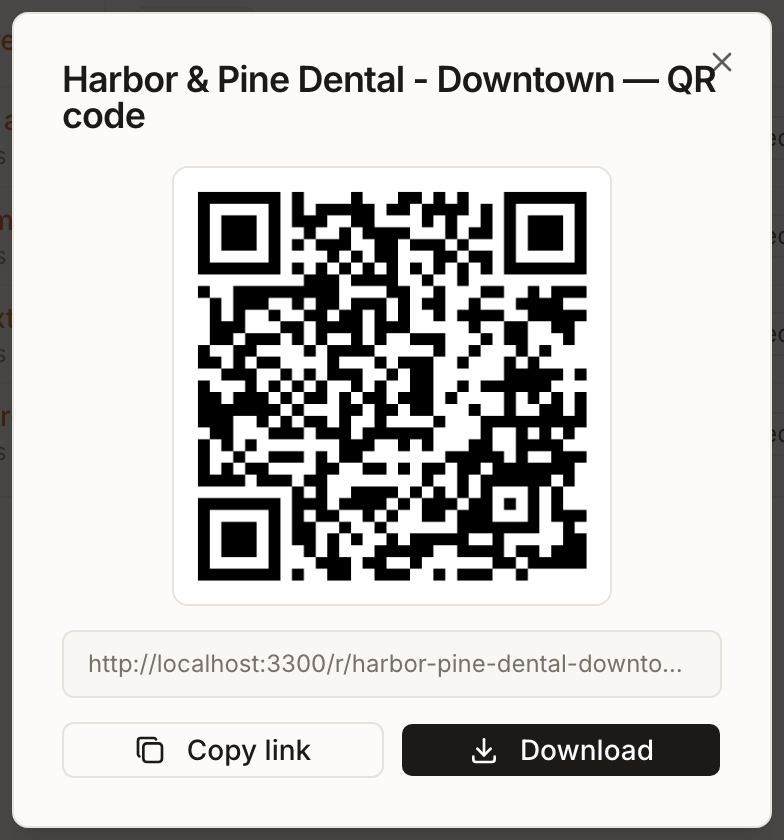
In the QR dialog, copy the link again or select Download to save the image. The code is a high-resolution PNG named after the location.
Use the image or the link wherever customers will see it: a table card, a receipt, a window sticker, an email signature or a booking confirmation.
Printing it as a QR code
Show QR turns the same link into a code, with Download to save the image. It points at the same link, so a printed code keeps working after you print it.
What the customer sees
The page shows the location's name and its landing text, and then one of two things.
- Screening off. The page shows the review-site buttons straight away, for example Review us on Yelp.
- Screening on, or the location collects feedback internally. The page asks for a rating first. In the screened case, ratings at or above the threshold lead to the review sites and lower ones to a private comment box.
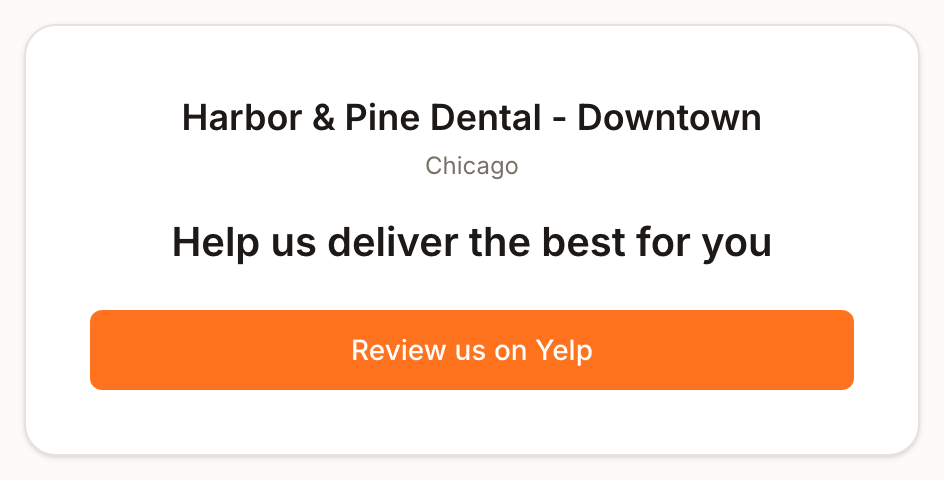
A review-site button only appears for a site where Synup has a specific link for this location. If none of the chosen sites has one yet, the page says No review sites configured, so check the page yourself before you print the code.
Which of these your permanent link does is decided once. When Synup first creates the link for a location, it copies the settings of the location's last launched email or SMS campaign (screening, threshold, landing text and review sites), or uses plain defaults if there was none. After that it stays as it is, even if you change a later campaign. If that last campaign used screening, the printed code asks for a rating first. Read Collect private feedback before deciding to leave screening on.
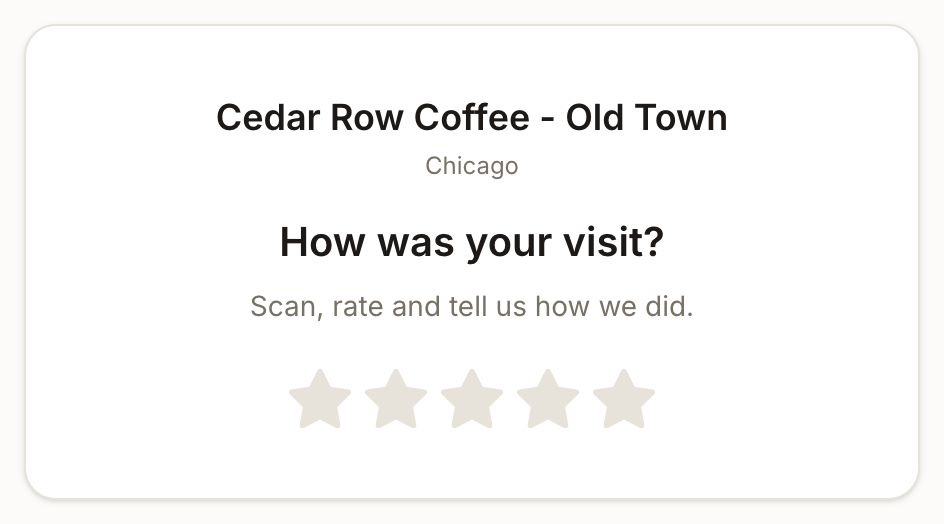
What the link records
View results opens the results for this link. A scan is only recorded when the customer rates or comments on the page, which means the page has to ask for a rating first.
- Screening on, or internal collection: ratings and comments typed on the page are recorded. They appear under View results and in the location's Responses tab, labelled Review Funnel Page, and they feed the Invite overview's response totals.
- Screening off: scanning just shows the review buttons. Nothing is recorded by Synup when someone scans, and a Google review left afterwards is not attributed to the code.
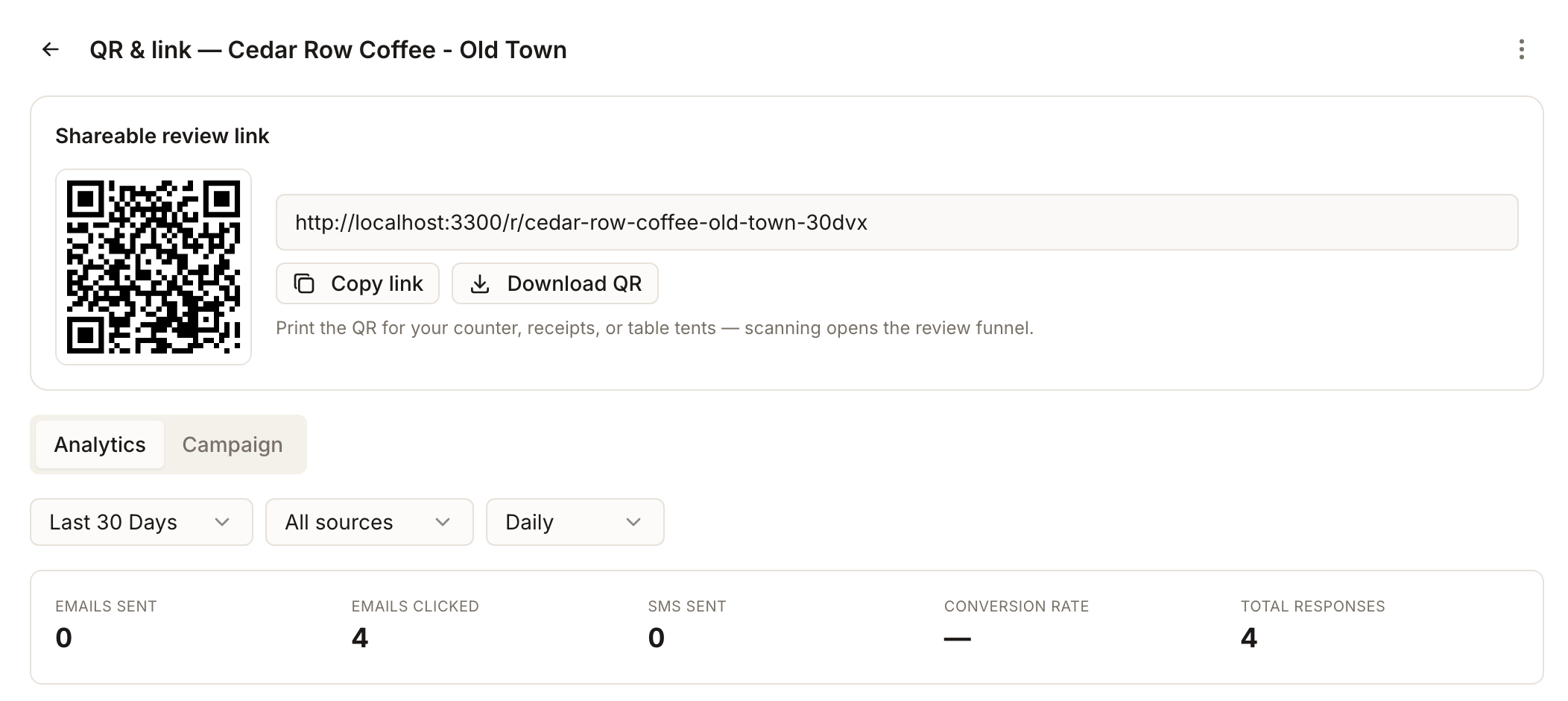
The permanent link is kept out of the campaign list and out of the Acquisitions counts on purpose, so a code on the counter does not appear beside your emailed campaigns. Its results are reached only through View results. In that view a scan that rates counts as a click, which is why it reads Emails clicked even though nothing was emailed.
When a campaign is the better tool
The link and QR are for passive asking: you put them somewhere and wait. Reach for a review campaign instead when you want to:
- contact a specific list of customers you already have details for
- send at a chosen time rather than whenever someone notices a sign
- chase people who did not respond the first time
If you want a named, trackable code of your own, Acquire New Reviews → Via Static URL builds a separate link and QR for a single purpose, with its own landing text, review sites and screening settings.
What you'll see when it's done
- The strip shows the link, Show QR displays a code you can download, and, if the page asks for a rating, View results fills up as people respond.
Watch out for
- Screening may already be on. The permanent link copies the last launched campaign once. Check the customer page before printing.
- Without screening or internal collection, nothing is tracked. You will not see scans or attributed reviews.
- A page with no review buttons is a dead end. If none of the chosen sites has a specific link for the location, the page shows no buttons.
- Review campaigns are a paid-plan feature. On a free trial the Invite pages show a prompt to choose a plan instead of the strip, though printed codes keep working.
Questions people ask
Does the link expire?
No. It stays valid, so a printed code keeps working.
Can I see how many people scanned it?
Only the people who rated or commented. A scan that goes straight to a review site is not seen by Synup.
Is the QR code the same as the one for a Static URL campaign?
No. The permanent link is created automatically for the location. A Static URL campaign is one you build and name yourself.