
Add an internal note
How do I leave my team a private note on a review?
Open the review, click the three-dot menu at its top right, and choose Add Note. Whatever you write stays inside Synup: the reviewer never sees it, and neither does the client.

Add a note
Choose Add Note, type into the box, and Save note becomes available — it stays greyed out while the box is empty. The note appears immediately underneath, with your name and the time you wrote it.
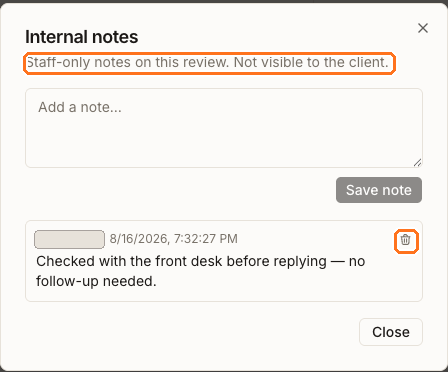
You can add as many notes to one review as you like. They stack in the same dialog, newest work alongside older context.
Finding a note again
This is the part worth planning for: a review with a note looks exactly like a review without one. There is no badge, no count and no marker anywhere in the review list, so the only way to discover a note is to open the three-dot menu on that specific review.
That makes notes a good record of a decision — checked with the front desk, no follow-up needed — and a poor to-do list, because nothing will remind you the note is there. If the review still needs action, give it a task or a reply as well, and use the note for the context behind it.
Removing a note
Open the same dialog and use the delete control beside the note. It goes for everyone immediately — there is no per-person view of notes and no undo, so if a note holds something worth keeping, copy it somewhere first.
What internal notes don't do
- They are never sent to Google, Facebook or any other review site.
- They do not appear in the client app.
- They do not notify anyone. Typing a colleague's name is just text.
- They do not change the review's status, rating or response rate.