
Set automatic data updates
How do I choose how often rankings and AEO reports update?
Open Settings → Data updates, choose the location or website in the picker at the top, then pick Rankings or AEO reporting. Choose Weekly, Monthly, Quarterly or Never, check the Credit impact panel, and select Save schedule. Saving changes future updates only; it doesn't start an update.
Key facts
| Where it lives | Settings → Data updates. Manage schedule links from SEO and AEO pages open it too |
| Report types | Rankings (grid rankings for a location, website rankings for a website) and AEO reporting |
| Scope | One location or website and one report type at a time: Applies only to this resource and report type. |
| Default | Monthly, until someone saves a different schedule |
| Times | Schedules follow UTC calendar boundaries. Dates on the page are shown in your time zone |
| Saving | Doesn't start an update and doesn't buy credits or change your plan |
| Who can change it | Agency owners, admins and members who can access that location or website. If the page shows You can view this schedule. An administrator can change it., your account can't change this schedule; ask an agency owner or admin |
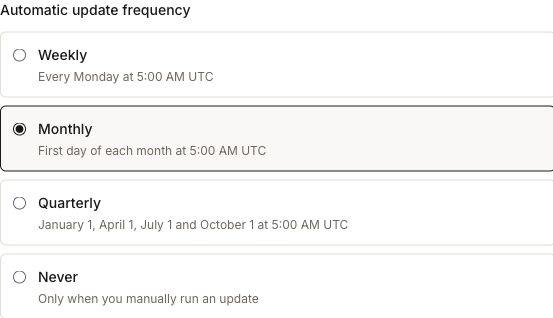
Frequencies
| Frequency | When it runs |
|---|---|
| Weekly | Every Monday at the time shown, UTC |
| Monthly | First day of each month at the time shown, UTC |
| Quarterly | January 1, April 1, July 1 and October 1 at the time shown, UTC |
| Never | No scheduled updates. Updates run only when you start one yourself. For a website, adding keywords on Search rankings also starts a paid first check for each new keyword |
The exact time appears under each option, for example Every Monday at 4:00 AM UTC. The hour differs by report type.
Why this matters
Every scheduled update uses credits, and the cost grows with the number of tracked keywords, grid points or AEO prompts. Choosing the cadence per location lets you check busy, competitive locations more often and quieter ones less, and see the effect on credits before you commit.
Steps
Open Settings and select Data updates.
Use the picker at the top to choose a client and the location or website. Until you do, the page says Select a website or location from the workspace picker to manage its update schedule.
Select Rankings or AEO reporting. A bar under the heading names the resource, for example Riverside Dental · Grid rankings.
Under Automatic update frequency, choose an option. The panel below shows Next update starts with the date for the option you picked.
Read Credit impact (see below).
The footer shows the change, for example Monthly → Weekly. Select Save schedule, or Discard to go back.
Look for Schedule saved. No update was started.
Reading the Credit impact panel
| Line | What it tells you |
|---|---|
| Scope, for example 25 tracked keywords, 1225 grid points across tracked keywords or 40 prompt and engine combinations | What one update measures today |
| N credits per update | The estimated cost of one update |
| Next 30 days · N scheduled updates | Estimated credits over the next 30 days at the frequency you picked |
| Next 12 months · N scheduled updates | The same over 12 months |
| N more or N less in scheduled usage over the next 12 months | The difference from the saved schedule |
| A manual update uses N credits in addition to scheduled usage. | What a manual refresh costs on top |
For AEO reporting, About N credits is an estimate that includes queries and web searches, answer generation and response processing. The amount can vary with how much text the engines read and generate. If the panel shows Estimate unavailable, Synup has no amount to compare.
Example: a location tracks 25 keywords on a grid. Switching from Monthly to Weekly raises Next 30 days from one scheduled update to four or five, and the panel shows how many more credits that adds over 12 months. The figures on your screen come from your own keywords, grid and credit rates.
Worked example
An agency has a location whose AEO reports are reviewed each quarter, so they want its AEO reports to update less often. In Settings → Data updates, they choose that location, select AEO reporting and pick Quarterly under Automatic update frequency. Credit impact shows how scheduled usage over the next 12 months changes. For AEO reporting, the panel gives approximate amounts when an estimate is available.
The footer reads Monthly → Quarterly, so they select Save schedule. They can then check for Schedule saved. No update was started. and see the new frequency and Next update date on the location's AEO page. If automatic AEO updates aren't active yet, the forecast only shows what they would cost once activated.
What you'll see when it's done
- Schedule saved. No update was started.
- The new frequency and Next update date in the schedule details on the SEO or AEO page for that location
- No unsaved changes in the footer
Watch out for
- Saving isn't running. A new schedule applies from the next date shown. Use the refresh control on the SEO or AEO page if you need data now, and note that it uses credits.
- Never stops future automatic updates only. A collection already running may finish, and manual updates remain available.
- Updates stop when credits run out. Saving a schedule doesn't buy credits.
- AEO needs a first report. If the page says automatic AEO updates are not active yet, the forecast shows what they would cost after activation. Generate the first AEO report to activate automatic updates. Saving a cadence alone does not activate them or start paid work.
- Costs follow your setup. Adding keywords, changing the grid or adding prompts changes the cost per update. If the estimate changed while you were editing, you'll see The schedule or credit estimate changed. Review the updated details and save again.
- Each report type is separate. Changing Rankings doesn't change AEO reporting for the same location.
Questions people ask
Does saving a schedule run an update straight away?
No. Saving only sets future updates, and the confirmation says No update was started.
Why can't I change the schedule?
If the page says You can view this schedule. An administrator can change it., your account can't change this schedule. Ask an agency owner or admin to change it or to check your access.
Why does the AEO estimate say About?
AEO credits can vary with how much text the engines read and generate. The estimate includes queries and web searches, answer generation and response processing.
If I choose Never, can I still refresh?
Yes. Manual updates stay available. Review the confirmation for the check you want to start.
Next
- How AEO reports are built and refreshed: how AEO reports are generated
- Add or remove the keywords that drive ranking costs: add keywords
- See how ranks changed between updates: rank history and changes