
Add website source pages
How do I add my website's pages so Synup can use them?
Go to Settings → Website sources, choose the website in the Website picker, and add your pages: select Discover sitemaps, or use Add sitemap or Add URLs. Then open Pages, select the pages you want, and use Capture selected pages to save their content. Captured titles and headings help generate Keyword ideas. Website sources moved here from SEO; it now lives in Settings, not in an SEO tab.
Key facts
| Where it lives | Settings → Website sources. When the shortcut is available, Website sources on a website entity's Search rankings page opens Settings for that site |
| What it works on | Website entities that belong to clients you can access. Physical locations and their local SEO are separate |
| When you'll see it | Only when website entities are turned on for your workspace and you have access to SEO. Otherwise the Settings item doesn't appear |
| Ways to add pages | Discover sitemaps, Add sitemap (an HTTPS sitemap index, XML sitemap or plain-text URL list), Add URLs (pasted or uploaded) |
| Capture cost | Uses your Monthly page allowance. The page says this is a page allowance, not monetary credits, and that no paid provider or AI call is made |
| Capture limits | Pages per content batch and Monthly page allowance, both set in Refresh & limits |
| What it doesn't prove | A listed URL or captured content doesn't mean Google has indexed the page |
Why this matters
Synup uses captured page titles and headings to suggest keywords based on the content it has read. Website sources is where you tell Synup which pages exist and choose which ones to read. Capture again when you need to inspect newer page content.
Steps
Open Settings and select Website sources in the left rail.
Choose the site in the Website picker at the top. If you see Add a website entity to a client to manage website sources., there is no website entity you can access yet.
On Overview, select Discover sitemaps to have Synup look for your sitemaps. To enter one yourself, open Sources and select Add sitemap.
In Add sitemap, enter a Source name and the Sitemap URL, for example
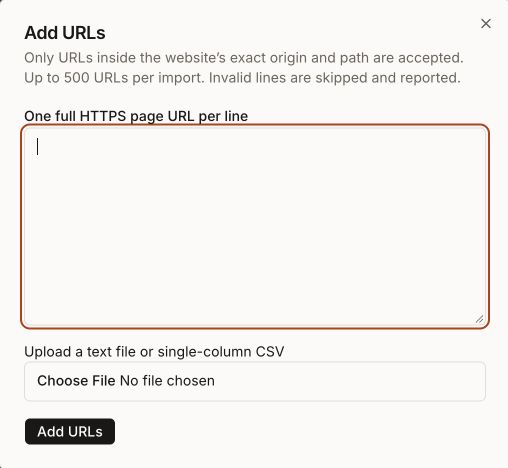
https://example.com/sitemap.xml. If the sitemap is hosted somewhere else, tick I approve this external host for sitemap files. Page URLs must still belong to this website. Leave Include this source in automatic refresh ticked if Synup should check it again on schedule. Select Save.To add individual pages, open Sources, select Add URLs and enter One full HTTPS page URL per line, or Upload a text file or single-column CSV. Only URLs inside the website's exact address are accepted, up to 500 per import. Invalid lines are skipped and reported, for example 12 unique URLs added. 2 invalid or out-of-scope lines skipped.
Open Pages. Use Search page URLs, Content status, Language and Source to find the pages you want, then tick them.
Select Capture selected pages. The Review content capture dialog lists the pages and says how many will use this month's page allowance and how many remain. Select Start content capture only when that's what you want. Synup fetches only those public pages, respects robots rules and saves their main text and metadata.
Synup moves you to Activity, where the job's progress updates on its own.
What the page statuses mean
| Status | What it means | What to do |
|---|---|---|
| URL only | Synup knows the URL but hasn't read the page | Capture it if you need it |
| Content ready | Fresh content is saved | Nothing |
| Stale content | Saved content is old | Capture again |
| Failed | The latest capture attempt didn't work | Open the page to read why, then capture again |
| Blocked | The site's robots rules didn't allow it | Check your robots settings if the page should be readable |
| Not found | The page didn't exist at that address | Remove or correct the URL in your sitemap |
| Noindex | The page asks search engines not to index it | Expected for private pages |
| Thin content | Very little main content was found | Review the page itself |
| Truncated | Only part of the page was saved | Treat keyword ideas and evidence from it with care |
| No longer listed | The URL dropped out of a completed sitemap refresh. Its saved content stays | Check whether the page was removed |
Select a page's address to open Page evidence: where the URL was found, the Declared canonical, Robots directives, Meta description, headings, Captured content, Evidence-based checks, observed internal links and Saved content versions.
Follow and recover work in Activity
Activity lists each Sitemap discovery and Page content capture job with its status: Queued, Running, Paused, Partial, Completed, Failed or Needs reconciliation.
- Pause stops at the next safe checkpoint. Resume continues and keeps completed work.
- Save received results (capture jobs) saves what already came back without new requests.
- Retry failed free requests fetches pages whose request failed or was interrupted.
- If another crawl already owns the website, you'll see a note to finish or reconcile that work first.
Set limits and automatic refresh
Open Refresh & limits to choose:
- Discovery frequency: Manual only, Daily, Weekly or Every 30 days. The page shows Next discovery with its date.
- Automatically capture newly discovered pages, which still uses the batch and monthly limits.
- Pages per content batch and Monthly page allowance.
Select Save to keep the changes. The allowance line shows how many pages are reserved or captured this month out of your limit.
How captured pages are used
- Relevant page in the website’s rankings workspace uses a Google search restricted to your site. Capturing a URL here does not make it a Google result.
- Keyword ideas finds phrases in captured titles and headings. Enter a Topic or service, select Find ideas from content, tick ideas and select Track selected keywords. The page confirms Keywords added to the SEO workspace. No paid ranking checks were queued. Automatic ranking updates can check those tracked keywords and use credits. Review the website’s frequency in Settings → Data updates. Search demand shows as unavailable until separate research is run.
- Used by shows where website evidence is used and lets you search captured passages with Retrieve evidence.
Worked example
A physiotherapy clinic's website has new service pages that aren't in its sitemap yet. In Settings → Website sources, the agency chooses the clinic's site in the Website picker, selects Add URLs and enters each new page address on its own line. On Pages, they set Content status to URL only, tick the new pages and select Capture selected pages.
In Review content capture, they check how much of this month's page allowance the capture will use before they select Start content capture. They can follow the job in Activity. Once it shows Completed, they can check whether each page reads Content ready or another status, such as Blocked.
What you'll see when it's done
- On Overview, a headline such as 42 of 60 known pages have fresh content, with counts for Known URLs, Fresh content, URLs only and Needs attention
- Your sitemaps on Sources, each with its listed-page count, last check and Included in automatic refresh or Automatic refresh paused
- A Completed capture job in Activity
Watch out for
- Listed is not indexed. Neither a sitemap entry nor captured content proves Google has indexed a page.
- Removing a source keeps the pages. Remove source; retain saved pages removes the sitemap but leaves page evidence in place.
- A changed website address blocks collection. If the website's address or owner changes, collection stops to protect the earlier evidence until the original scope is restored.
- One job at a time. A capture won't start while earlier work is queued, running, paused or waiting to be reconciled.
- Website sources is for website entities only. It doesn't change listings, local rank grids or physical location SEO.
Questions people ask
Where did Website sources go? I used to open it from SEO.
It moved to Settings → Website sources. If Website sources appears on the site's Search rankings page, select it to open Settings for that site.
Does capturing pages cost credits?
The page describes capture as using a page allowance, not monetary credits, with no paid provider or AI call. Your limit is the Monthly page allowance in Refresh & limits.
Why can't I see Website sources in Settings?
It appears only when website entities are turned on for your workspace and your role has access to SEO. If the item is there but the page says Website sources are not enabled in this environment., it isn't available in your workspace yet.
Why is a page marked Blocked?
The website's robots rules didn't allow Synup to read it. Synup respects those rules and won't capture the page.
Will tracking a keyword from Keyword ideas start a paid rank check?
Not straight away. The keyword is added to the website's SEO keywords, and the page confirms that no paid ranking checks were queued. From then on it's included in the website's scheduled rank updates, which use credits.
Next
- Add and manage the website's tracked keywords in Search rankings for that website.
- Read the SEO overview for your workspace: ranking analytics overview