
Find and organize clients
How do I search, filter, sort, and save a client view?
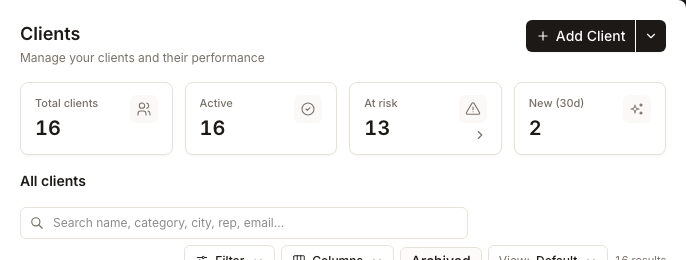
Open Clients and use the search box for a quick match. Use Filter for structured criteria, select a column heading to sort, and use Columns to choose what the table shows. When the result is useful more than once, select Save view, name it, and reopen it later from View.
Key facts
| Where it lives | Clients |
| Search matches | Name, category, city, representative and email |
| Filter categories | Industry, Package, Status, Representative, Goal, Health, Created date and Locations |
| Built-in views | Default, My clients and At risk |
| What a saved view stores | Search, filters, sort and column configuration |
Why this matters
A client list becomes operational only when it answers a specific question: which accounts belong to me, which need attention, or which match a segment for today's work. A saved view keeps that definition consistent, so the team does not rebuild the same search and accidentally compare different sets of clients.
Find the clients you need
- Open Clients. The four summary tiles count total clients, active clients, clients at risk and clients added in the last 30 days. These totals describe the full client list, not the filtered table below.
- Enter text in Search name, category, city, rep, email…. The table updates as you type.
- Select Filter for structured criteria. Choose a category, set its values, and select Apply. Active criteria appear as removable filter pills above the table.
- Use health ranges deliberately. The built-in At risk view and the At risk summary tile include measured scores below 60. The filter menu's named At risk 40–59 preset is a narrower band and does not include critical scores below 40.
- Select a sortable column heading to change the order. The current sort is part of a saved view.
- Select Columns to show, hide or reorder fields. Useful optional columns include assigned package, primary representative, listings, reviews, rating, locations, status, email, website, goal, connections and portal access.
- Check the result count at the right of the toolbar. It reports the number of rows after search and filters, while the summary tiles remain portfolio totals.
Save and reuse a view
- Build the search, filters, sort and columns you want.
- When the current setup differs from the active view, select Save view.
- Enter a unique name of up to 80 characters and select Save.
- Reopen it from View. System views appear first and your saved views appear below them.
- Use the menu beside a saved view to Rename or Delete it. Deleting a saved view removes only the view definition; it does not delete any clients.
What you'll see when it's done
- The table contains only clients matching the current search, view and filters.
- Active filter pills explain why a row is included or excluded.
- The result count reflects the narrowed table.
- A saved view appears under Saved views and restores its search, filters, sort and columns.
Watch out for
Questions people ask
Why does the result count change but the summary tiles do not?
The result count belongs to the filtered table. The four tiles remain a portfolio snapshot of the full client list so a narrow working view does not hide the overall totals.
Why do the two At risk controls show different totals?
The built-in At risk view uses every measured score below 60. The At risk 40–59 filter preset represents only that named band; critical scores below 40 require their own preset or a custom range.
Can I update an existing saved view in place?
The current Product offers Save view when your setup changes, which creates a named view. It does not show an overwrite action for the active view. Save the revised setup with a clear name, then delete the obsolete view if it is no longer needed.
Next
To understand the score and coverage columns, see understanding client health. To change one client's metadata or branding, see configuring a client workspace. To create a new record, see adding a client.