
Import clients from Stripe
How do I import clients from Stripe?
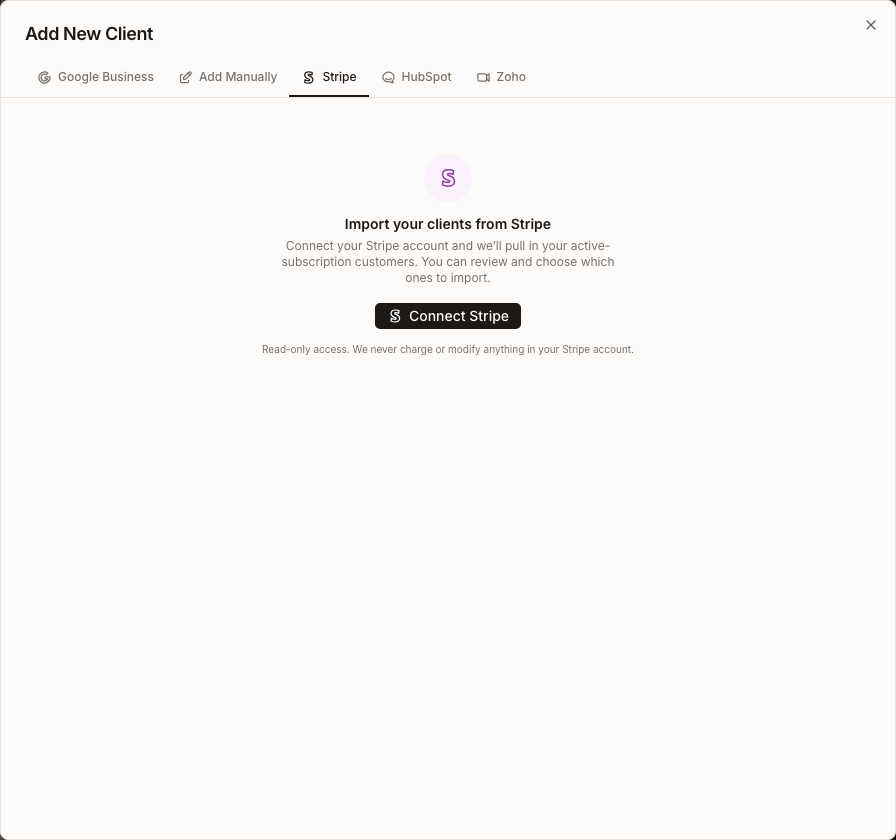
Open Clients → Add Client → Stripe, then select Connect Stripe. Synup requests read-only Stripe access and pulls customers with active subscriptions into a review grid. Choose the records to create, correct required fields, resolve duplicates, and select Import selected. Synup disconnects Stripe automatically after a successful import.
Key facts
| Where it lives | Clients → Add Client → Stripe |
| What Stripe access does | Reads active-subscription customers for this import; it does not charge customers or modify Stripe data |
| What the final action does | Creates the selected Synup client records |
| Defaults | Primary representative is you; service is Listings |
| Connection lifecycle | Synup disconnects after a successful import and when no active customers are found |
Why this matters
Stripe already contains customer identities, but billing data is not automatically a clean client list. The review step separates source data from the records Synup will create, catches duplicates, and gives every imported client an owner and service before it enters the team's workflow.
Before you connect
- Use the Stripe account that contains the active subscription customers you intend to manage in Synup.
- Confirm whether you are connecting Stripe test mode or live mode; the review header shows the mode and the end of the connected account ID.
- Decide who should be the primary representative for imported clients.
- Remember that Connect Stripe creates an external account connection, and Import selected creates client records. Both are real mutations even though access to Stripe customer data is read-only.
Steps
Open Clients and select Add Client.
Select the Stripe tab, then choose Connect Stripe. Complete Stripe's authorization screen using the approved agency billing account.
When you return, verify the connection label. It identifies test or live mode and shows the final characters of the Stripe account ID.
Review the customers Synup found. Only customers with active subscriptions are pulled into this flow.
For each client you want to import, review or edit the required Business name, required Primary representative, and at least one Service. The representative defaults to the current user and the service defaults to Listings. Email is optional but must be valid when present; notes and client custom fields are optional.
Exclude a row when it should remain in Stripe without becoming a Synup client. The separate removal checkbox drops it from the working review grid.
Resolve duplicates before importing. A detected duplicate starts unchecked and set to Merge, which skips creation and leaves the existing client unchanged. Choose Import new only when a second client is genuinely intended.
Select Import selected. The button remains unavailable until at least one selected new-client row is valid.
Wait for the imported count. Synup disconnects Stripe automatically after success, and the new clients appear in the Clients workspace.
What you'll see when it's done
- A confirmation with the number of clients imported
- New client records in Clients
- Duplicate rows skipped when left on Merge
- Stripe disconnected from the import session
Watch out for
Questions people ask
Does importing change anything in Stripe?
No customer, subscription or charge is changed. Synup reads eligible customers and creates records only in Synup. The temporary Stripe connection is removed after a successful import or an empty result.
What does Merge do to an existing client?
In the current review grid, Merge means skip creating the duplicate; it leaves the existing client unchanged. It does not copy Stripe fields over the existing record.
Why is Import selected disabled?
Select at least one row set to Import new, then make sure it has a business name, a primary representative, at least one service, and a valid email if an email is present.
Can I disconnect before importing?
Yes. Use Disconnect in the connected review header. This abandons the current Stripe review session without creating clients.
Next
Use searching and saving client views to review the imported set. Then open understanding client health to see which imported records have enough measured data for a score.