
Edit a location profile
How do I update a location’s business information?
Go to Clients → All locations, choose the location, and you land on its Master tab. Master is the record every publisher inherits, so a change made here reaches Google, Facebook, Apple, Bing and the directory network. The editor is split into sections — business details, description, hours, media and so on — and each section saves on its own. Saving does not publish immediately; the change is queued and sent shortly afterwards.
ASK SYDEKICK
Show me the Master name, address, and phone for this selected location.
Set the scope chip to the client and location you mean, then ask. Sydekick reads back the Master record so you can confirm what is currently stored before you edit it. It only reads — no field is changed and nothing is published.
Or do it yourself
Open Clients → All locations and select the location. The breadcrumb reads Locations → the client → the location, and the Master tab is selected for you.
Check the tab row before you edit anything. Each publisher tab carries its own state — Connected or Not connected — which tells you where this change will actually land.
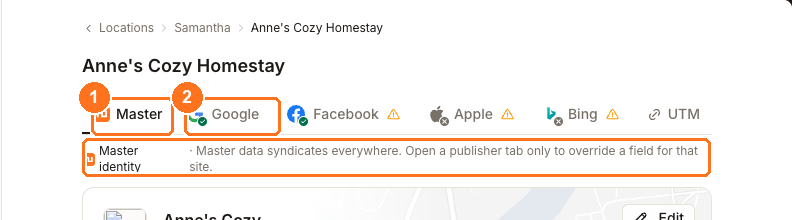
① Master is the shared record. ② Google is a publisher-specific view; Facebook, Apple and Bing work the same way.
Use Edit on the identity card for the core details: business name, address, phone, website and additional phone numbers. This is the record that has to match everywhere, so treat it carefully — see keeping name, address and phone consistent.
Set your categories on the same card. Internal (Synup) is your own classification; each publisher gets its own row, and any reading Pick to sync is not yet mapped for that site. An unmapped category is a common reason a directory rejects a submission.
Work down the sections you need. Each one expands, edits and saves independently:
Business details holds the owner, business email, tagline, year established and map pin. Description holds the "from the business" text. Social & payments holds social profiles and accepted payment methods. Hours holds regular, additional and special hours. Media holds photos and video by category. Open status holds open, temporarily closed and permanently closed. Service area holds areas served for Google and Bing. Action links holds booking, ordering and reservation links.
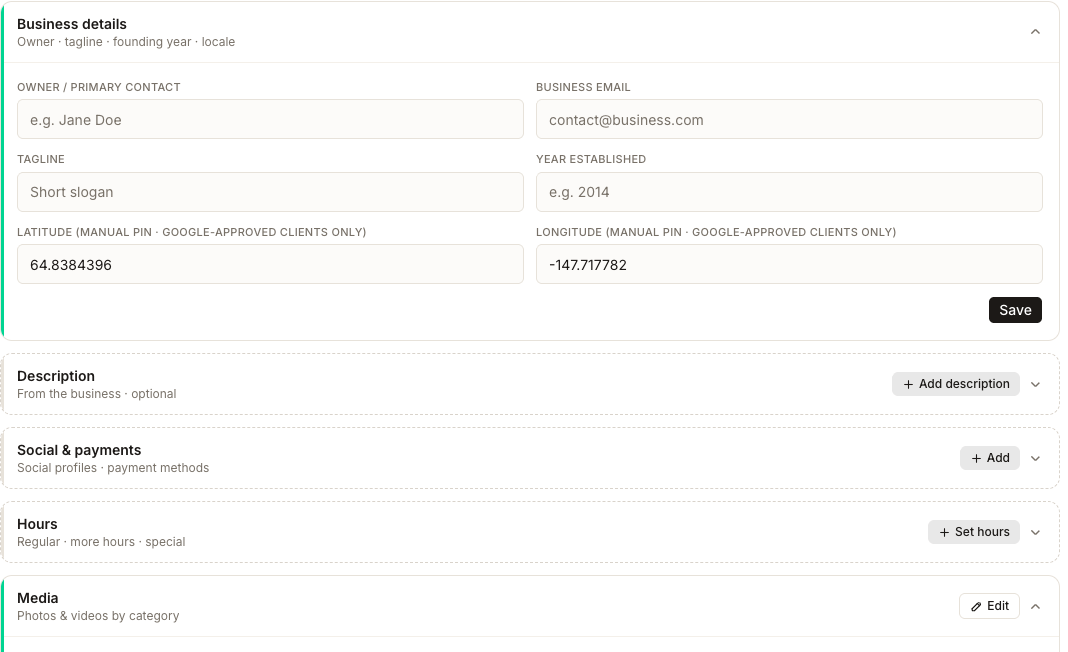
Press the Save inside the section you edited. There is no single save for the whole page — an edit in Hours is saved by the Hours section, and leaving the page without pressing it loses that section's change.
Leave the footer alone unless you want the change to go out now. Save queues it; Save & Publish sends it straight away. Both are explained in when listing changes go live.
What you'll see when it's done
- The section collapses back with your new value shown
- A toast confirms the save and names the section
- Where Google is connected, the toast adds that it is pushing to Google
- The Profile completeness rings on the locations list redraw to include the fields you filled
- Unpublished changes on that same list shows the location has work waiting to go out
Editing one publisher instead of everything
Open a publisher tab only when a site genuinely needs a different value — a tracking phone number for Google, a shorter description for Facebook. The tab makes its own scope explicit: What Google Business Profile shows. Edits here apply to Google only.
Two things catch people out. The edit drawer opens on Master by default even when you came from a publisher tab, so check which side you're on before typing. And the decisive control is the button you press, not the tab you came from — Save to Master writes the shared record, Save for Google writes the override.
Editing Master afterwards does not overwrite that override. If you set a Google-specific phone number last month and change the Master phone today, Google keeps the override. Making a field different for one publisher covers the whole flow, including how to undo one.
Watch out for
Questions people ask
I saved a change and the listing still shows the old value. What now?
Give it time first — saved changes are queued rather than sent instantly, and each publisher then applies them on its own schedule. If it persists, check whether that publisher has an override on the field, and check the directory's row on Listings → Published for a submission that failed.
Why does the category row say "Pick to sync"?
That publisher has no category mapped yet. Synup can't submit a category it hasn't been told, and some directories reject the whole submission without one, so it's worth setting even for publishers you consider minor.
Can I edit several locations at once?
Not from this screen — it edits one location. Bulk changes use the location CSV import workflow, whose Help Center article is still being prepared.
Next
For the name, address and phone specifically, and why they matter more than the rest, see NAP consistency. To understand when your edit actually reaches the directories, see when listing changes go live.