
Use publisher overrides
How do I make a field different for one publisher?
An override lets one publisher carry a different value while every other publisher keeps the shared one. You create it from that publisher's tab, using Edit — and the drawer that opens can write either scope, so the button you press is the decision: Save for Google writes the Google-only exception, Save to Master changes the record everyone gets. Picking the wrong one is the whole risk in this workflow.
Key facts
| Where it lives | A location → a publisher tab (Google, Facebook, Apple, Bing) → Edit |
| Drawer title | Edit details — Google, with Override for Google only. Switch on the left. |
| Scope switcher | Master (syndicates to all), Google, Facebook, Apple, Bing — on the left of the drawer |
| Write the exception | Save for Google |
| Write the shared record | Save to Master |
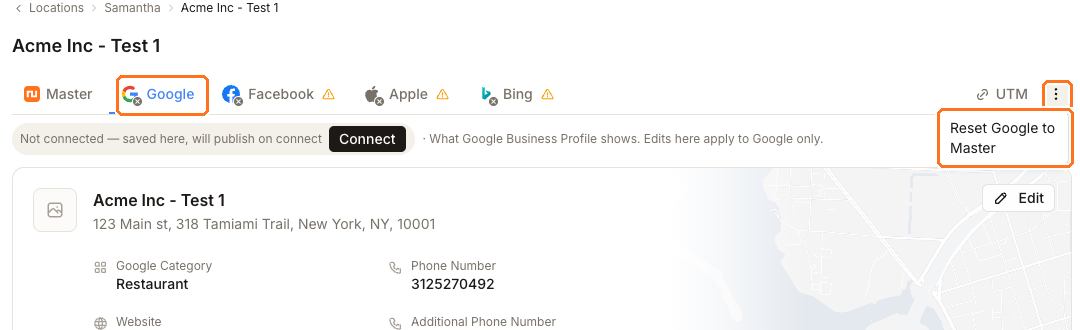
| Undo the exception | The tab row's ⋮ → Reset Google to Master |
| Not connected yet | The tab reads Not connected — saved here, will publish on connect |
Why this matters
An override is the right tool for a narrow set of cases: a publisher that enforces its own name format, a call-tracking number you want only on one directory, a landing page that should differ for one channel. It is the wrong tool for a correction. If the value is simply wrong, it is wrong everywhere, and fixing it on one tab leaves every other publisher stale.
The cost of an override is that it is silent and permanent. Once Google carries its own phone number, updating the shared record will not change it, and nothing on the Master tab announces that an exception exists.
Steps
Open the location and click the publisher's tab. The caption confirms the scope you are now in — What Google Business Profile shows. Edits here apply to Google only.
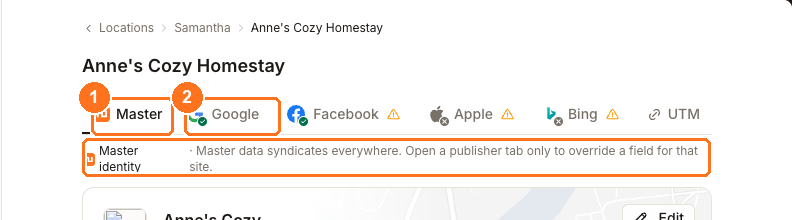
① Master is the shared/default record. ② Google is where a Google-only value can override it; Facebook, Apple and Bing follow the same model.
Click Edit. Check the left-hand switcher and the footer caption before typing: the drawer can write either the publisher exception or the shared record, and the footer tells you which one is currently in scope.
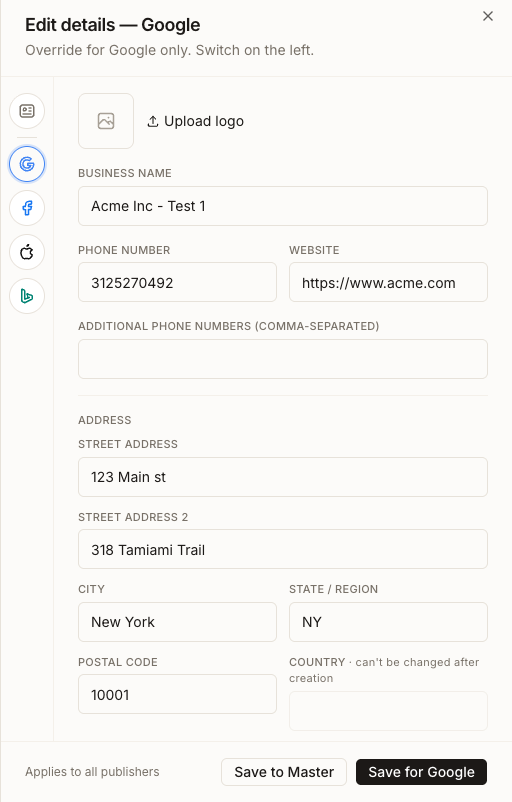
Change only the field that genuinely needs to differ. Everything you leave alone keeps inheriting from the shared record, which is what you want.
Commit with Save for Google. Use Save to Master only if you have realised the change belongs everywhere after all.
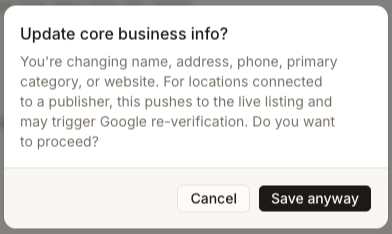
If you are changing name, address, phone, primary category or website, Synup interrupts with Update core business info? before saving. Read it: for a connected location this pushes to the live listing and may trigger Google re-verification. Cancel stops the save; Save anyway continues it.
To remove the exception later, open that publisher's tab and use ⋮ → Reset Google to Master. The publisher goes back to inheriting the shared values.
What you'll see when it's done
- The publisher tab shows the overridden value while the Master tab keeps the shared one
- Other publisher tabs are unaffected
- Where the publisher is not connected yet, the tab reads Not connected — saved here, will publish on connect, and the value is held until it is
- After a reset, that publisher's fields match Master again
Watch out for
Questions people ask
Should I override or fix the shared record?
Override only when the difference is intentional and permanent for that one publisher. If you are correcting a mistake, fix the shared record so every publisher gets it — see updating name, address and phone.
Can I override the business name for one publisher?
Yes — the drawer exposes the full identity and address for each publisher. It is rarely a good idea, because inconsistent names across directories are exactly what weakens the match, but the capability exists for publishers that enforce their own format.
What happens if I save an override on a publisher that isn't connected yet?
It is stored against that publisher and held. The tab tells you so directly: Not connected — saved here, will publish on connect.
Why did Synup ask me to confirm before saving?
Because the field you changed is one of the core business details — name, address, phone, primary category or website. On a connected location those push to the live listing and can trigger re-verification with Google, so the confirmation is there to make that consequence explicit.
Next
For the shared record these exceptions sit on top of, see updating name, address and phone. To check what each publisher will actually receive, see previewing publisher-specific values. To send pending changes onward, see publishing saved location changes.