
Find and filter posts
How do I find a post, and what do Table, Calendar and Feed each show?
Table, Calendar and Feed are three views of the same list, not three places posts can live. Switching between them never changes what exists — only how you look at it. The search box and Filters narrow all three the same way.
One list, three views
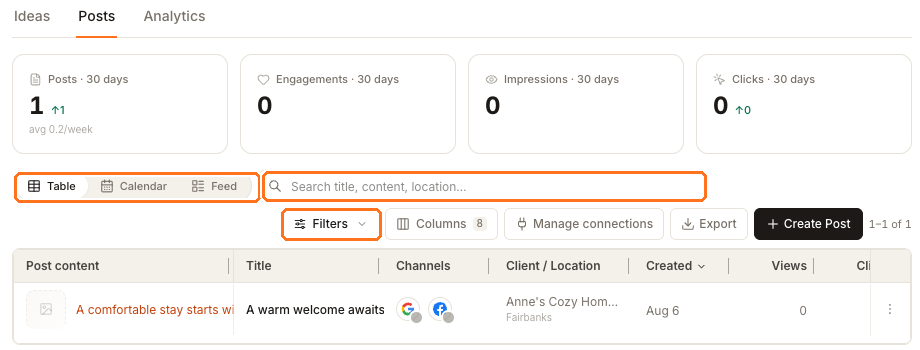
Table is the default and the one to reach for when you want to sort or scan a column. The boxed controls are the three that change what you see: the view switcher on the left, the search box beside it, and Filters below.
If a post you know exists isn't in the list
Check the Location picker first. It is the answer far more often than search is.
A post written for the whole client — a brand announcement, or anything created while the picker was on All locations — belongs to the client, not to a storefront. It will not appear in any single location's Posts list, even with the status filter on All, even though it published through that location's connected profile and still counts in that location's analytics.
Set the Location picker back to All locations and it reappears, with the client's name in the Client / Location column and no location beneath it. Nothing was lost; you were looking at a narrower list than you thought.
Narrowing the list
Search matches the title, the content and the location, so a phrase you remember from the post body works as well as its name.
Filters adds two groups: Status and Platforms. Status is a single choice and offers fewer options than the badges you'll see in the table — post status explains which states you can and can't filter for.
Columns turns the eight table columns on and off. Export downloads every post matching the search and filters currently applied, so narrow the list first and the CSV follows.
Calendar, for the schedule
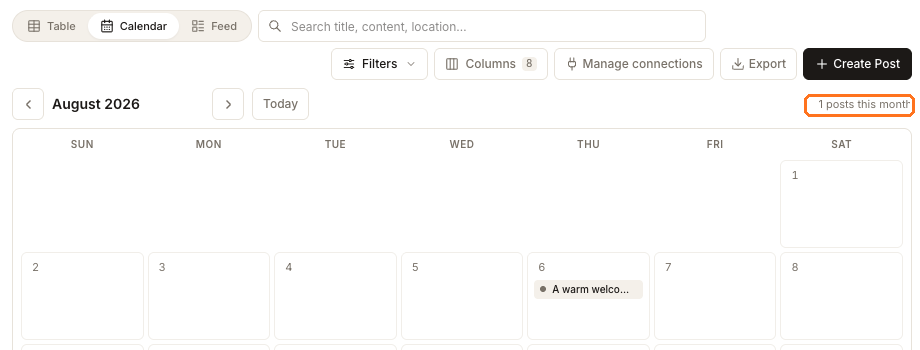
Calendar puts the same posts on the day they belong to, with a month count in the corner and Today to jump back. This is the view for spotting a three-week gap, not for finding one specific post.
Feed, for what it will look like
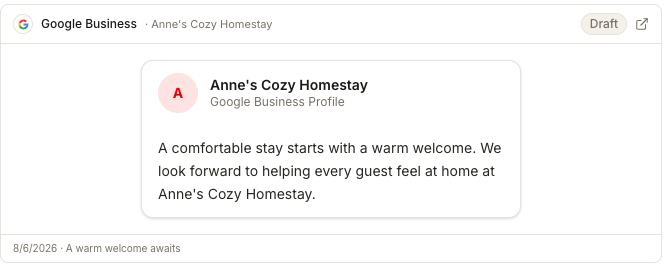
Feed renders one card per channel, as that network will display it, with the post's state and a link out to the live version once it's published. A Mobile / Desktop toggle switches the rendering. Use it to review a batch the way a customer will see it.
Deleting a post
Open the actions menu at the end of a row and choose Delete. Synup asks for confirmation because deleting is not just tidying your list: for a post that already published, Synup also removes it from every channel it went to, and reports back per channel if any of them refused.
These views delete one post at a time. There is no multi-select here, so a clear-out is a row-by-row job.
Next
To understand what the Status column and the channel icons are telling you, see post status. To create the next one, see the composer.