
Create a multi-location post
How do I create a post for one or more locations and networks?
The one thing to understand before anything else: you publish to connected profiles, not to networks. "Facebook" is not a destination — your Facebook Page is. Create Post asks which profiles to send to, then writes one message that each of them gets.
Profiles, not networks
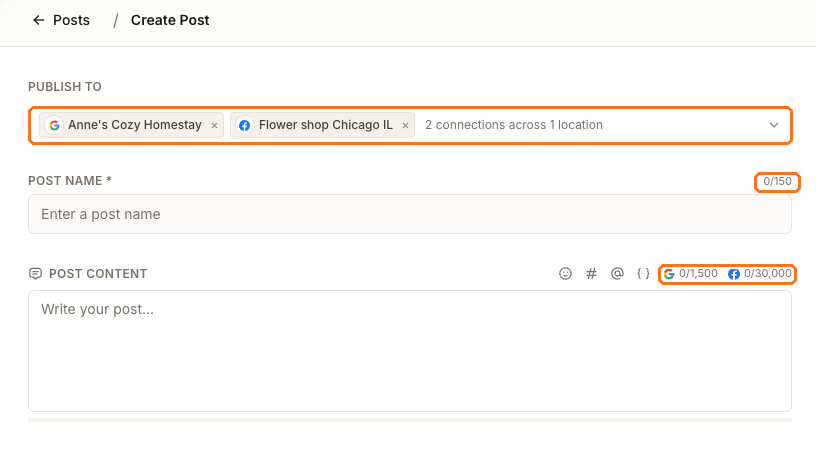
Everything else in the composer reacts to that choice. Pick a Google profile and one Facebook Page, as above, and you get two character counters — 1,500 for Google, 30,000 for Facebook — because you are writing for two real accounts at once.
Steps
Open Social, then Create Post. Coming from a location keeps that location in scope; coming from All locations starts you portfolio-wide.
Under Publish to, choose the profiles. The picker splits them the way your account is actually wired.
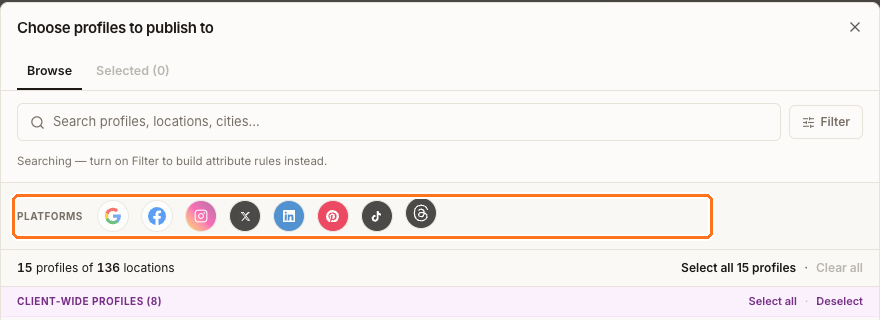
Client-wide profiles belong to the whole client — one brand Instagram account, one company LinkedIn page. Location profiles belong to a single storefront. The boxed platform row filters the list, and search matches profile names, locations and cities. The footer keeps a running count of client-level and location-level selections and how many locations they cover, so you can see the blast radius before you commit.
Give the post a name. Post Name is required and caps at 150 characters. It is internal — how you will find this post later in the list, search and export — not something a customer sees.
Write the content. The insert controls add emoji, hashtags, mentions and wildcards — merge tags such as location name, client name and hours that resolve per location, which is what makes one post work across a portfolio.
Add media and a call to action if you want them. Both are per platform, and the media rules differ sharply between networks — what you can attach has the specifics.
Check the preview before you send.
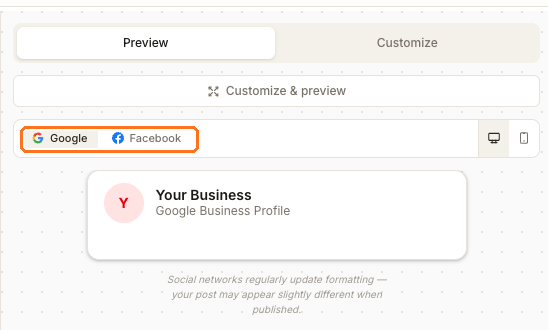
The preview only appears once a platform is selected — until then it says so. Switch tabs to see each network's rendering, and Desktop / Mobile to check line breaks where most of your audience actually is. Synup notes what it can't promise: networks change their own formatting, so treat this as close rather than exact.
Publishing now, or later
Publish Now sends immediately. Schedule is a section in the composer, not a separate screen — open it, set a date and time, and Synup publishes for you then. Leave it blank and nothing is scheduled.
Both Save Draft and Publish Now stay disabled until the post is valid, and the header tells you what is missing — Add a post name while the name is empty. A draft can be incomplete: you can save one without finishing the message or the offer details. It cannot be invalid, so character limits, media counts and the no-mixing rules are enforced even on a draft.
Watch out for
Next
To see what happened after you published, read post status and per-channel state. To find the post again later, see finding a post.