
Compare location review performance
How do I compare review performance across locations?
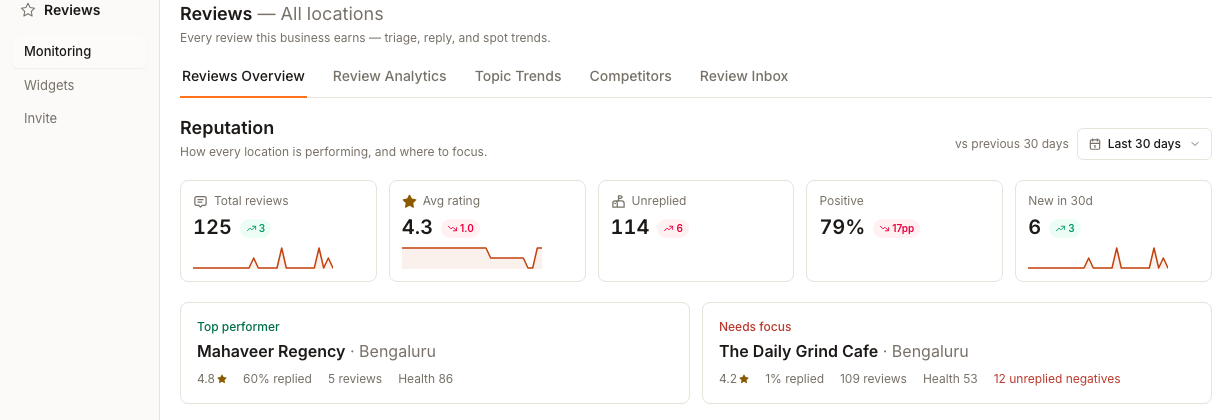
Open Reviews Overview at All locations. The screen is headed Reputation and reads "How every location is performing, and where to focus." It summarises Total reviews, Avg rating, Unreplied, Positive and New in 30d, calls out a Top performer and Needs focus, then lists every location in a table you can filter, re-order, export and reconfigure with Columns.
Key facts
| Where it lives | Reviews Overview at client level, headed Reputation |
| What you need first | More than one location with reviews collected |
| What it changes | Nothing. Filters and columns change the view only |
Why this matters
Comparing locations one at a time makes it difficult to see which ones are getting worse. The leaderboard puts the portfolio in one view so you can use the change columns and unresolved-review evidence to decide which locations need attention first.
Steps
Open Reviews Overview at All locations. Read the summary row and the Top performer and Needs focus cards first to get the shape of the client before looking at individual locations.
Set the period. The date control opens on Last 30 days, with Last 7 days, Last 90 days, This month, This quarter and This year as presets, or pick your own dates and choose Apply.
Narrow to the locations that need you. Filters offers four that answer the question directly: Unreplied negatives, Stale, Low response and Declining. There are also health and rating filters, and a numeric threshold field showing e.g. 10.
Choose what the table shows. Columns opens the full set. Visible by default are Location, Rating, Reviews, Sentiment, Response, 30d, % ≤2★, New, Last review and Health.
Add the columns that fit the question you are answering. Also available are % 5★, Distribution, Net sentiment, Rating Δ, Health Δ, Volume/wk, Oldest unreplied, Days since neg. and % of book. Reset returns the default set.
Sort by a change column rather than an absolute one. Rating Δ and Health Δ find the locations that moved; Rating alone mostly finds the locations that have always been fine.
To find one location rather than a category, use the search field marked Search location….
Open the location that needs work and continue in its own review queue.
What you'll see when it's done
- A table of every location, ordered by whatever you chose
- Only the columns you selected, with Reset available
- Any active filter shown on its control rather than reading All
- The summary row reflecting your chosen period
Watch out for
Questions people ask
What should I check before I begin?
The period. Every figure on the screen is scoped to it, and the default is Last 30 days, so a quiet location can look alarming and a recovering one can look unchanged purely because of the window.
Why does one location show no rating at all?
It has no reviews in the period, or no connected source. Widen the period first; if it stays empty, the problem is collection rather than performance.
Which column should I sort by?
Whichever matches the decision. Unreplied and Oldest unreplied for work to do today, Rating Δ and Health Δ for locations that are slipping, Volume/wk for locations that have stopped collecting reviews.
Is the lowest-rated location the one to work on?
Usually not. The bottom of the table tends to be stable and already known — someone has been aware of it for months. The location that deserves this week is the one that fell, which is why the change columns exist and why sorting by Rating alone keeps pointing you at the same place.
Next
For the detail behind a single location's numbers, open review analytics. To see the themes driving a decline, see review topic trends. To start clearing the unreplied count, see finding the reviews that need attention.