
Connect accounts to locations
How do I connect publisher accounts and assign them to locations?
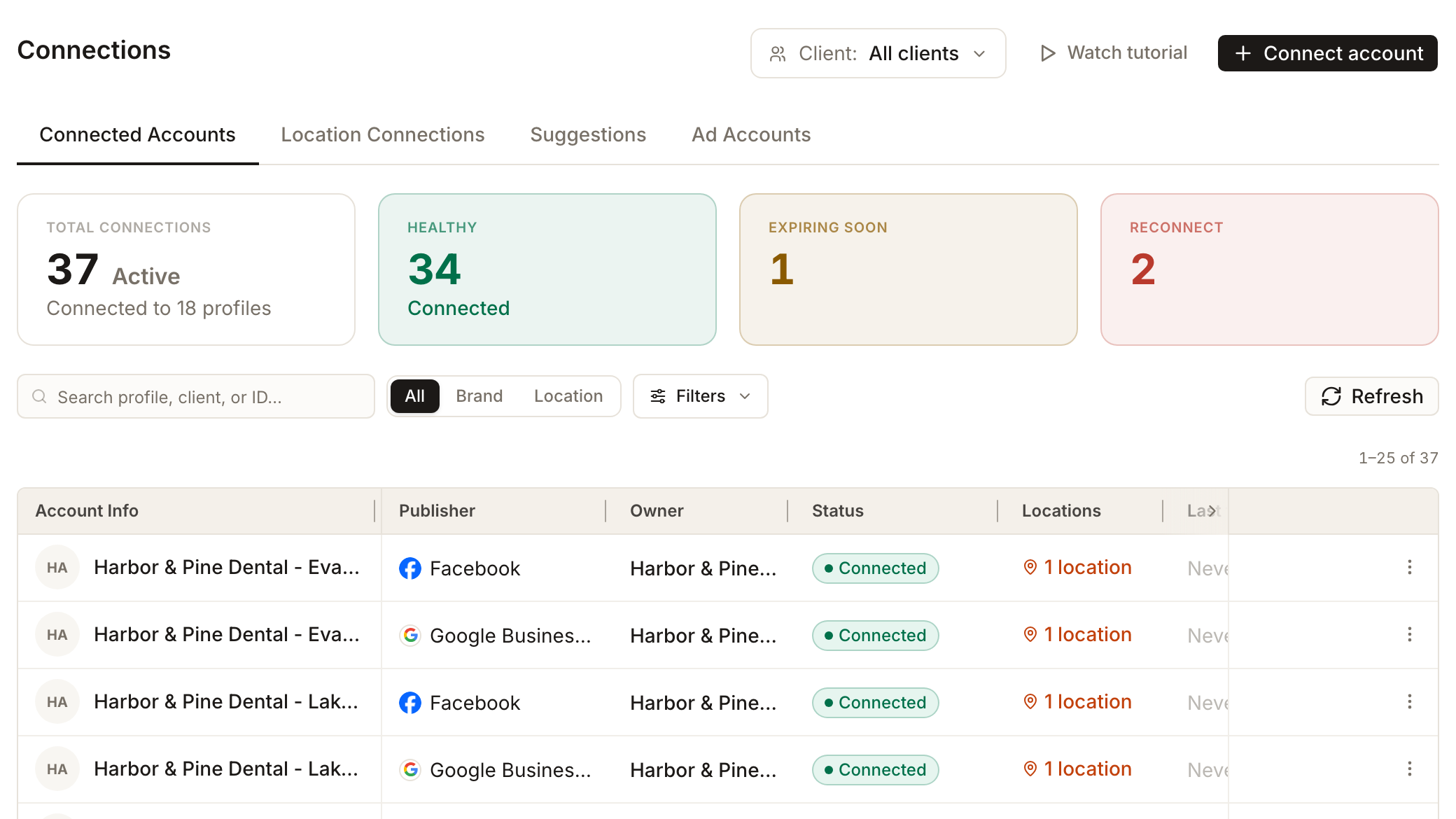
Open Settings (the gear at the top right) and choose Connections. Select Connect account, choose the client, then decide what you are connecting. Social connections are a client's brand channels, set up once and used across all of that client's locations. Listing connections link individual locations to Google Business Profile, Facebook or Apple Business Connect where offered. After you sign in on the publisher's own screen, check the result in Connected Accounts and make sure each location is paired with the right listing.
Key facts
| Where it lives | Settings → Connections |
| Tabs | Connected Accounts, Location Connections, Suggestions and Ad Accounts (an Analytics tab appears on workspaces that have it turned on) |
| Start with | Connect account at the top right. A Client filter beside it narrows the page to one client |
| Two kinds | Social connections (brand channels such as Instagram, X, LinkedIn, Pinterest, Bluesky, Mastodon, YouTube, Facebook) and Listing connections (Google Business Profile, Facebook; Apple Business Connect where offered) |
| You must pick | A client. Nothing can be connected until one is chosen |
| Sign-in | Always on the publisher's own pages. It cannot be done for you |
| Who can open it | Every team member can open the page. Connecting for the whole agency is limited to people who are not restricted to specific clients |
Steps
Open Settings → Connections. To work on one client, choose it in the Client filter at the top.
Select Connect account. The Connect an account dialog opens with two tabs, Social connections and Listing connections.
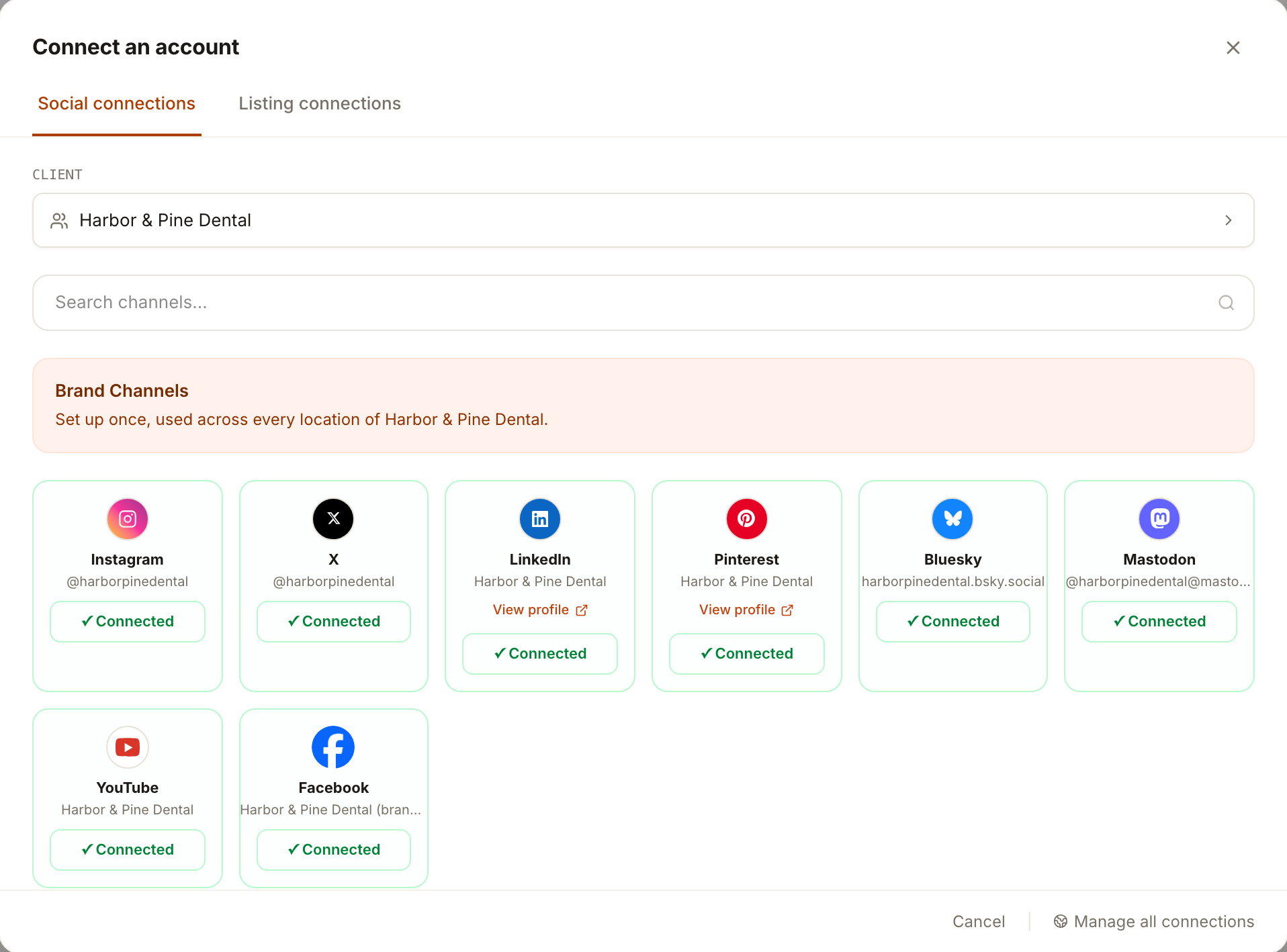
Under Client, choose the client. Until you do, the dialog says Select a client to continue and explains that channels and listings connect to one client's account.
For a brand channel, stay on Social connections. The Brand Channels panel shows each channel for that client, with Connected against the ones already set up. Select Connect on a channel that is not yet connected and sign in on the publisher's page.
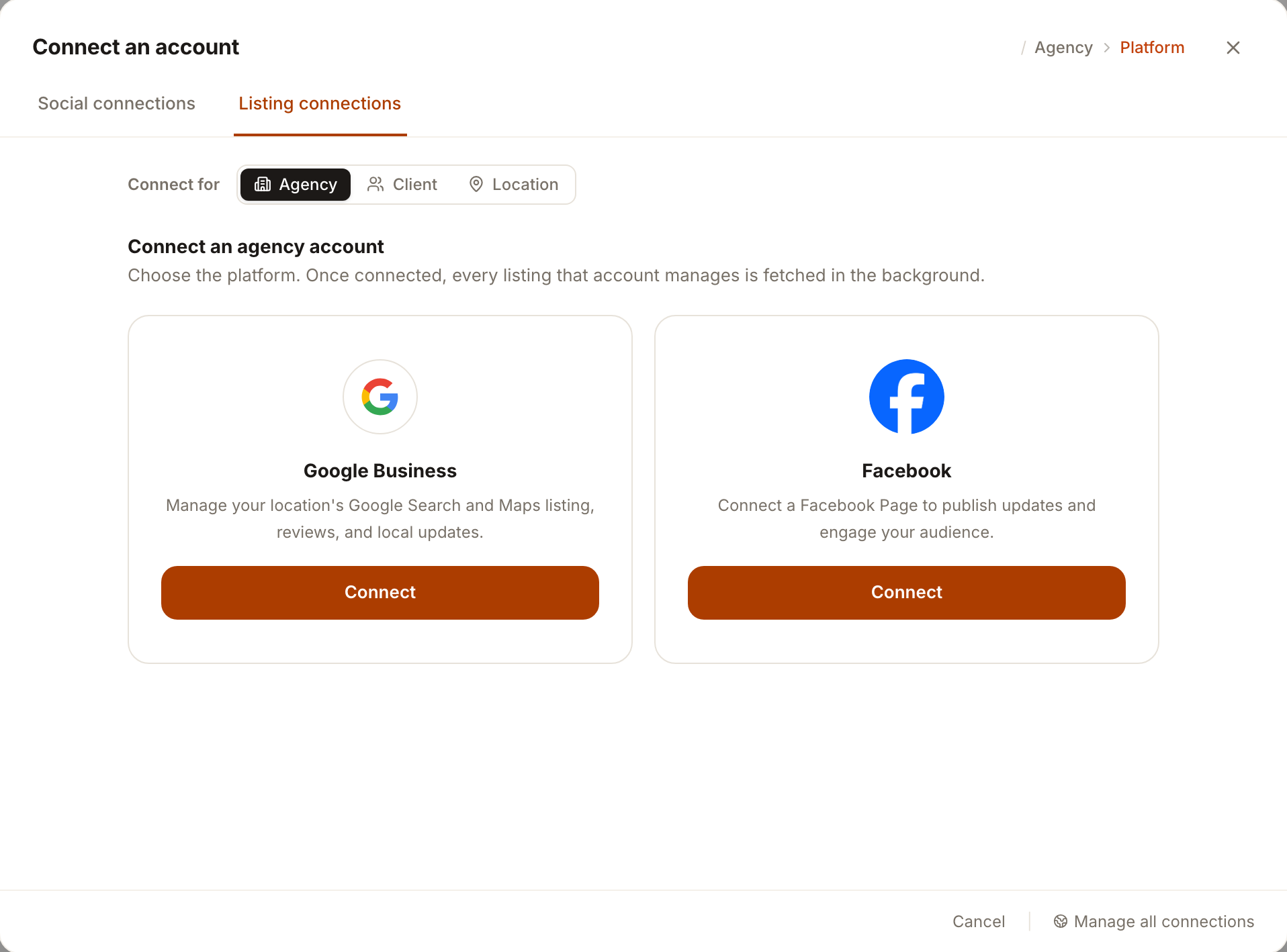
For a listing, switch to Listing connections. Choose what the connection is for with Connect for: Agency, Client or Location. Agency connects one Google or Facebook sign-in whose listings you then pair to locations; Client and Location connect for that client or that single location. Then choose Google Business or Facebook and select Connect. Where offered, use the Apple Business Connect button for Apple.
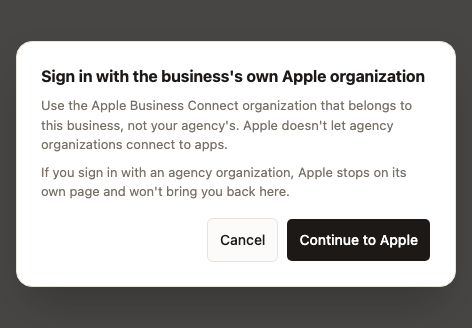
Complete the publisher's sign-in, account choice and permission screens. These belong to the publisher and vary by network. If you start a first connection with the Apple Business Connect button, read the organization reminder, then select Continue to Apple.
Return to Synup. After an agency or account sign-in, Synup fetches the listings that account manages in the background. When they are ready, pair each one with its Synup location, or use Suggestions (below).
Pair listings with locations
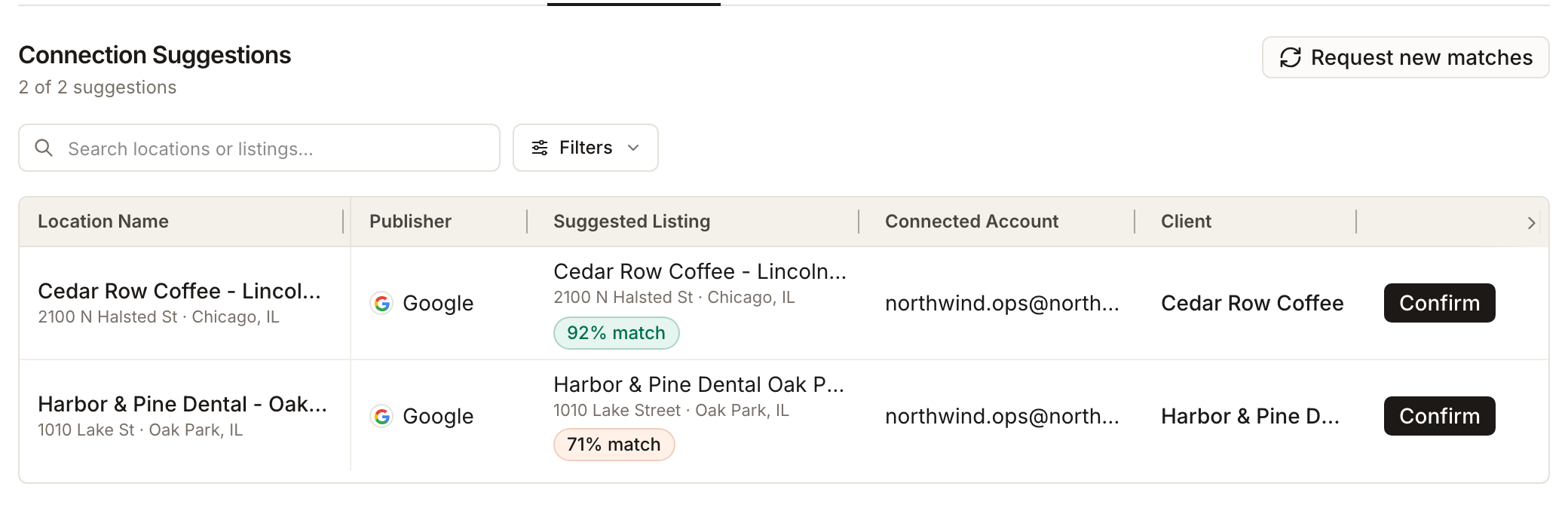
A fetched listing becomes a location connection when it is paired. Open Suggestions to see matches Synup has proposed. Each row shows the location, the publisher, the suggested listing, the account it comes from, the client and a percentage match. Check the name and address, then select Confirm to connect it. Request new matches asks Synup to look again.
For a bulk approach, see matching unpaired listings.
Check the result
- Connected Accounts lists each signed-in account with its Publisher, Owner (the client, or Agency for an agency-level sign-in), Status, Locations (how many it is connected to) and when it was last fetched. The counters at the top show how many are healthy, expiring soon or need to be reconnected.
- Location Connections shows each location's publisher listing and its connection status. Use it to confirm the intended branch, not just the account, is connected.
- A row's three-dot menu offers actions such as Request matches and Disconnect.
Before you disconnect or switch anything
Disconnecting a location unlinks that location and leaves the account connected. Disconnecting an account disconnects all of its linked locations, so check how many locations the row shows first. Treat either as a deliberate change, especially when one account serves several clients or locations.
What you'll see when it's done
- The account in Connected Accounts with the status Connected
- The intended location paired with its listing and shown as connected in Location Connections
- Once you confirm a suggestion, the location shows as connected
Watch out for
- Not every channel is offered to every workspace. Some networks are shown only on workspaces that have them enabled, and some are published manually rather than automatically.
- Choose the client first. The same publisher sign-in can serve several clients, and disconnecting an account affects every client using it.
- Renewing is different from pairing. If an account needs new access, reconnect it from its row, then recheck its locations.
- Connect Apple with the business's own organization. The first-time connection reminder reads Sign in with the business's own Apple organization. Apple stops the connection on its own page if you select an agency organization. If you're reconnecting Apple, you go directly to Apple.
Questions people ask
Why can't I connect until I pick a client?
Channels and listings connect to one client's account, so Synup needs to know which client before it opens the publisher's sign-in.
What does Agency mean under Connect for?
It connects one Google or Facebook sign-in for the whole agency. Every listing that account manages is fetched, and you then pair each listing with a location. It is not available to people who are restricted to specific clients.
What does the percentage on a suggestion mean?
Synup's estimate of how well the suggested listing fits the location. Compare the name and address yourself before you select Confirm, particularly for a lower percentage.
Can Sydekick connect an account for me?
Not the sign-in. It can help read and pair connections once the account is connected.
Next
After the relationship is correct, confirm the location's publisher coverage in Premium Listings. To catch access problems later, see monitoring connection health.