
Improve your Google profile score
How do I read and improve the Google Business Profile Optimizer score?
If your Optimizer score looks wrong or stays unchanged after an edit, check the saved field in the location editor first. The Google Business Profile card on Listings → Overview is an eight-field completeness checklist built from indexed data, so it can lag behind the editor. It is not Google's verification or health state, and saving or waiting does not guarantee an immediate score change.
Key facts
| Where it lives | A location → Listings → Overview → the Google Business Profile card |
| What it reports | Profile completeness as N/100 · N actions left |
| The eight checks | Verified, Hours set, Primary category, Website linked, 3+ photos, Description, Services / menu, Attributes |
| How the score moves | In eighths — the only possible values are 0, 13, 25, 38, 50, 63, 75, 88 and 100 |
| Where to fix things | Finish setup, which opens the same location's editor |
| Real Google status | The location's Google tab, not this card |
| Without a connection | Unavailable until Google is connected, with a Connect Google button |
Why the score can look wrong
The card turns "improve the Google profile" into eight concrete items you can work through. Do not read it as a verdict on the listing: completeness and Google's own status are independent. A profile can be connected or suspended while its Optimizer score still shows outstanding profile work.
Neither reading was wrong. They answer different questions, and a suspension is not something more photos will resolve.
Steps
Open the location, then Listings → Overview, and find the Google Business Profile card.
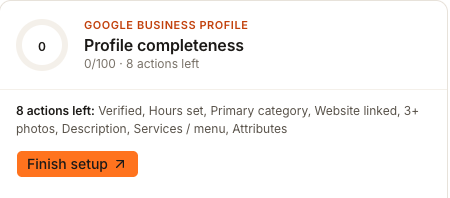
Read the N actions left line rather than the number. It names the exact checks outstanding — that list is the actionable part; the score is just a summary of it.
Click Finish setup to open the location's editor, and fill the named fields. Hours, description, photos, services and attributes all live in their own sections there.
Decide where each value belongs as you go. Anything true of the business belongs on the shared Master record so every publisher gets it; use the Google tab only for something genuinely Google-specific.
Check Verified separately. It is one of the eight checks, but Google's real state is on the location's Google tab — which is also where a problem like a suspension is reported.

Confirm your changes in the editor itself. That is the reliable record of what you saved; the card is a summary that lags behind it.
What you'll see when it's done
- The editor shows the values you saved
- The Google tab shows the current connection and verification state
- The N actions left list shortens once the Optimizer's data catches up
- The score moves in steps of roughly 13 points, one per completed check
Watch out for
Questions people ask
Why is my score 0 when the profile clearly has content?
Often because the Optimizer is working from indexed data that has not caught up. Open the location's editor and check the fields directly — if the values are saved there, do not keep re-saving them to force this card to move.
Does a full score mean Google has verified my listing?
No. Verified is one of eight completeness checks, and it can disagree with Google's live state in either direction. The location's Google tab is the place to read what Google currently reports, including suspensions.
Why does the score jump instead of moving smoothly?
Because it is eight checks expressed as a percentage, so each one is worth about 13 points. Any value that is not a multiple of an eighth did not come from this card.
The card says the Optimizer is unavailable. What now?
It needs a connected Google profile before it can score anything. Use Connect Google on the card, then come back to Overview.
Next
For the wider completeness measure across a location's profile, see profile completeness. To fill the fields the checklist names, see adding photos, services and attributes and setting holiday and seasonal hours. For the surrounding health signals on the same screen, see the Listings overview.