
Set Google edit protection
How do I stop Google from overwriting my saved details?
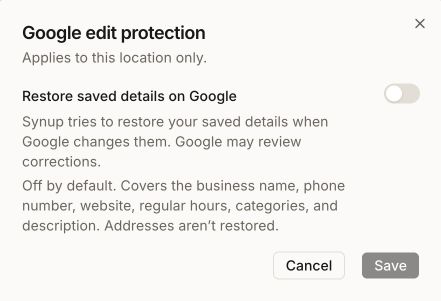
Open a single location's Listings page and select the shield icon at the right of the heading row. In the Google edit protection dialog, switch on Restore saved details on Google and select Save. After that, when Google changes one of the covered fields on that location, Synup tries to put your saved value back. Protection is off by default, applies to one location at a time, and only covers Google.
Key facts
| Where it lives | The shield icon on the Listings heading row when one location is selected, and at the right end of the publisher line in the location editor |
| Default | Off, for existing and new locations |
| Scope | One location. A client or tag roll-up shows no shield, so nothing suggests every location is protected |
| Fields it can restore | Business name, phone number, website, regular hours, categories and description |
| Never restored | The address, and anything outside the fields above (for example photos or holiday hours) |
| What it needs | Google connected for the location, and at least one publish of your saved details that Google accepted |
| Who can change it | Agency users with access to Clients and Listings for that location. Client portal users don't see it |
| Not offered for | Website entities. Archived locations, and locations under an archived client, can't be changed |
Why this matters
Google accepts suggested edits from the public and from its own data sources, and can apply them to a Business Profile without asking you. A wrong phone number or changed opening hours can sit on Google for weeks before anyone notices. Edit protection watches the fields customers rely on most and tries to put your details back, so you don't have to catch each change by hand.
Steps
Open Listings and choose one location in the picker. The shield appears only when a single location is in scope. You can also open the location's editor; the same shield sits at the right end of the publisher line.
Hover the shield to read the saved setting:
- A green shield with a tick: Google edit protection: On (saved setting, Google only)
- A grey shield with a tick: Google edit protection: On, but Google isn't connected, so nothing is restored
- A shield with a cross: Google edit protection: Off (saved setting, Google only)
- A plain shield: the setting is still loading, or Google edit protection couldn't be loaded
Select the shield. The Google edit protection dialog opens and says Applies to this location only.
Switch on Restore saved details on Google. The help text under it reads: Synup tries to restore your saved details when Google changes them. Google may review corrections.
Select Save. The dialog closes once the setting is saved. Cancel, Escape or a click outside the dialog closes it and keeps the last saved value.
Read any note that appears in the dialog before you close it, and act on it using the table below.
What the dialog is telling you
| What you see | What it means | What to do |
|---|---|---|
| Switch on, no note | The setting is saved and Google is connected | Nothing. Corrections can happen when Google changes a covered field |
| Google isn't connected for this location. This setting is saved and applies once Google is connected. | Nothing can be restored yet | Connect Google for the location |
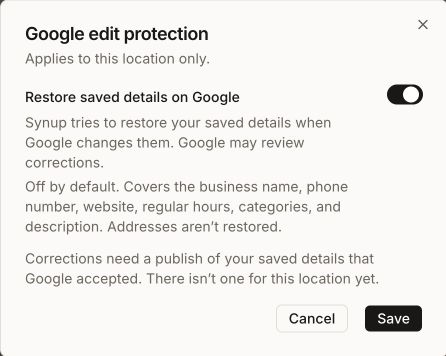
| Corrections need a publish of your saved details that Google accepted. There isn't one for this location yet. | Synup has no accepted Google publish to restore from | Publish the location and wait for Google to accept it (see when changes go live) |
| New automatic corrections will stop. Any correction already sent to Google may still finish. | You switched it off but haven't saved | Select Save to turn it off, or switch it back on |
| We couldn't save this change. Your previous setting is still in place. Try again. | Synup confirmed the old setting is still saved | Select Retry |
| We couldn't confirm whether your change was saved. Check again before making another change. | The save may or may not have gone through | Select Check again. The shield shows neither On nor Off until Synup can read the setting |
| We couldn't load this setting. Your setting is safe. | The setting couldn't be read | Select Retry. Nothing has changed |
When Synup corrects a change, and when it holds back
Synup only sends a correction when Google itself changed a covered field and Google's value differs from what your last accepted publish sent. The value it sends back is exactly the one from that publish.
It holds back, and sends nothing, when:
- Google is still reviewing an edit to that field
- a publish is in progress for the location, or you have saved edits that haven't been sent yet. Your newer edit wins: publish it instead
- an earlier correction for the location hasn't settled
- the Google profile connected to the location changed, or more than one connection points to the same Google profile
- your saved value for that field changed since the last accepted publish
- Synup has already corrected the same publish's details twice. If Google keeps changing the field, Synup stops and waits for your next accepted publish
Example: a dental office's saved Friday hours close at 5 pm. Google applies a public suggestion that changes Friday to 6 pm. With protection on, Google connected and an accepted publish behind it, Synup sends the 5 pm hours back. Google may review the correction before it shows. If the address had changed instead, nothing would be sent; fix it in the editor and publish.
Worked example
An agency manages a florist whose website keeps getting changed on Google. On the florist's Listings page, they select the shield and switch on Restore saved details on Google. The dialog shows Corrections need a publish of your saved details that Google accepted. There isn't one for this location yet. They select Save, then publish the location and wait for Google to accept it.
Afterwards, they hover the shield and check that it reads Google edit protection: On (saved setting, Google only). If Google changes the website again, Synup may try to restore it. They still check the listing on Google before telling the florist it's fixed.
What you'll see when it's done
- A green shield with a tick on the Listings heading row for that location
- The tooltip Google edit protection: On (saved setting, Google only)
- The same shield on the location editor's publisher line
Watch out for
- Addresses are never restored. An address change can affect the map pin and verification, so fix it yourself in the editor and publish.
- Turning it off stops new corrections only. A correction already sent to Google may still finish.
- A correction is not a new publish. It puts back what you last published; it doesn't publish anything you saved since. Use Save & Publish or wait for the normal publish for that.
- Corrections can be paused. If Synup pauses automatic corrections on its side, nothing is restored even with the setting on.
- Google only. Other directories get your details through normal publishing, not through this setting.
- One location at a time. Turning it on for one location doesn't turn it on for the rest of the client.
Questions people ask
Is Google edit protection on for my new locations?
No. It is off by default for every location, new or existing. Turn it on location by location.
Why didn't Synup restore the address Google changed?
Addresses are never restored. The dialog says so: Addresses aren't restored. Correct the address in the location editor and publish it.
The shield is on, but Google still shows the wrong phone number. Why?
Check the notes in the dialog first: Google may not be connected, or there may be no accepted publish yet. If both are fine, Synup may be holding back because you have unsent edits, a publish is in progress, Google is reviewing an edit, or Synup has already corrected the same change twice. Google may also still be reviewing the correction.
Can my client turn this on from their portal?
No. The setting belongs to your agency, like the publisher tabs it sits beside. The client portal doesn't show the shield.
Why is there no shield on my Listings page?
The shield appears only when one location is selected. A client or tag roll-up shows none, and website entities don't have it.
Next
- Make sure your saved details have reached Google: when do my listing changes actually go live?
- Edit the details the shield protects: updating a location's business information
- Check whether details match across directories: NAP consistency
- Keep the Google connection healthy: connection health alerts