
Plan a post series
How do I plan a series of posts?
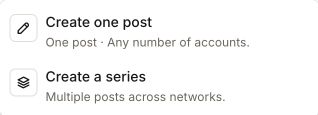
In Social, open Create Post and select Create a series. Use the Series tab to find an existing series. In the series builder, add posts one by one with Add post, each going to one account, then set each post's copy, media, time and network settings. When every post is ready, select Review schedule and confirm. Series is available only when it's turned on for your workspace.
Key facts
| Where it lives | Social → Series. The builder opens as a full page |
| Availability | Only in workspaces where Series is turned on. Otherwise there's no Series tab |
| One post, one account | Each post goes to one account. To post the same thing elsewhere, use Duplicate to another network… |
| Saving | Edits save as you go. Save as draft keeps everything as drafts; nothing is scheduled until you schedule the series |
| Hand-off networks | Reddit, Substack, Medium and LinkedIn articles. Synup can't publish these for you; when one is due, a person posts it from the posting kit |
| Analytics | Compare series in Publishing performance with Series and Compare against |
Why this matters
A launch, a video series or a month of themed content is easier to get right when you can see every post in order, across networks, on one screen. The series builder catches problems before anything is scheduled, keeps times consistent, and lets you measure the series as a whole afterwards.
Steps
Open Social and select Create Post.
Select Create a series. With an empty series you can select Add first post.
In the bar under the header, check Client, Default time zone and Starts.
Select Add post, choose the account it goes to and select Add post in the dialog. If no account is connected, select Connect accounts.
Fill in the post: Title or Post content, Media (Upload or From library), and When (Date, Time, Time zone). Each post uses the series default time zone unless you choose Override for this post.
Open Options for the first comment, link and the network's own settings (see below).
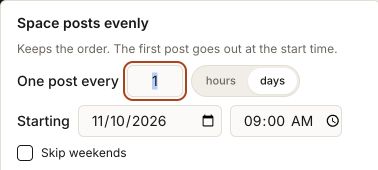
Repeat for each post. Use Shift all… to move every post by days or hours, or Space posts… to space them evenly from a start time, with Skip weekends if you want.
Fix anything flagged. The header shows how many posts need fixing; select Show to jump to the first.
Select Review schedule. The review groups posts into Needs fixing, Will be scheduled, Already scheduled and Published or in progress, and marks hand-offs. Select Schedule N posts to confirm, or Back to editing.
Work faster with post actions
Open a post's Post actions menu:
- Duplicate copies the post right after itself.
- Duplicate to another network… creates one copy per network you pick, with the same copy, media and time.
- Apply copy/time to similar posts… copies the Time of day, caption, title, first comment, link or network settings from this post to the other posts on the same network.
- Move up, Move down and Delete.
Network settings in a series
These fields appear under Options depending on the network. Leaving a field Not set means nothing is sent for it.
| Network | Fields |
|---|---|
| YouTube | Privacy, Playlists, Made for kids (an answer is required), Category, Contains altered or synthetic content, Video language, Tags, Translations |
| TikTok (if enabled) | Privacy, comments, duet and stitch switches, Branded content |
| Video category for feed videos | |
| Alt text for a single picture, Collaborators | |
| Alt text for a video. First comment and link are under Options | |
| LinkedIn articles | SEO title, SEO description, Share message |
| Medium | Topics, SEO title, SEO description, Cover alt text |
| Substack | SEO title, SEO description, Post URL, Tags |
| Subreddit, Flair, Post type | |
| Vimeo and Dailymotion | Visibility once published, tags, language, and category for Dailymotion |
Reddit, Medium, Substack and LinkedIn article posts are published by a person: the posting kit has each of these fields ready to copy.
Hand-off posts
Some posts can't be published automatically. When one is due, it waits in the series with Waiting to be posted on the network. Open the posting kit with Open posting kit, copy each field, publish it on the network yourself, then paste the live link back to mark it published.
Compare series performance
In Publishing performance, use the Series and Compare against filters. Choose one series, then another to compare Submitted posts, exposure and Interactions per post. Choose a network to compare views or impressions; they're not combined across networks. Outcomes are lifetime results for posts submitted in the dates you pick, and posts with missing metrics show a dash, not zero.
Example: compare a September product-launch series against an October tips series on Instagram to see which drew more interactions per post.
Worked example
Say a client wants a short how-to video series on YouTube and TikTok, plus a Reddit discussion post. If your workspace has Series enabled and offers both video networks, add the first video to the YouTube account and answer Made for kids under Options. Then use Duplicate to another network… to create the TikTok copy. Add the Reddit post, then use Space posts… with Skip weekends to spread everything out.
In Review schedule, check that nothing is in Needs fixing and that the Reddit post is marked as a hand-off. After you confirm, look for the scheduled-posts message and Series · markers on the calendar. When the Reddit post is due, it should show Waiting to be posted on Reddit.
What you'll see when it's done
- N posts scheduled. after confirming
- The header status, for example 6 scheduled, 2 waiting and 1 draft
- Posts on the calendar marked Series · name with Post 2 of 8; select one to Edit in series
Watch out for
- A blocked post stops the series. If any post needs fixing, nothing is scheduled until it's fixed; the review says so.
- If scheduling can't be confirmed, the review shows how many posts were confirmed and offers Check latest scheduling status. Check before retrying so posts aren't scheduled twice.
- Same account within 30 minutes is flagged as a warning. You can schedule anyway.
- Uploads must finish first. You can keep editing, but scheduling waits until uploads finish.
- Changing the default time zone moves posts to the same local time in the new zone, and reschedules scheduled ones. Read the dialog before confirming.
- Archiving a series takes scheduled posts off the calendar and back to drafts. Published posts stay live, and posts being sent can't be stopped.
- Phones are read-only. Edit series on a larger screen.
Questions people ask
Why don't I see a Series tab?
Series is only available in workspaces where it's turned on. If you think it should be on for you, contact your account team.
Can one post go to several accounts?
No. Each post goes to one account. Use Duplicate to another network… to make a copy for each network.
Can I edit a post after the series is scheduled?
Yes, until it publishes. Unpublished posts stay editable, and changes save while they stay scheduled. Published posts can't be edited from the series, except some YouTube details with Update on YouTube.
Next
- Write single posts and learn the composer's fields: post composer
- Read results for posts and series: post analytics
- Understand Partial, Failed and Not confirmed: post status
- Check each network's limits: supported networks and limits