
Read review-campaign analytics
How do I read review-campaign delivery and funnel results?
At client level, Invite Overview ranks locations by Acquisitions, Contacted, Click rate, Response rate and Avg ★. For one campaign, select its row and open Analytics. The current banner reports Emails sent, Emails clicked, SMS sent, Conversion rate and Total responses. The Campaign tab shows the configuration it ran with.
Key facts
| Where it lives | Invite Overview at client level; select a location, then select a campaign row for its results |
| What you need first | A campaign that has already been launched and sent |
| What it changes | Nothing. Every control here changes the view only |
Why this matters
A review campaign has three places it can fail and they look identical from the outside — the message never arrived, it arrived and nobody opened it, or it was opened and nobody left a review. The funnel columns separate those, and each one has a different fix. Without them, a low review count just looks like bad luck.
Steps
Start at client level with Invite Overview. Set the window with the date control, which opens on Last 90 days.
Read the location table: Location, Acquisitions, Contacted, Click rate, Response rate and Avg ★. Compare Contacted against Acquisitions first — that ratio is the campaign's actual yield.
Select a location to open its Acquisitions, Responses and Recipients tabs. Those tabs are location-level; the client-wide Invite Overview ends at its location table. Recipients is where you find out whether the list was the problem.
Narrow the campaign list with its date control, Other Filters for Status and Source, and Sort by. Or find one directly with Search by campaign name….
Read the campaign columns: Campaign, Type, Location, Status, Emails, SMS, Replies, Click rate, Follow-ups and Auto-send. Compare replies and clicks with the send columns to understand which channel is getting engagement.
Select a campaign row to open its results.
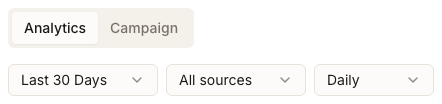
On the Analytics tab, read Emails sent, Emails clicked, SMS sent, Conversion rate and Total responses. The deployed page shows Last 30 Days, All sources and Daily, but those selectors do not currently re-scope the banner, so do not use them to claim a different reporting window.
Open the Campaign tab to see what it was configured to do. It lists Section against Configuration, which is how you tell a poor result apart from a misconfigured campaign.
To export response rows, return to the location's Responses tab and use Settings → Download Report. Campaign Analytics itself does not have a report-download control.
Return with Back to campaigns.
What you'll see when it's done
- Locations ranked by the funnel stage you care about
- Per-campaign send, click, response and follow-up signals
- One campaign's current result banner and its displayed view labels
- The configuration that campaign actually ran with
Watch out for
Questions people ask
What should I check before I begin?
The scope. Invite Overview opens on Last 90 days and its date control changes the client-wide roll-up. The campaign page displays Last 30 Days, but its selectors do not currently re-scope the banner, so do not compare the two as if both were confirmed period-filtered reports.
Why does a location show contacts but no acquisitions?
The message reached people and no review came back. Look at Click rate next: low click rate points at the message or the sender, while a healthy click rate with no reviews points at the funnel the click leads to.
Which number should I report to a client?
Acquisitions — reviews actually collected. Contacted measures your effort rather than the result, and it always looks better.
Is a low response rate a sign the campaign was badly written?
Not usually, and this is where most teams start rewriting copy for no reason. Check Emails and SMS for deliverability and the Campaign tab for the sender configuration first. A campaign sent from a domain that has not passed authentication can perform terribly with perfect copy — see configuring a custom sending domain.
Next
To change how a campaign asks, see launching a review-request campaign. For a code customers can scan in person, see sharing review links and QR codes. For the reviews themselves rather than the asking, open review analytics.