
Business Listing Updates Keep Reverting? How to Find the Cause
Business listing updates can revert when a stale upload or connected system writes an older value, when a correction never reaches the source used by the next sync, or when the destination applies its own update. Start with one changed field: compare the returned value with submitted records, check activity in the relevant time window, and review the destination’s edit status.
 AT THE STOREFRONT
The wrong description.
An update can succeed while carrying an older value into another field.
ILLUSTRATIVE SCENARIOYou correct a location’s description on Monday. On Thursday, a colleague uploads new Saturday hours. By Friday, the old description is back. Before correcting it again, establish what changed the record.
Start by finding where the returned value came from. Three situations deserve investigation:
- An upload or integration contains stale data. A newly saved file can carry an old description alongside the hours someone just changed.
- The correction never reached the source that publishes the field. Someone edited the destination directly, while a scheduled integration continued reading a different record.
- The destination changed the information. Google gathers Business Profile information from sources including user reports and licensed content, and may update a profile when information appears incorrect or outdated. Google Business Profile Help
These situations can produce the same visible symptom. Your next step is to identify the affected field, narrow the timing, and compare the actual records. The examples below are fictional; they illustrate an investigation rather than a verified customer result or a specific product’s import behavior.
Watch Roshan explain the workflow
How to find what is overwriting your listing
Choose one affected location and field before investigating the entire batch.
- Capture both values and a time window. Record the correct value, the returned value, where each appeared, when you last saw the correct one, and when you first noticed the change. Save a screenshot or record of the destination you checked.
- Search for the exact returned value. Look in the submitted spreadsheet, recent exports, your location database, and connected tools. An old abbreviation or distinctive typo can help identify a candidate source. A match is a lead, not proof that this source sent it; finding no match does not rule out an inaccessible integration or missing history.
- Compare the relevant activity. Check imports, scheduled syncs, and manual edits within that window. Align time zones before comparing timestamps. Where logs expose the submitted values, check the field itself rather than relying only on a successful-job message.
- Locate the last correction. Establish where someone entered it and whether the next publishing job actually reads that source. If it reads an older record and writes the field, the correction can be overwritten.
- Check the destination’s own state. Review available update notices and edit status. Confirm that you are inspecting the exact profile you changed: a duplicate profile or an unaccepted edit can resemble a reversion.
The timing of an import is a clue. The submitted value and the importer’s handling of that field are the evidence you need.
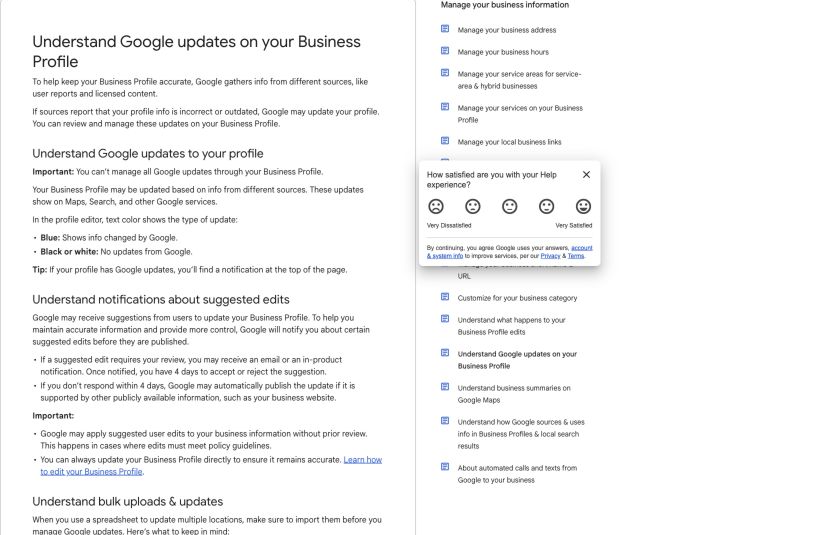
Source: Google Business Profile Help, captured September 29, 2026. This is a documentation screenshot, not a customer account or evidence of this fictional incident.
A worked example: the hours changed, and so did the description
One intended change.
One stale value.
Saturday hours
ClosedBusiness description
Weekend appointments availableSaturday hours INTENDED
9am–1pmBusiness description UNINTENDED
Weekday appointments onlyCedar Street Clinic, internal ID L-014, recently started offering weekend appointments. Marketing changes its description in the listings tool to “Weekend appointments available.” Operations keeps a separate spreadsheet for hours, exported in March. Its description column still says “Weekday appointments only.”
On Thursday, an operations manager edits Saturday hours in that March file and uploads it. In this hypothetical system, the importer writes the values supplied in every included column. The new hours publish, together with the old description.
Here is the evidence that would establish this particular cause:
- The submitted file contains the returned description for L-014.
- The import record shows that the description was written during Thursday’s job.
- Marketing’s correction exists in the listings tool but never reached the file operations reused.
The next fix needs to address that file or its preparation process. If targeted updates are supported, submit the hours field through the documented method. If a complete record is required, rebuild it from current approved information before applying the hours change. Correcting the description again without reconciling the source leaves the same opportunity for another overwrite.
Consider a different result from the investigation. Another location, L-021, shows changed Sunday hours, and its update notice identifies a destination-generated change. Investigate the destination’s review process and conflicting public information, including the business website. A mismatched website is worth correcting, but its existence alone does not prove it caused the update. Rebuilding an internal spreadsheet would not, by itself, resolve this case.
Decide who owns each field and where corrections belong
L-014’s problem arose because two teams maintained different versions of the description. A field-level ownership agreement makes that conflict easier to prevent. For example:
| Field | Internal owner | Approved source | Internal editing rule |
|---|---|---|---|
| Regular hours | Operations | Scheduling system | Update the schedule used by the publishing workflow. |
| Holiday hours | Operations | Exceptions register | Regional changes need the designated owner’s approval. |
| Description | Marketing | Approved content record | Hours uploads must preserve the current description. |
| Closure status | Location management | Location register | Reopening requires explicit approval. |
This is an internal operating agreement; it does not prevent a publisher from applying its own updates.
Trace how those sources feed exports and integrations. If direct edits at a destination are allowed, decide who must reconcile them with the owning source before the next job that could overwrite the field. An urgent public correction and an internal source correction may both be necessary.
What to check before your next bulk upload
Compare the proposed file with current approved records using stable identifiers. Location names alone are unreliable when abbreviations or rebrands differ. Use the identifier required by the receiving workflow; Google’s current spreadsheet guidance calls its required unique identifier the Business code. Google bulk spreadsheet guidance
For each difference, a reviewer should be able to explain which location changes, which field changes, and why. In the L-014 example, the hours difference is expected. The description difference needs reconciliation. Review unexpected blanks and closure changes alongside the fields someone intended to edit.
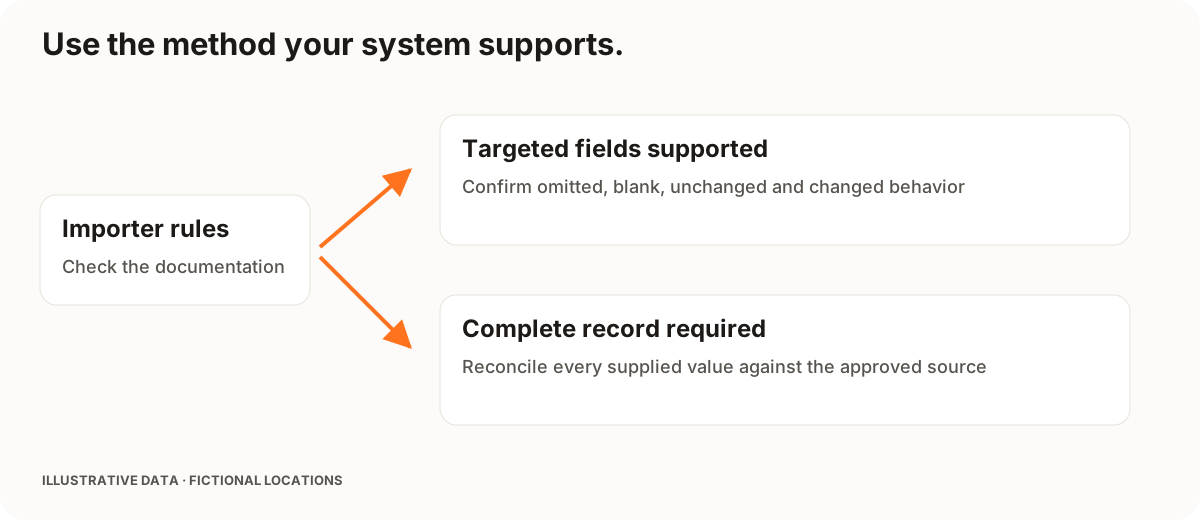
Then check the importer’s rules. An omitted column and a blank cell can carry different instructions. Google’s spreadsheet guidance says unneeded columns can be removed when updating particular fields, while the Business code column remains required. It also warns that included columns with headings but empty values can delete existing information. Its separate Google-updates guidance says unchanged fields are ignored relative to the last upload, changed fields replace prior values and updates, and blank fields may receive an automatic update. Read these rules in their respective contexts. Spreadsheet rules, Google-update handling
Those rules do not automatically apply to a third-party listings platform. Use its documentation and a preview or sandbox where available. For a live release, use a reviewed, limited batch where the workflow supports it, then inspect intended changes and fields that should remain intact before expanding.
Give closures and dated hours their own checks

“Closed” needs context.
Closing for the day, closing temporarily, and closing permanently are different states. Use the approved location record.
A retired location can remain in an old export. If L-032 appears as open in a proposed file while the current location register says permanently closed, hold that change for investigation and approval. Check whether the workflow updates existing locations, creates new records, or both.
For hours, retain the effective date, local time zone, and approver. Confirm the destination supports the kind of scheduled or special-hours change you intend. Check again when that schedule should take effect, because a correct submission today leaves next week’s customer-facing hours unverified.
Verify the result after the next sync, too
A success message may mean a file was accepted, processed, or sent onward. Check the published value separately. Record the location, destination, field, expected value, observed value, and inspection time. Keep pending or mismatched results open for follow-up.
For a recurring reversion, check again after the next relevant sync or upload. If the value changes during that window, compare that job’s inputs and writes before assigning a cause. If it remains correct, that observation supports the fix for that cycle; other writers or later changes may still need investigation.
Keep the submitted file, processing result, and reviewer with the evidence. Restoring an internal record and correcting each public destination are separate steps, so a recovery plan should account for both.
Download a listing-update checklist
The preflight worksheet gives each proposed field change a record: location ID, field owner, approved and proposed values, reason, effective date, import method, reviewer, and destination verification. It also has space for the next relevant sync and the recheck afterward.
For L-014, keep the description mismatch attached to the hours change even after it is resolved. Link the reviewed file and processing record in your internal system. If the description returns to its old wording again, the next investigator can see exactly what was submitted, what appeared afterward, and which later job needs checking.
Common questions about reverting listing updates
Why does my Google Business Profile keep changing back?
Check Google’s update notices, the status of your correction, other authorized editors, and any connected system that publishes the field. Google can update profile information from outside sources; an internal upload can also contain an older value. Identify the actual source before choosing a fix.
Can updating hours overwrite my business description?
It can in an importer that writes a supplied description alongside hours. It is not a universal rule: inspect the submitted columns and the specific importer’s documentation. The worked example above assumes that all supplied values are written.
Does a successful bulk upload prove that the public listing is correct?
No. The status may confirm acceptance or processing rather than the final public value. Compare the destination with the approved record, then check after the next scheduled sync that could overwrite it.
Put your local marketing in motion.
Manage listings, reviews and local visibility in one place. Sydekick, your AI agent, lines up the work and you approve what goes live.
- 14-day free trial
- $50 in AI credits
- Cancel anytime