
How to recover Google Business Profile access when the owner has left
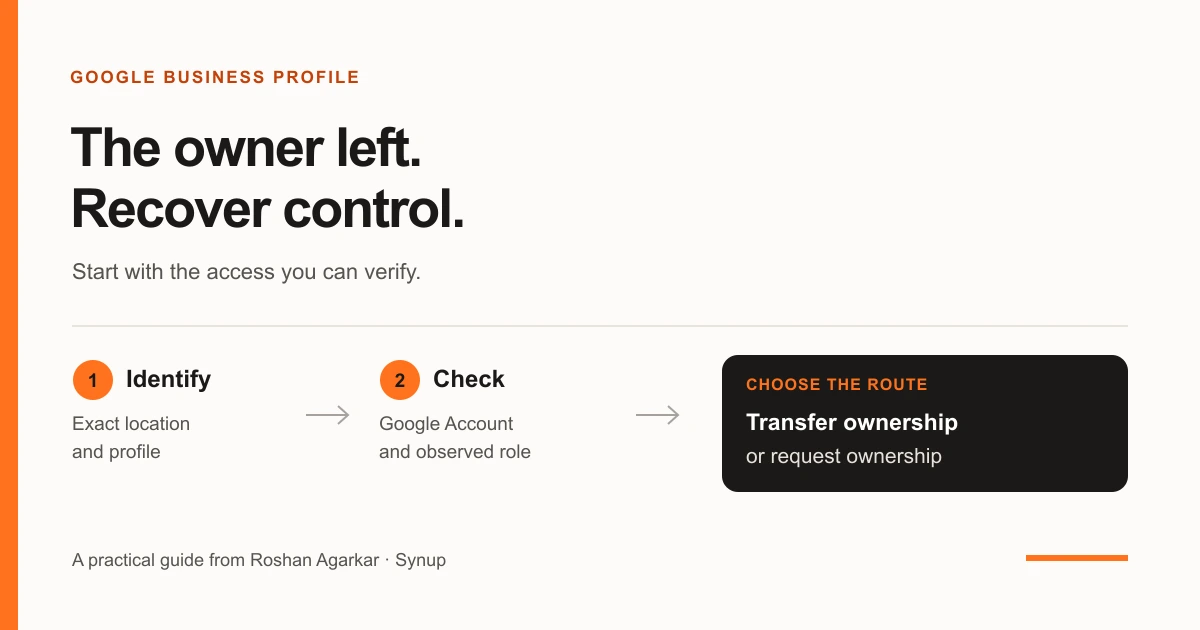
Establish the exact location, the Google Account you are checking with and the role it holds. If the current primary owner can help, have them transfer primary ownership to a named successor. If not, submit the ownership request for your business type, keep the confirmation and verify control before you close the task.
The listing is live and customers can find the location, but nobody can say who controls the Google Business Profile. The employee who set it up has left, the agency has moved on, or the person you need isn’t answering. Then someone has to change the hours, and the gap becomes a problem.
Short answer: Establish the exact location, the Google Account you are checking with and the role it holds. If the current primary owner can help, have them transfer primary ownership to a named successor. If not, submit the ownership request for your business type, keep the confirmation and verify control before you close the task.
Keep sign-in, role and business separate
Three things get blurred: the Google Account someone signs in with, the role that account holds on the profile, and the business itself. Buying a business, joining its marketing team or taking over its website doesn’t tell you what access any account holds on the listing today.
If your company controls the relevant Google Account but nobody can sign in, that is an account recovery problem. For a forgotten login, Google points to its Accounts troubleshooter. If you can sign in but can’t see or change the profile, it is an access problem on the listing, and the rest of this guide applies.
Build the location inventory first
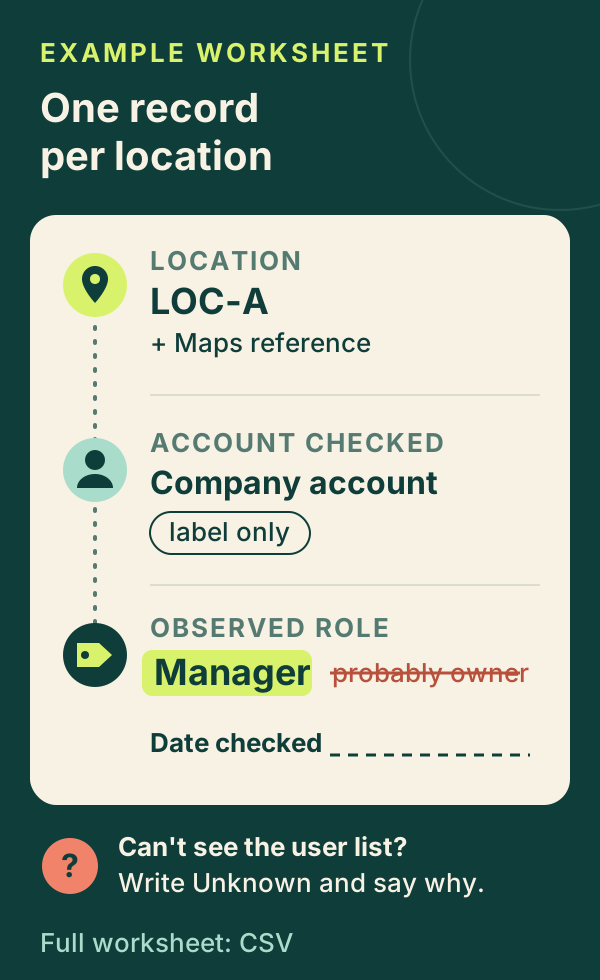
Make one record per location, starting with the exact asset: business name, internal location code, public Maps link and Business Profile ID. With three branches in one city, the brand name isn’t precise enough for an access request; the location code is.
Next, record which account you checked and the role you observed, with the date. Several Google Accounts can be signed in at once, and a profile that seems missing may simply be invisible to the account you’re using. “Probably the owner” and “the account we normally use” are not roles. If you can’t inspect the access list, write unknown and say why; that is more useful than a guess.
Also name the person accountable inside the business. That isn’t necessarily whoever does the daily updates; it’s whoever must keep control when employees or vendors change. The downloadable inventory holds the fuller fields: primary and additional owners, managers, pending invitations, whether the current owner is reachable, the next action, the responsible person, a follow-up date and an evidence reference such as an access screenshot, confirmation email or support case number. The follow-up date is when you review progress, not a promise that recovery will be finished by then.
Keep Google Account IDs and private proof in a restricted record that the sheet links to. Never put passwords or recovery codes in the inventory. Nobody needs to share a password to get access, because each person uses their own Google Account.
The two sample rows in the CSV are hypothetical worksheet examples, not a customer case. Location A has a cooperative primary owner and an authorized successor account, which points to a transfer. Location B’s former owner is unreachable, which points to an ownership request. Neither row says “recovered”; each records what is known today.
Read the role; don’t infer it
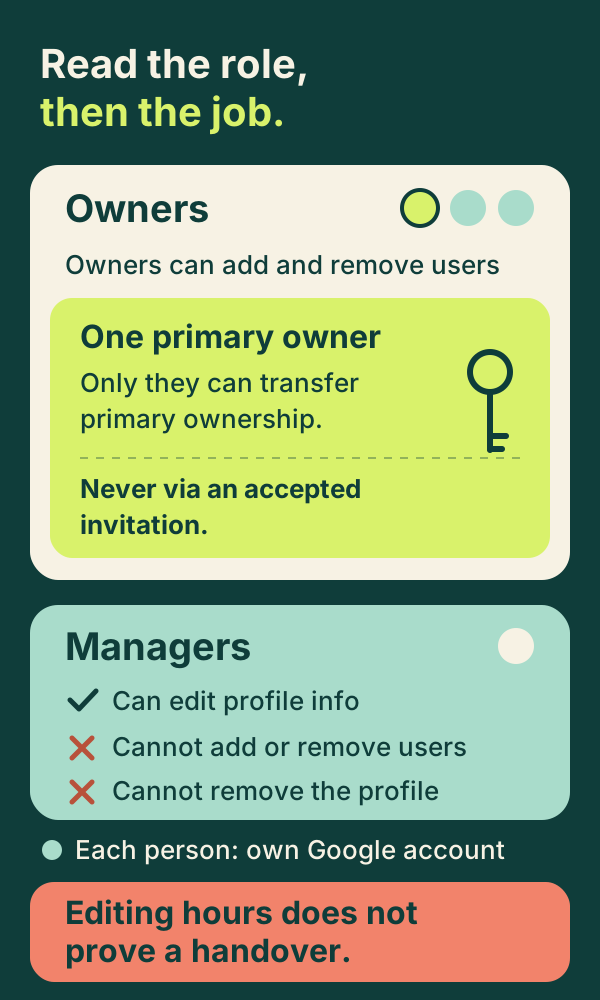
Per Google’s owners and managers page, a profile can have several owners but only one primary owner, and managers can’t add or remove users or remove the profile. Only the primary owner can transfer primary ownership.
That makes “I can update the hours” a weak handover check. Compare the role the account holds with the responsibility the person is meant to carry. A local team member may only need day-to-day editing, while whoever is accountable for continuity needs ownership that supports it. Not every employee or vendor should become an owner.
Ownership is a governance choice, not a Google rule. Roshan Agarkar of Synup recommends keeping primary ownership on an authorized, company-controlled Google Account assigned to an accountable person, with an additional trusted owner for continuity, applied within the business’s own security and approval policies. An agency can still do valuable operational work, but its contract shouldn’t leave the client reconstructing the profile when it ends.
Choose the route
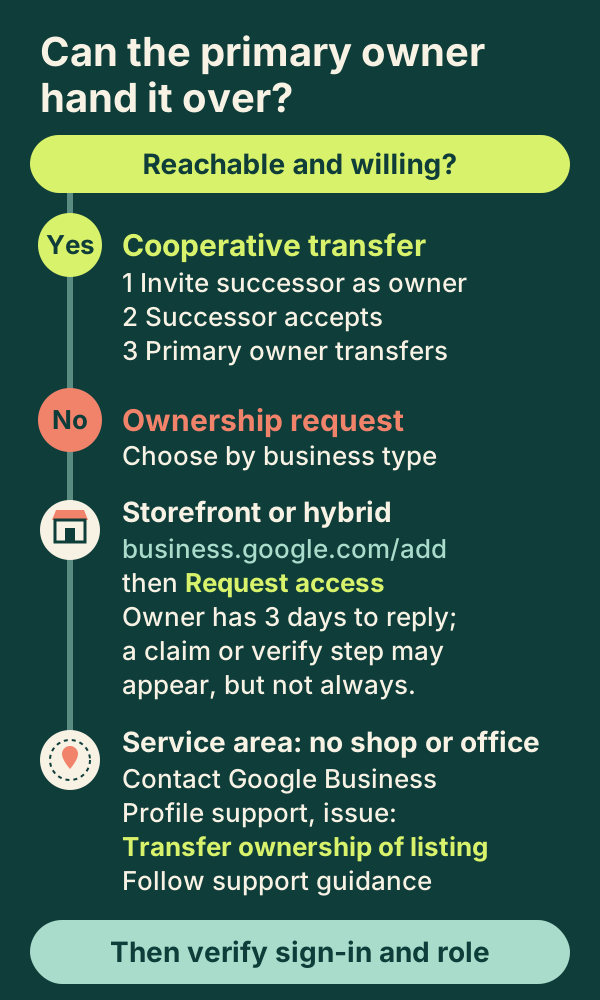
If the primary owner is reachable and willing, use the cooperative transfer. If not, use the ownership request for your business type.
When the primary owner can help
Settle the destination first: a named person authorized to take over, a Google Account that person can actually access, who stays on as additional support, and whether the departing person’s access ends once the handover is verified or continues for an approved transition period, and who signs off.
- An existing owner opens the profile’s settings, then People and access.
- They add the successor’s Google Account, choose the intended role and send the invitation.
- The successor accepts with that same account.
- Once any restriction has passed, the current primary owner selects the successor under People and access, chooses the new primary owner and saves.
Track invited, accepted and role verified as separate states. An accepted invitation is not a transfer of primary ownership; only the primary owner’s transfer changes who holds that role. A pending invitation isn’t a handover either, and it is better to discover an invite went to the wrong address early than on someone’s last afternoon.
Plan for timing. Google restricts new owners and managers for seven days on selected actions, including deleting or restoring a profile, removing owners or managers, and transferring primary ownership. Check Google’s page for its current wording. This restricts those actions; it is not a handover deadline. If the transfer control isn’t available, record the message and find out why. Don’t change roles experimentally, and don’t assume the transfer happened.
To close the task, have the successor sign in independently, confirm the location, inspect the resulting role and check that the remaining access matches the agreement. Then remove access that is no longer needed, using authorized controls, and update the record with the date and who checked. Also look at the public profile: it shows what customers see, while the access screen shows who controls it. If the business uses a connected listing platform, check separately that its connection still works. A successful Google handover doesn’t answer that.
When the former owner doesn’t respond
“Unreachable” describes your contact attempts, not anyone’s motives. Log what you tried, when, and what came back, and check whether an account the business controls already has useful access before you start a request.
Google’s request ownership page splits the route by business type:
- Storefront or hybrid: go to business.google.com/add, select the existing business, choose Request Access and complete the form.
- Service-area business without a shop or office: contact Google support and ask for Transfer ownership of listing.
Keep the confirmation email. For a request, the current owner has three days to respond, and approval, denial and no response lead to different steps. That window tells you when to look for the next step; it is not a completion date, so don’t tell anyone they’ll have ownership in three days. For a service-area support case, follow what support tells you rather than assuming the same window.
Right after submitting, record the requesting account, the exact location, the submission date, the confirmation reference and the next action the workflow shows. Then:
- Approved: run the verification checks from the cooperative route.
- Denied: keep the notice. Google says you may appeal a denial; the outcome isn’t guaranteed, so follow the instructions you are shown.
- No response: a claim or verify option may appear, but not always. Look at what your account actually offers, and use the methods Google presents for that profile; no particular method is guaranteed.
If you can’t proceed, contact official Business Profile support with a factual summary: the profile, your relationship to the business, the requesting account, the request you submitted, its status and the obstacles you see. Don’t create a replacement profile to get around the problem; Google advises against duplicates, and the goal is control of the existing listing. With several colleagues involved, one person should coordinate the record and send every customer update.
Record facts, then say where the case stands
Someone else should be able to open the record and identify the same business without sorting through similar results. Keep four things: profile identity (Maps link, business name, location identifier, address, service area, profile IDs), authority (who is asking and why they are authorized), access history (who managed it before, which accounts you’ve checked, what access still works, when the problem began) and request history (confirmations, responses, support references and a short timeline).
Keep facts apart from interpretation. “The invitation was sent on this date” is a fact; “they accepted it” is an assumption until you see the account in the access list. “The former employee hasn’t answered after these attempts” is a fact; “they deliberately locked us out” is a conclusion you may not be able to support.
A plain status tells the customer what is blocking progress and what could happen next: awaiting response, verification available, verification not available yet, under review, support guidance needed. For an unresolved case, say the correct profile is identified, the request was submitted from the authorized account, the confirmation is saved, the next step is recorded, and you’ll review on the agreed date and message them if Google asks for more. For a completed handover, say the intended account was checked, the resulting role was verified, the access review is documented, and name who is responsible for future ownership reviews.
Make access part of offboarding
Recovery is useful, but a repeatable handover is better for the next departure. Treat Business Profile access as part of employee and agency offboarding, alongside the other systems the person manages, and tie it to the planned departure or contract change rather than waiting for someone to find they can’t update a listing.
Ask which profiles the departing person manages or can access, then compare the answer with the inventory. For a multi-location business, check every relevant location; one branch handed over says nothing about the others. Agree who has routine editing access, who is the backup and who verifies that the handover worked. Do it early enough to surface invitation problems, account issues and any applicable restrictions, and schedule periodic internal access reviews, with extra attention where an agency is involved.
Before the next departure or agency transition, three questions are enough to start. Can you identify every business profile you depend on, with the location identifier and public link pointing to the correct asset? Can you verify who controls each one? Can the business keep operating when a team member leaves or an agency contract ends?
Next step
Download the access inventory (CSV) and open each location’s profile with the account you plan to rely on. Record what that account actually shows, the date, the evidence and the next action. Where you can’t see the access list, write unknown and why.
Put your local marketing in motion.
Manage listings, reviews and local visibility in one place. Sydekick, your AI agent, lines up the work and you approve what goes live.
- 14-day free trial
- $50 in AI credits
- Cancel anytime