
Embed Google reviews on website with one snippet
A business can have dozens of five-star Google reviews and still show visitors an empty review section on its own site. Review widgets in Synup fix that from the reviews Synup already stores: choose which reviews qualify, design how they look, paste one snippet into the site and publish. Change the widget in Synup later, including a Brand theme whose Analyze website looks for the site's colors and fonts, and the site shows the saved change on the next page load, with no code change.
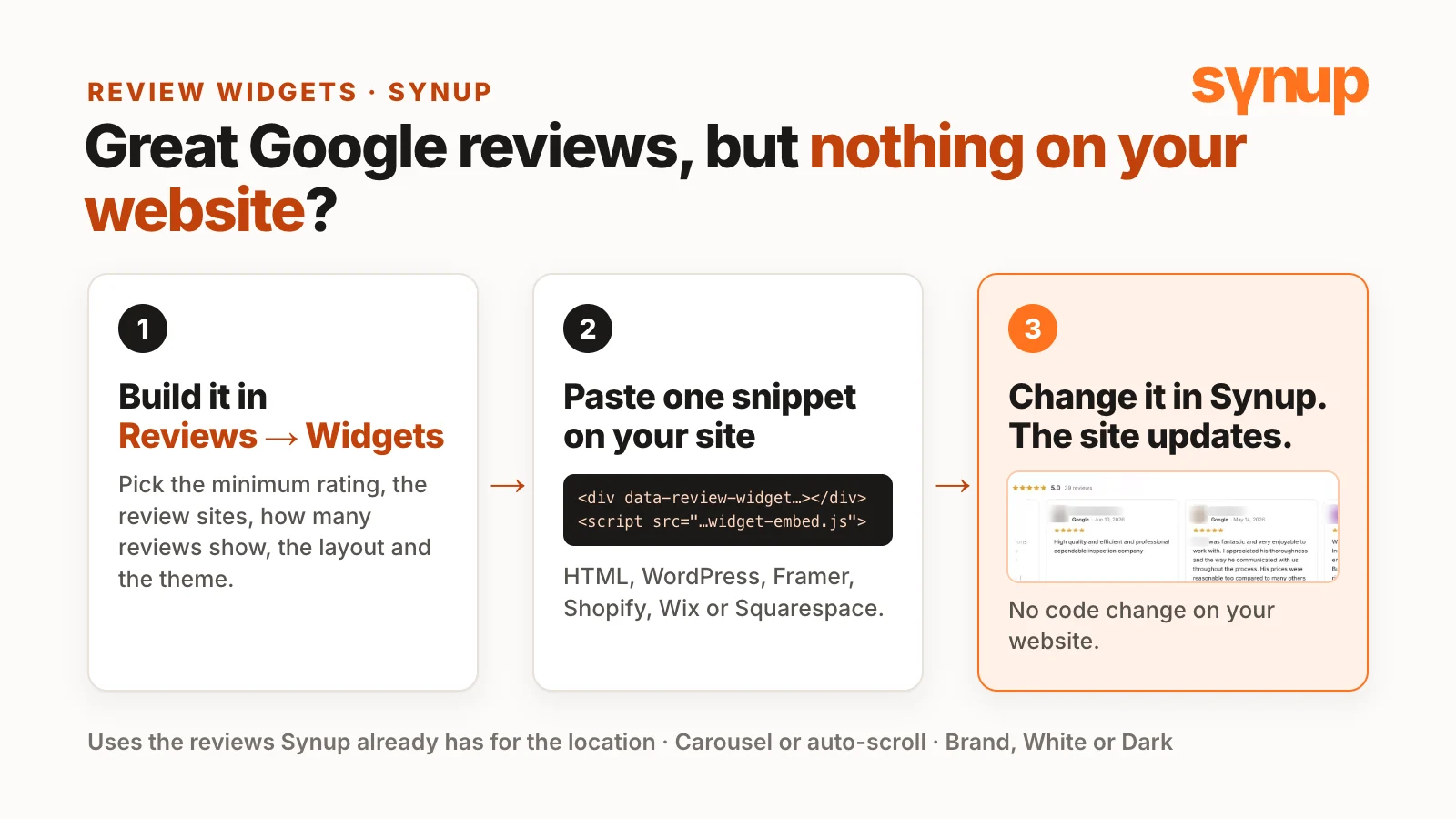
Use review widgets in Synup to embed Google reviews on your website from the reviews Synup already stores, then change how they look without touching the site’s code. Sayantan Ghosh, Tech Lead at Synup, starts with a familiar problem: a property inspection company with lots of good Google reviews, and a review section on its own website that’s completely blank.
Short answer: In Synup, open Reviews → Widgets for the location, start from a preset, choose which reviews qualify and how they look, and create the widget. Synup gives you one HTML snippet, with ready versions for WordPress, Framer, Shopify, Wix and Squarespace. Paste it where the reviews should appear and publish. From then on, change the widget in Synup and the site picks up the change on the next page load.
Watch: embed Google reviews on a website with Synup
Great Google reviews, an empty review section
The demo site in Sayantan’s walkthrough is a property inspection company’s website. The company has a lot of reviews on Google, yet the site’s own “What our clients say” section reads “Reviews coming soon”.
That’s the bigger problem, as Sayantan puts it: people who come to the website to contact the company are looking for exactly this kind of proof, and it’s missing. Meanwhile Synup already stores the business’s Google reviews. Review widgets put those reviews on the website.
Google is where this business gets its reviews, but the widget isn’t limited to Google. It can show reviews from any site Synup collects them from for the location, such as Facebook, Yelp, TripAdvisor or Trustpilot.
Build the widget in Reviews → Widgets
Review widgets live in the Reviews section, on the Widgets page. Presets get you started quickly: Top 5-star reviews, Most recent and Auto-scroll wall. Sayantan picks the first one, and the first step is the configuration:
- Widget name. Only a label for your own reference. You can create several widgets for the same location.
- Minimum rating. Any, 3★ and up, 4★ and up, or 5★. Sayantan chooses 4★ and up.
- Review sources. The review sites to pull from. The list shows every site Synup has reviews from for that location, such as Google, Facebook, Yelp or TripAdvisor. Leave it empty, as Sayantan does, and the widget includes every source.
- Include internal reviews. Sayantan leaves this option off.
- Selection. How reviews are chosen. The preset sets it to Highest rated, which puts the best reviews first. You can also choose Most recent, Rotate daily or Hand-pick.
- Date range. All time, the last 12 months or the last 6 months. Sayantan keeps All time.
Underneath, Synup counts the matching reviews before you go on. In the demo, 39 reviews match.
Design: how many reviews, how they move, what they show
The second step shows a live preview built from the business’s real reviews, with a desktop and a mobile view. Sayantan clicks through them in the carousel, then works through the settings:
- Reviews to show. How many of the matching reviews appear. Sayantan reduces the count.
- Layout. Carousel, with arrows, or Auto-scroll, where the reviews move across the page on their own and pause when a visitor puts the cursor on them.
- Theme. Brand, White or Dark. Sayantan picks White for now and comes back to the theme later.
- Show. A switch each for star rating, reviewer avatar, date, source name, owner reply and the rating header. Turn off the star rating, for example, and the preview hides it. For the demo, Sayantan hides the owner reply, so only the customers’ reviews remain.
Then Sayantan creates the widget.
Embed Google reviews on website pages with one snippet
The widget’s page gives you the embed code: a short HTML snippet, plus ready tabs for WordPress, Framer, Shopify, Wix and Squarespace, each with a note on where to paste it. Because Sayantan manages this website’s code directly, the demo uses Manual / HTML: copy the snippet.
On the website, Sayantan adds it as a custom HTML block in the reviews section. That screen will look different on your site, depending on how you manage it, but the process stays the same: add the snippet and publish the page.
Sayantan publishes the page. In the demo, the reviews appear a second later, auto-scrolling, and they pause when the cursor rests on them.
Match your brand without touching the code
Next, Sayantan opens the widget again and changes the theme to Brand. That brings up Analyze website, and Sayantan runs it: Synup looks at the website on file for this location and tries to match its colors and fonts in the widget. Analyze website needs a website on file, and it isn’t available yet for locations created directly in the new Synup app.
After the scan, the colors of the widget change a little in the preview. Sayantan saves the change, goes back to the website and refreshes the page. The widget there now has the new colors, and nobody touched the website’s code.
Add the snippet once, change it any time
That’s the point Sayantan ends on. You add the snippet to your website once. Save changes in Synup to the minimum rating, review sources, selection, date range, how many reviews show, the layout, the theme or the details each review shows, and they appear on your site the next time the page loads. One exception: a Hand-pick widget keeps showing the reviews you picked, so to change which reviews appear there, update the picks.
For the rest of the review workflow, from getting more reviews to replying to them, see Synup’s reputation tools. If you run review management for clients under your own brand, the widget section of the white label review management software walkthrough covers the same feature from that side.
Common questions about embedding Google reviews on a website
How do I embed Google reviews on my website with Synup?
Open Reviews → Widgets for the location, start from a preset, choose which reviews qualify and how they look, then create the widget. Synup gives you an HTML snippet. Paste it where the reviews should appear on your site and publish the page.
Do I have to copy my reviews into the widget?
No. The widget uses the reviews Synup already has for that location, so there's nothing to import. The configuration step shows how many reviews match your settings before you continue.
Which website builders does it work with?
Any site or website builder that lets you paste the embed code. It has ready tabs for Manual / HTML, WordPress, Framer, Shopify, Wix and Squarespace, each with a short note on where to paste it.
Can I show only my best reviews?
Yes. With automatic selection (Highest rated, Most recent or Rotate daily), you can set a minimum rating (Any, 3★ and up, 4★ and up, or 5★), choose review sources and limit the date range to the last 12 or 6 months. With Hand-pick, those filters narrow the list you pick from. Update the saved picks to change which reviews appear on your site.
Can I show reviews from Facebook, Yelp or other sites, not just Google?
Yes. The widget can pull from every review site Synup collects reviews from for that location, such as Google, Facebook, Yelp, TripAdvisor or Trustpilot. Pick the sites under Review sources, or leave it empty to include all of them. (A Hand-pick widget shows the reviews you pick, so choose them from the sites you want.) Keep the source name switched on and each review shows where it came from.
Can the reviews scroll on their own?
Yes. Choose the Auto-scroll layout and the reviews move across the page on their own. When a visitor puts the cursor on them, they pause. The other layout is a Carousel with arrows.
Will the widget match my website's design?
Choose the White or Dark theme, or Brand. With Brand, Analyze website looks for the colors and fonts on the location's website on file and uses what it finds to style the widget. It needs a website on file for the location, and isn't available yet for locations created directly in the new Synup app.
What happens when I change the widget later?
Save changes to which reviews show, how many, the layout, the theme or the details each review shows, and the widget on your site shows them the next time the page loads. You don't paste a new snippet or touch the site's code. With Hand-pick, the widget keeps showing the reviews you picked until you change the picks.
Put your local marketing in motion.
Manage listings, reviews and local visibility in one place. Sydekick, your AI agent, lines up the work and you approve what goes live.
- 14-day free trial
- $50 in AI credits
- Cancel anytime