4 updates
Featured updates
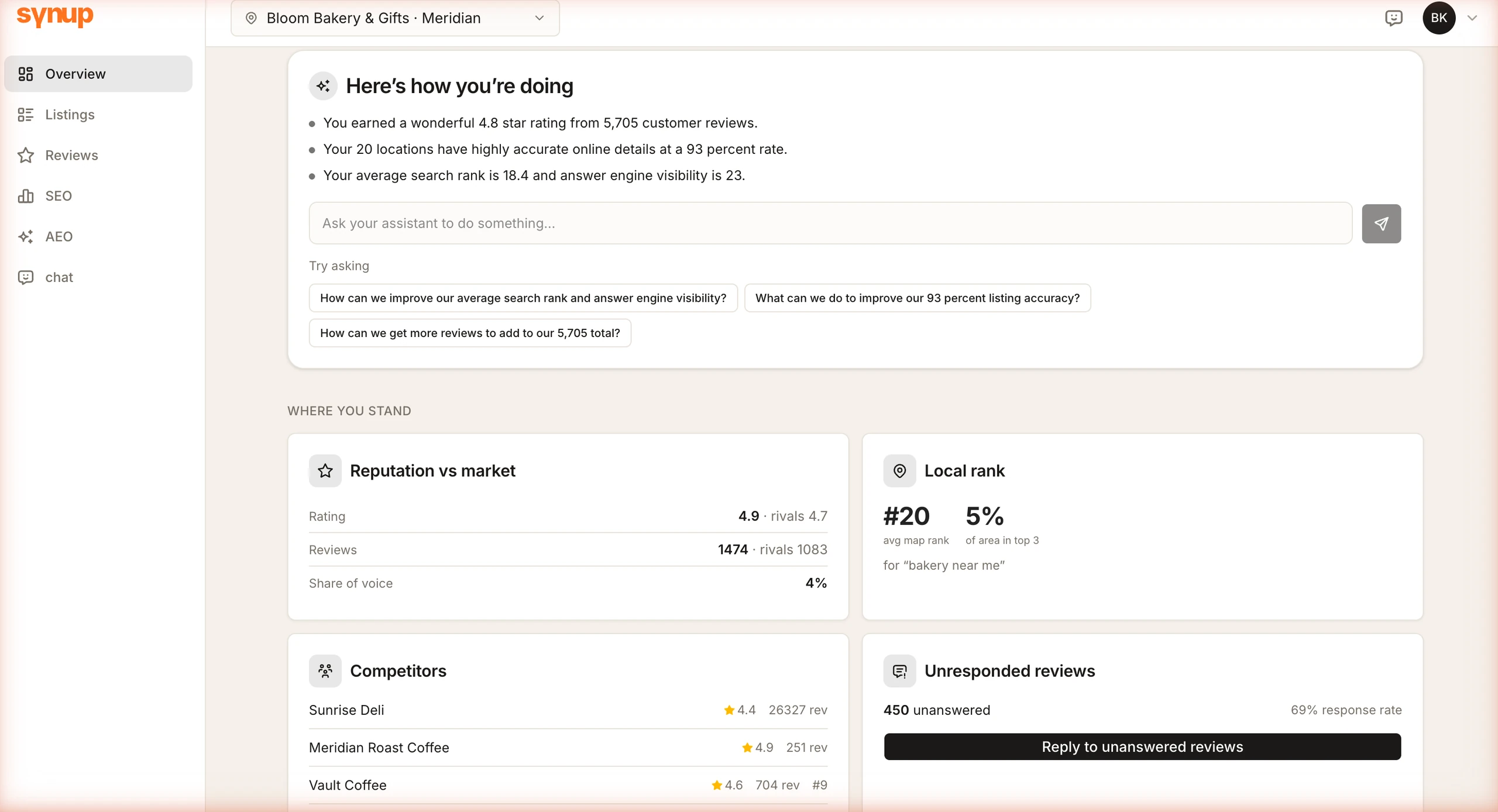
Give your clients a marketing agent under your agency’s brand
Your client opens your agency's branded portal and chooses their location. With the relevant skills enabled, clients can ask for help with tasks like drafting Google Business posts or preparing replies to unanswered reviews. For those post and review-reply drafts, your team has the final say before anything goes live.
The reimagined experience builds on Synup's existing client portal, bringing the marketing agent, location context, and the sections your agency enables into one workspace. Each invitation is tied to one client, and the location selector controls which business data the portal and agent use. Client portals and white labeling are available on Premium plans and above.
WhereSettings → Client users and the client portal
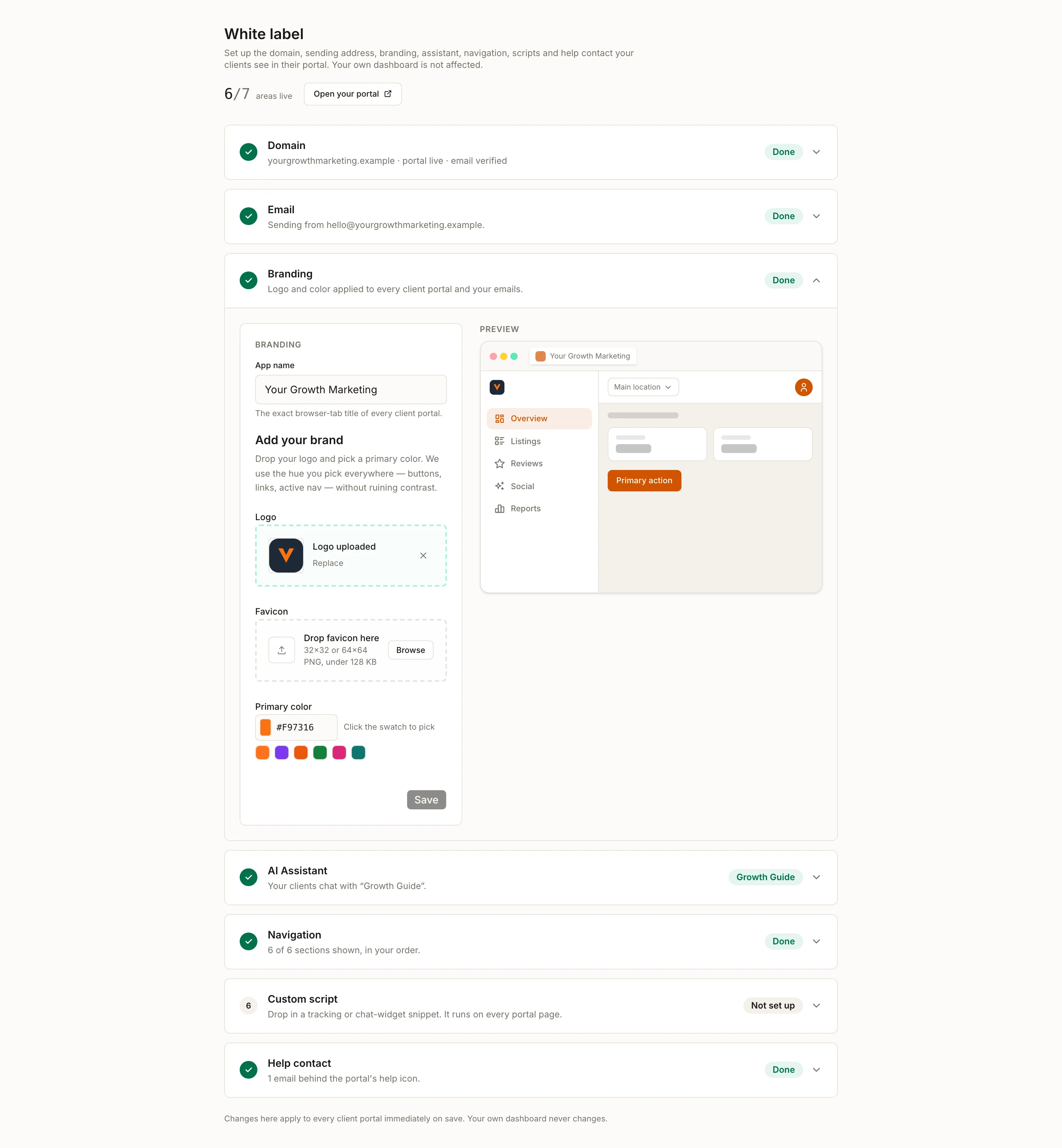
Brand your client portal and marketing agent
In Settings → White label, your agency can set the client-facing app name, logo, primary color, portal domain, agent name and avatar, visible navigation sections, and support contacts. The preview shows how the app name, logo, and color will appear in the portal.
These settings control the client experience; they do not rebrand the agency's Synup dashboard. Branded email sending starts after the required email records are verified. Until then, portal invitations and sign-in links use Synup's default sender.
WhereSettings → White label
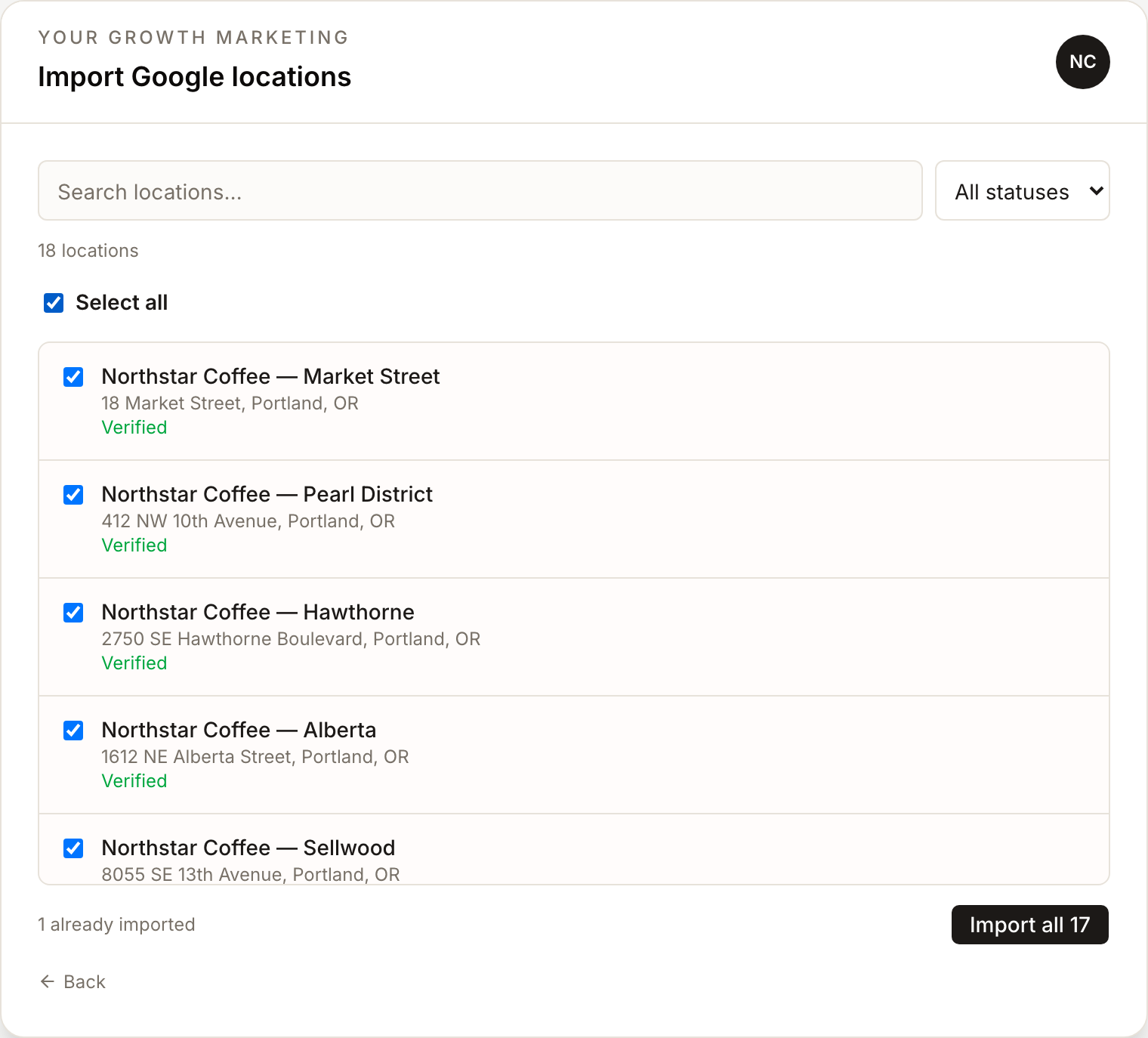
Keep working while a large Google import runs
When an agency brings a large location portfolio into Synup, it can choose an entire Google account, one folder, or selected locations and start the import as a background batch. The wizard can be closed while processing continues, with an optional email when the batch finishes.
Folders containing thousands of locations load in pages and are processed in batches. Before the agency starts, Synup shows how many locations can be imported and how many fit within the plan's remaining capacity. The completed batch separates imported, plan-blocked, and failed locations. Google permissions and existing plan limits still apply.
WhereClients → Locations → Add Location → Google
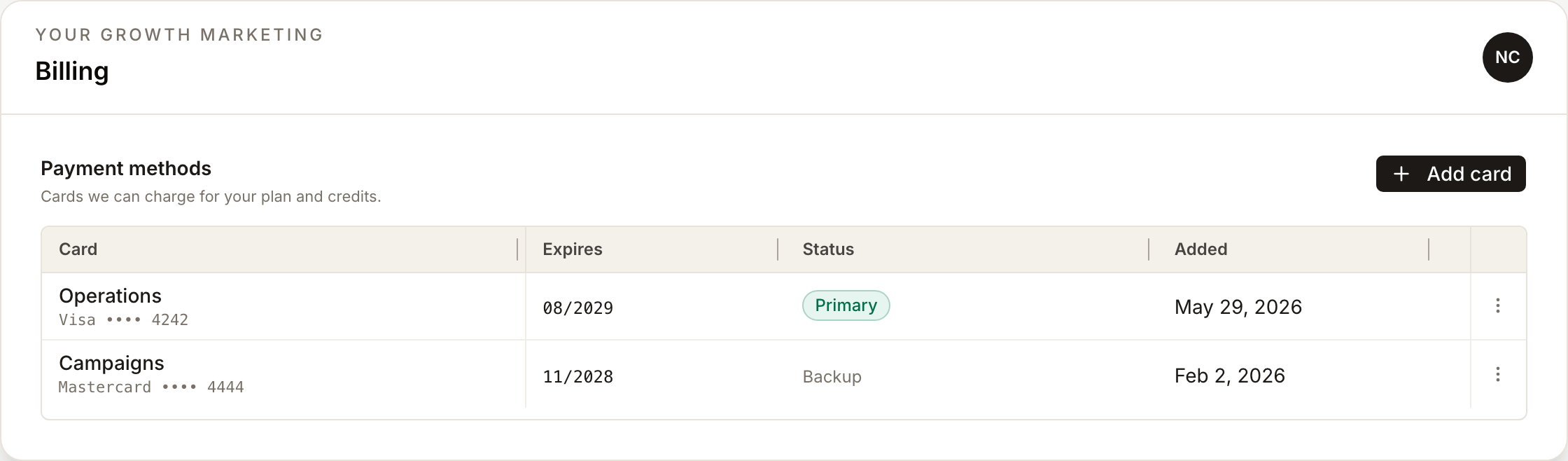
Choose the card used for the next renewal
Settings → Billing now includes saved payment methods. An account owner can add or remove a card, give each one a recognizable name, and choose which card future renewals use.
For an active subscription, renewals use the primary payment method. To remove the card currently required for renewal, first add another card and make it primary. The Payment methods tab appears only when Synup billing is configured.
WhereSettings → Billing → Payment methods
3 updates
Major improvements
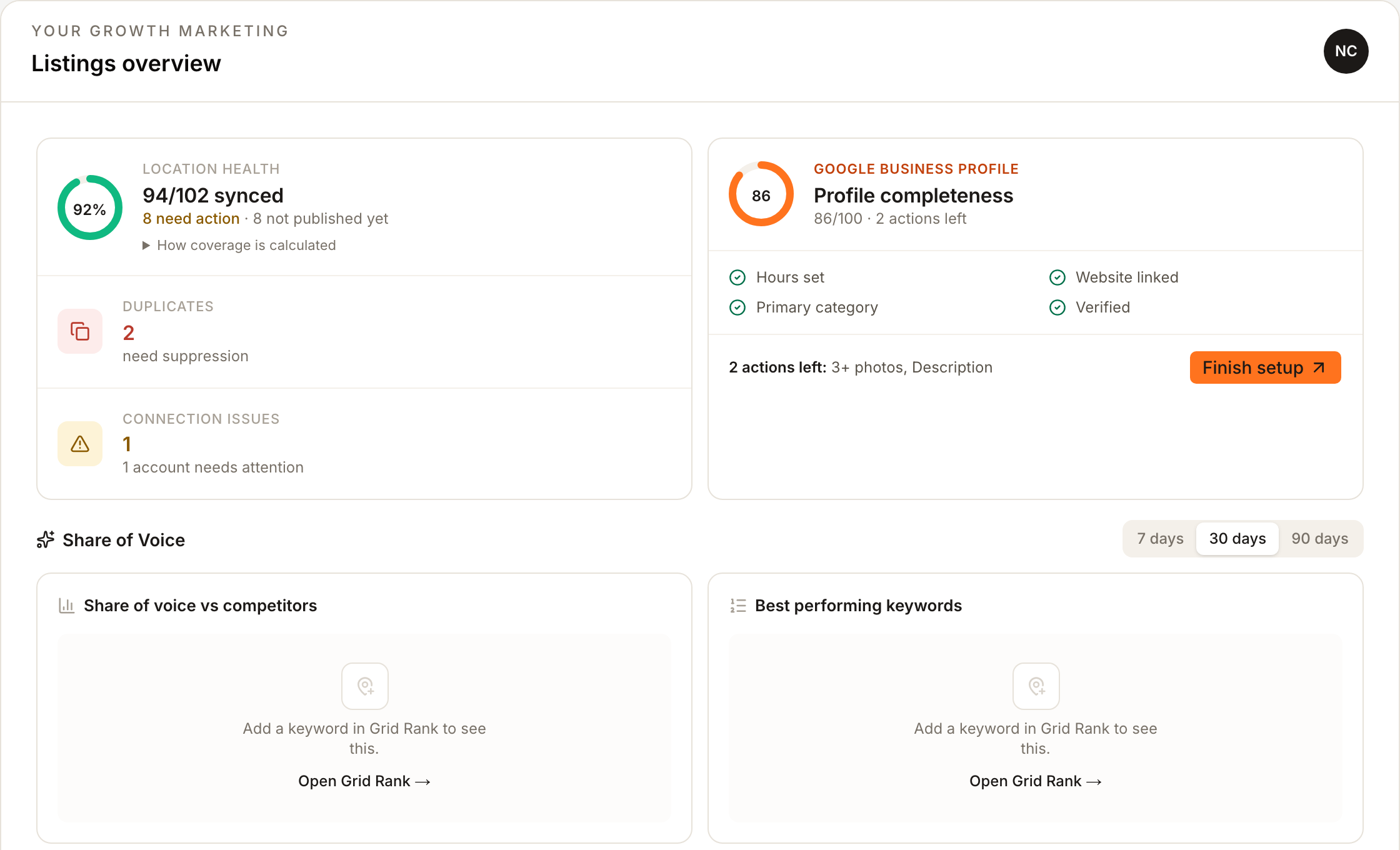
Investigate Listings totals without guessing what they include
An account manager reviewing a group of locations can now see both the synced publisher listings and the total publisher listings checked across the selected active locations. Publication coverage remains separate: a healthy connection confirms the account connection, not that every publisher profile is live.
Archived locations are excluded from duplicate and Analytics totals. If the totals point to a problem, missing-profile, category, publisher, and duplicate issue links open the corresponding workflow while keeping the selected locations in context.
WhereListings
Go from a Reviews report to the reviews needing attention
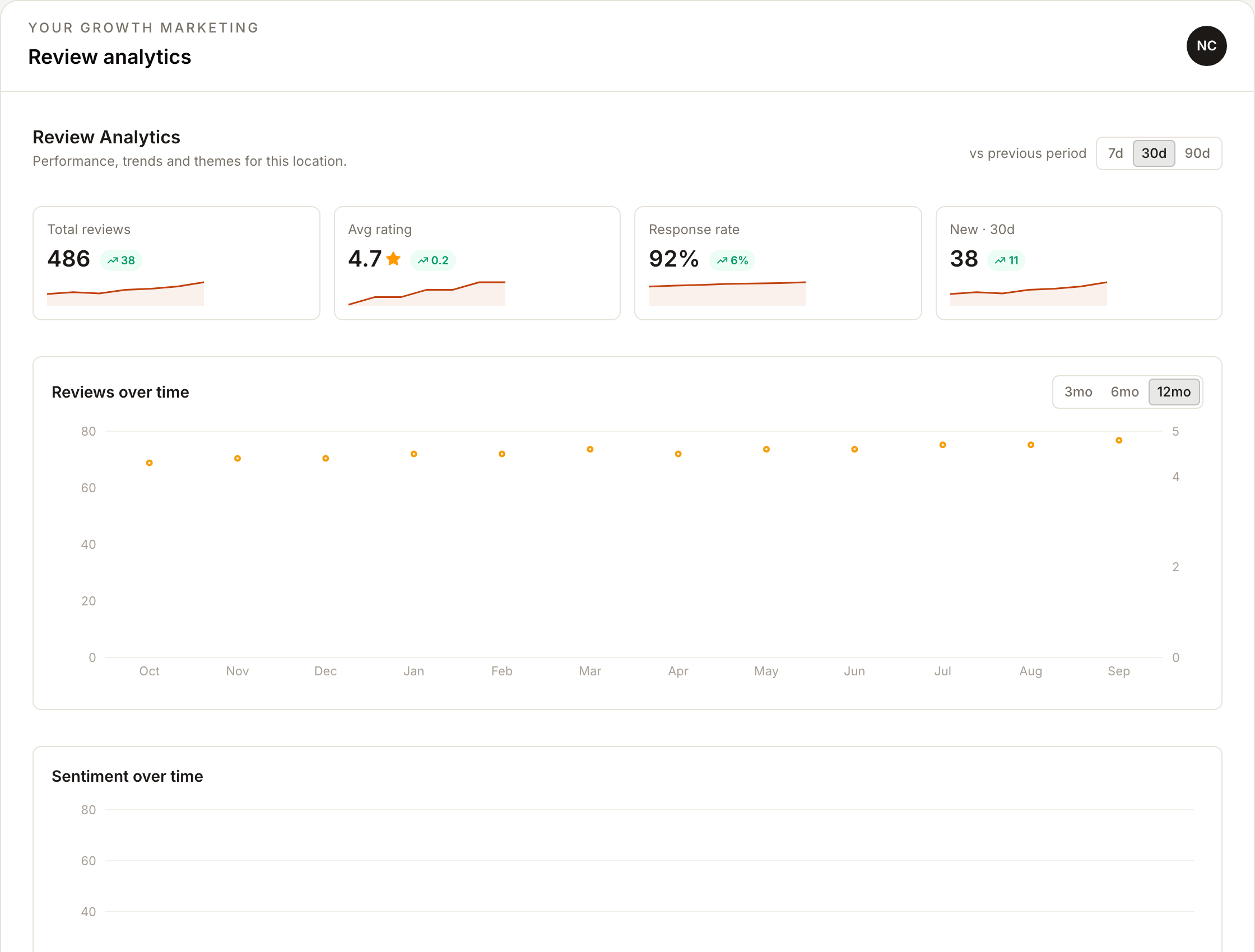
A team reviewing reputation performance can follow topic and negative-review links into the matching Inbox queue or a specific review. Overview, Inbox, and Analytics use the same selected active locations and exclude removed reviews from their totals.
Selecting All Locations changes an individual-location view to the current client's roll-up. Browser Back restores the previous Reviews view. Removed reviews remain read-only, and Analytics offers Retry when a report cannot load.
WhereReviews → Overview, Inbox, and Analytics
Keep valid Google profile changes moving
If Google rejects one field group in a bundled profile update, Synup removes that group and retries the remaining changes. Address and phone failures stay visible with Google's returned reason, giving the team a specific place to start its investigation.
A new Google connection stays In progress until Google confirms the profile. During the first 24 hours, temporary errors retrieving Google performance data do not trigger Reconnect needed. If Synup cannot retrieve the profile from Google, the connection shows the reason returned by Google.
WhereLocations → Edit profile and Listings connections
4 updates
More improvements
Keep profile and privacy controls in one place
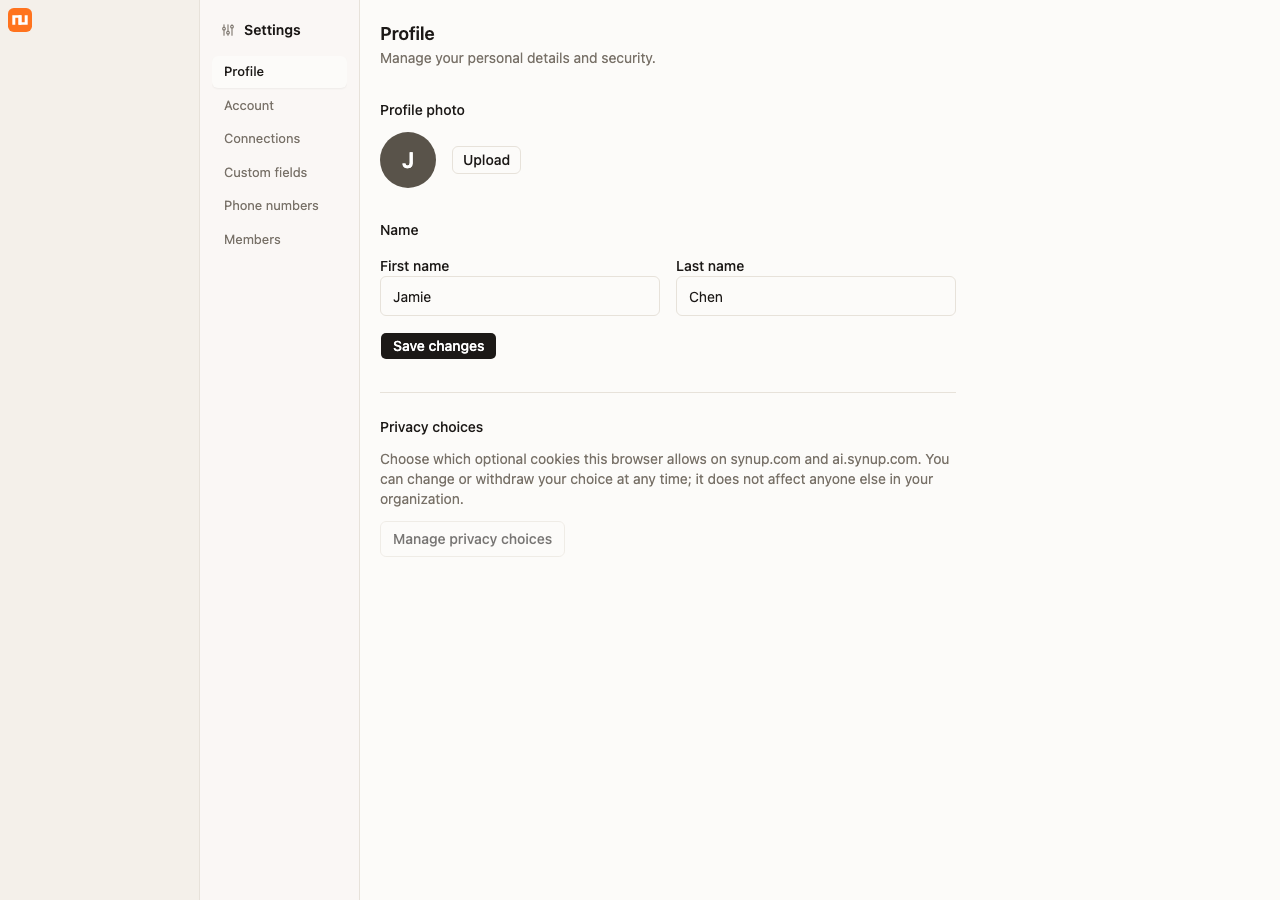
Settings → Profile now brings together the account holder's photo and name, password controls, and browser privacy choices instead of splitting these settings across the account.
Password controls depend on how the account signs in.
WhereSettings → Profile
Keep multi-location overviews focused on the data you need
Listings checks publisher status for the selected locations without repeating the same lookup for each one. Reviews loads the detailed records needed for each chart's date range while preserving lifetime totals.
The Dashboard also loads only the five recent conversations shown on screen. Together, the overviews request less data than before for accounts with many locations or reviews; actual load time still depends on account size and network conditions.
WhereHome, Listings, and Reviews overviews
Subscribe to more webhook events
Webhook subscriptions can now keep external workflows informed about more changes across Synup.
- Client, location, and team changes: clients and locations created, updated, or archived; connections established, disconnected, or needing reconnection; custom fields created, updated, or deleted; and team members invited, joined, or removed.
- Listing sync and media outcomes: listing syncs completed or failed, submissions rejected, and media uploaded or processed successfully or unsuccessfully.
- Reviews, replies, and invitations: new reviews, replies posted or failed, and review invitations sent or failed.
- Posts and completed reports: posts published or failed, scheduled posts becoming due, boost status changes, post ideas generated or approved, and completed SEO and AEO reports.
Select the events your integration needs in Developers → Webhooks so it can follow up on status changes or completed work. The list is not a complete activity feed: some older Listings sync jobs and media uploaded by the agent do not emit these events.
WhereDevelopers → Webhooks
Change an API key's access without replacing it
Open an API key's row menu to change its access to Read-only, Full access, or custom scopes without creating a replacement key.
The key keeps its current access until you save the change. Full access includes the Agent API and connected capabilities, while Read-only excludes actions. Account permissions and plan limits still apply.
WhereDevelopers → API keys → Edit scopes