
Automated review monitoring: set it up in one sentence
Checking the same reviews and listings every week is easy to put off. Sweeps in Synup let you describe a recurring check in one plain sentence. Sydekick proposes the schedule, scope, sources and estimated credits, and nothing runs until you save it. Results come back in the chat, and a sweep can only read and report: it never replies, publishes or changes anything.
Some of the most useful work in local marketing is also the most repetitive: opening the same screens every week to see whether a bad review came in or a listing changed. Sayantan Ghosh, Tech Lead at Synup, starts there. The example is an agency checking the same details for every client, but anyone looking after a business’s reviews and listings has the same chore.
Sweeps are the answer. You tell Sydekick, Synup’s AI agent, what to check and when, and it does the checking for you on that schedule.
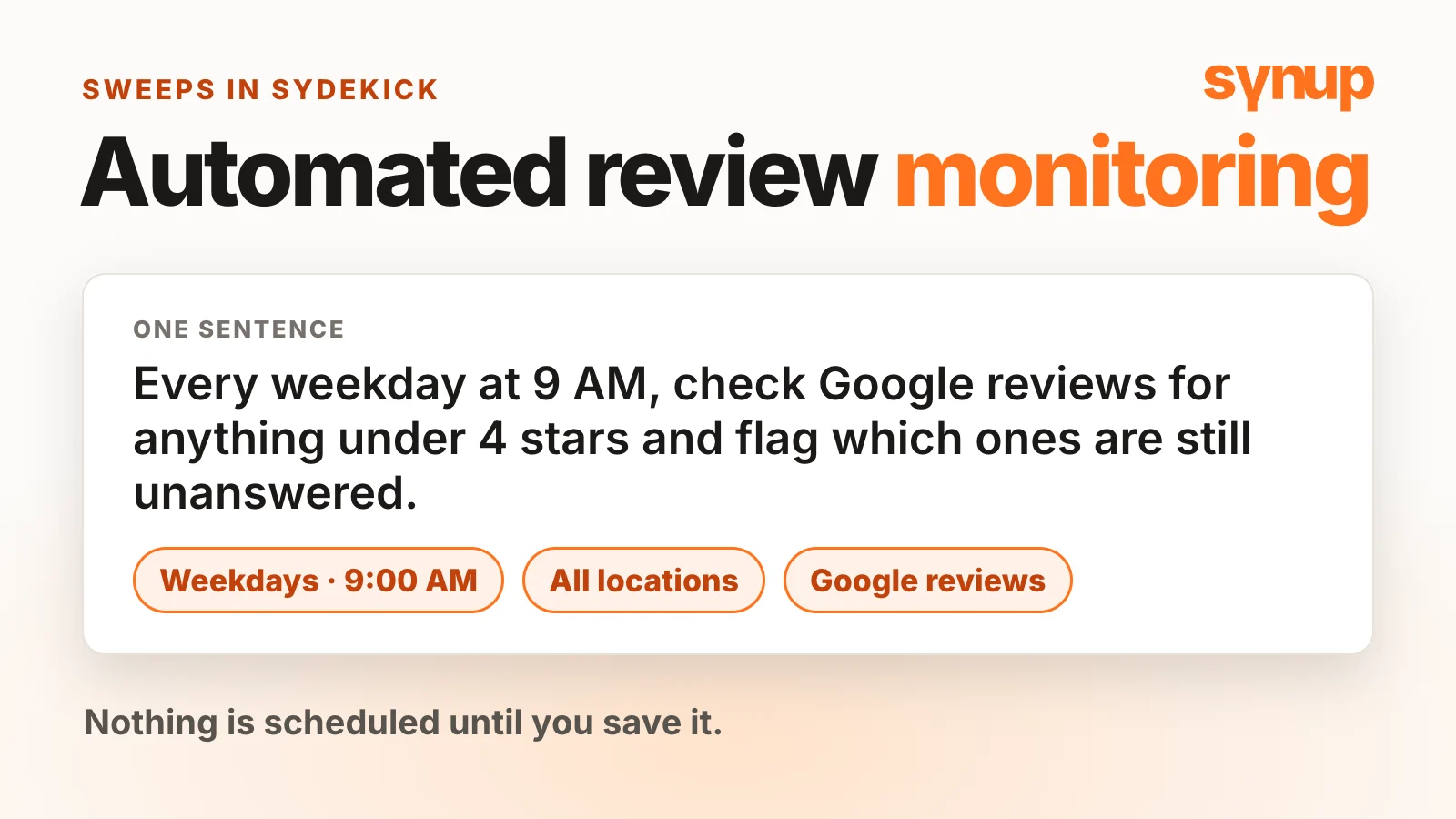
Short answer: In Sydekick, describe the check in one sentence, such as “Every weekday at 9 AM, check our Google reviews for anything under 4 stars and flag which ones are still unanswered.” Sydekick proposes a sweep showing the schedule, time zone, scope, sources, next run and estimated credits. Nothing is scheduled until you save it. Results come back in the chat, and a sweep can only read and report.
Watch: automated review monitoring with Sweeps
Automated review monitoring starts with one sentence
Sayantan’s example is one a lot of teams run by hand: every Monday to Friday at 9 AM, fetch the Google reviews under 4 stars. There’s no form to fill in. Sayantan writes that sentence to Sydekick and waits.
Sydekick decides whether the request should be a sweep. If you’d rather not create one, you can carry on with a normal conversation.
Read the proposal before you save
Sydekick answers with a proposal card, and your sweeps appear at the top of the left pane, above your conversations. The card spells out what would happen:
- Schedule. When it runs.
- Time zone. The zone that schedule uses.
- Scope. Which locations it covers.
- Sources. What it reads, such as Google reviews.
- Next run. The exact date and time of the next check.
- Rough credit estimate. Per check and per month. It varies by workspace, and each check is billed on what it actually uses.
Three buttons sit underneath: Save sweep, Change and Not now. Sydekick only proposes. Nothing is scheduled until you save it.
Run a first check and watch it work
After saving, Sayantan is offered Run a first check now, so there’s no need to wait for the schedule. A line confirms the check has started, and a Running chip appears at the top.
Clicking it opens the sweep’s detail view. From there you can pause or edit the sweep, follow live updates while the check runs and see the credits it’s expected to use each month.
Back in the chat, the result has arrived. In Sayantan’s run there were no new reviews in that time frame, so the sweep reported nothing new. That’s a useful answer too: you know it looked, without having to look yourself.
When a run does find something, it adds a bell notification for the sweep’s owner. If it finds unanswered reviews, the result can offer Draft a reply, which you choose to start.
A sweep can only look
This is the part worth checking before you hand any recurring job to an AI agent. A sweep only reads and reports. It never replies, publishes or changes anything, and that’s enforced by the system, not left to the agent’s judgment. Every write is refused during a run.
So you can leave a sweep running without worrying that it will answer a customer in your name. Responding stays a decision a person makes. For deciding who should own those replies, see multi-location review management. To check what your team and Sydekick write before it goes out, see brand compliance checks.
Manage everything from All sweeps
The All sweeps chip lists every sweep you’ve created. For each one you can:
- Edit it.
- Resume it, if it’s paused.
- Open the conversation that created it.
- Check details and history.
- Stop it or run it now.
- Restore a stopped sweep. It comes back paused until you resume it.
Change a sweep by asking
You don’t have to go through the buttons and pages to adjust a sweep. Sayantan moves this one from 9 AM to 10 AM just by saying so in the chat. Sydekick proposes the change, Sayantan saves it, and the detail view now shows 10 AM every weekday. It only changes once you save.
Five sweeps to copy
Swap in your own business, location or client name. We sent each of these to Sydekick and got a valid proposal back.
- Low-rated, unanswered reviews. “Every weekday at 9 AM, check [business]’s Google reviews for anything under 4 stars and flag which ones are still unanswered.”
- Listing changes. “Every Monday at 8 AM, check [business]’s listings and tell me if anything changed or needs attention.”
- Messages waiting on a reply. “Every weekday at 4 PM, check [business]’s social inbox and tell me which messages are still waiting for a reply.”
- Ranking drops. “Every Monday at 8 AM, check [business]’s keyword rankings and tell me which ones dropped.”
- Weather that affects the business. “Every Friday at 10 AM, check the weekend forecast for [city, state] and tell me if rain could affect outdoor seating at [business].”
Sweeps run daily, on weekdays or on the weekdays you choose, at one time of day. They can’t run more than once a day. Start with one, read the estimated credits on its card, and add more once its results are useful. For the wider picture of looking after your reputation, see Synup’s reputation tools.
Common questions about automated review monitoring
What is automated review monitoring in Synup?
It's a sweep: a recurring check you describe to Sydekick in plain English. For example, every weekday at 9 AM, check Google reviews for anything under 4 stars and flag which ones are still unanswered. Sydekick runs the check on that schedule and reports back in the chat.
Can a sweep reply to reviews for me?
No. A sweep only reads and reports. It never replies, publishes or changes anything. When a run finds unanswered reviews, the result can offer a "Draft a reply" button. You press it, and that starts a normal request with its normal approvals.
How often can a sweep run?
Daily, on weekdays, or on the weekdays you choose, at one time of day. A sweep can't run more than once a day, and one-time checks are answered in the chat instead.
What can a sweep check besides reviews?
Listings, your website, keyword rankings, the social inbox and the weather, plus other sources Sydekick can read. If a source can't be read on a given run, the result says it was unavailable instead of reporting no change.
How much does a sweep cost?
The proposal shows a rough credit estimate per check and per month before you save, and it varies by workspace and by what the sweep checks. It's an estimate, not a charge or a limit. Each check is billed on what it actually uses.
How will I know when a sweep finds something?
The result posts in the chat where you saved the sweep, and a run that finds something adds a bell notification for the sweep's owner. Email and Slack notifications are off by default.
Can I bring back a sweep I stopped?
Yes. Restore it from All sweeps. It comes back paused, so it won't run until you resume it.
Put your local marketing in motion.
Manage listings, reviews and local visibility in one place. Sydekick, your AI agent, lines up the work and you approve what goes live.
- 14-day free trial
- $50 in AI credits
- Cancel anytime