
Brand compliance checks: catch slips before they go out
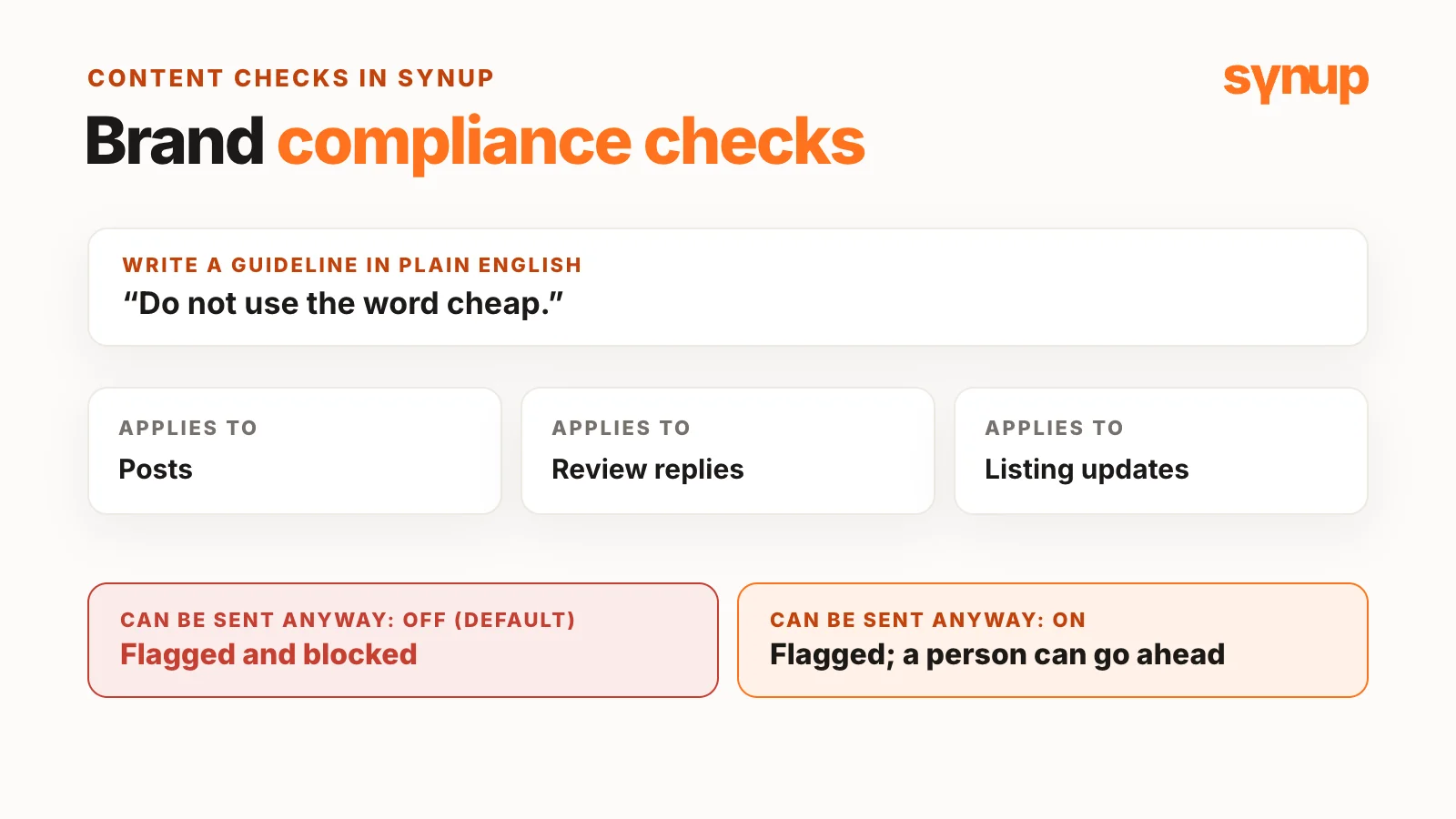
Every brand has a tone to keep and words to avoid, and one slip in a post, review reply or listing can become a real problem. Synup's Content checks let you write a guideline in plain English, choose where it applies and decide whether it's a hard stop. Content that breaks a guideline is flagged and shows which one failed. Mandatory guidelines block it. With "Can be sent anyway" on, a person can go ahead after seeing what failed.
Every brand has its own tone and its own words to avoid. Sayantan Ghosh, Tech Lead at Synup, starts there because that’s where the risk sits: a slip in one post, review reply or listing can become a real problem. His example is an agency managing dozens of brands, but any team publishing under a brand carries the same risk, and Content checks work the same way for all of them.
That’s the job of brand compliance checks: catching the slip before it goes out, not after someone complains. Sayantan walks through Synup’s version, a feature called Content checks.
Short answer: In Synup, go to Settings → Content checks and write a guideline in plain English, such as “do not use the word cheap”. Choose whether it applies to posts, review replies or listing updates. Content that follows every guideline goes through. Content that breaks one is flagged and shows which guideline failed. By default the guideline is mandatory, so the content can’t be sent. Turn on “Can be sent anyway” and a person can go ahead after seeing what failed.
Watch: brand compliance checks in Synup
Brand compliance checks start with one guideline
Guidelines live under Settings → Content checks. Sayantan’s first one takes four choices:
- Name. A label you’ll recognize later. Sayantan calls this a random name; it’s for you.
- Guideline. The rule in plain English. His is simply “do not use the word cheap”. No syntax, and the platform handles the rest.
- Applies to. Posts, review replies, listing updates, or more than one. He picks only posts, so the rule stays out of everything else.
- Can be sent anyway. Off by default, because the point is for guidelines to take effect.
Save it and the guideline shows up in the list.
Posts: flagged, explained and blocked
Sayantan opens the create post page in Synup’s social tools and names the post “holiday season”. The post name doesn’t matter; it’s only for finding the post later.
He types one ordinary sentence, and the post meets all the guidelines. Then he adds the word “cheap” and the post is flagged: the guideline was not met. Clicking the flag shows exactly which guideline failed. Publishing is blocked too, and clicking the publish button brings up the same details.
Review replies: the rule covers tone, not just words
The next guideline isn’t about a word at all: “don’t be impolite”. This one applies to review replies as well.
On a location’s reviews page, Sayantan picks a review with a rating and no text, and replies very negatively on purpose. The content check flags the reply, names the guideline it broke and won’t let him send it, because “Can be sent anyway” is off for this guideline. For deciding who should own those replies in the first place, see multi-location review management.
Listing updates, and what "Can be sent anyway" changes
The last guideline says not to reveal personal information. It applies to listing updates, and this time Sayantan turns “Can be sent anyway” on. The list shows the setting as enabled.
He edits a location’s listing description and types a made-up Social Security number. When he leaves the field, the check runs and says the guideline wasn’t met. The difference is the button: it now reads Save to Master anyway. The content is still flagged, but a person can decide to go ahead.
So one setting separates a hard stop from a warning:
| Guideline | Applies to | Can be sent anyway | What happens when it fails |
|---|---|---|---|
| Do not use the word “cheap” | Posts | Off | Flagged, and publishing is blocked |
| Don’t be impolite | Review replies (and posts) | Off | Flagged, and the reply can’t be sent |
| Don’t reveal personal information | Listing updates | On | Flagged, and a person can choose “Save to Master anyway” |
The override is for people. Sydekick, Synup’s AI agent, can never send anyway.
Manage your guidelines from one list
Back on the Content checks page, the list is built for upkeep:
- Filter by type. Show guidelines for All, Posts, Review replies or Listing updates.
- Turn one off without deleting it. Useful when a rule shouldn’t apply for a while.
- Switch “Can be sent anyway” on or off right in the list.
- Edit or remove. The three-dot menu on each guideline has both.
Publisher requirements sit underneath
Below your guidelines, the page shows publisher requirements. You can’t edit these, because they come from the publishers themselves. They sit under your own rules, so you can see both in one place.
Who the guidelines apply to
Three details matter before you roll this out across your team:
- Workspace-wide. A guideline applies to your team, Sydekick and, if you manage clients, every client. You set it once, so write rules that hold everywhere.
- Owners and admins only. Only they can see or change guidelines. The rules still apply to everyone.
- On by default. Content checks are on by default for every workspace, under Settings.
Common questions about brand compliance checks
What are brand compliance checks?
They check content against your written rules before it goes out. In Synup's Content checks, you write each guideline in plain English and choose whether it applies to posts, review replies or listing updates. Content that follows every guideline goes through. Content that fails one is flagged and shows which guideline failed.
Can I set different content guidelines for each brand or client in Synup?
Not today. Guidelines are workspace-wide: one guideline applies to your team, Sydekick and, if you manage clients, every client. Set a rule once and it covers the whole workspace.
What does "Can be sent anyway" do?
It decides whether a guideline is a hard stop. Off, which is the default, content that fails the guideline can't be sent. On, a person sees what failed and can go ahead, for example with "Save to Master anyway" on a listing. Sydekick can never send anyway.
Who can change content guidelines?
Only owners and admins can see or change guidelines. The guidelines still apply to everyone, including Sydekick.
Can I pause a guideline without deleting it?
Yes. Turn it off in the list on the Content checks page and it stops applying until you turn it back on. To change or delete it, use the three-dot menu to edit or remove it.
Can I edit publisher requirements?
No. Publisher requirements come from the publishers themselves, so you can see them under your guidelines but can't change them.
Put your local marketing in motion.
Manage listings, reviews and local visibility in one place. Sydekick, your AI agent, lines up the work and you approve what goes live.
- 14-day free trial
- $50 in AI credits
- Cancel anytime