What Is a Google Business Profile and Why Do You Need One?
Who qualifies for a Google Business Profile and how to claim and manage yours so customers find accurate details on Search and Maps.
A Google Business Profile is a free business listing on Google Search and Maps. It shows customers where your business operates and how to contact you, alongside details such as opening hours, offers, photos and reviews. Business owners can claim and verify the profile to manage their information.
You’ve probably used one to check whether a cafe is open before heading over. Or tapped the phone number on an auto repair shop’s listing instead of visiting its website.
For the business, that panel carries a lot of responsibility. An old phone number sends the inquiry nowhere and incorrect hours can send someone to a locked door.
Is Google Business Profile the same as Google My Business?
Yes. Google My Business, or GMB, is the former name. The name change happened in November 2021 but older content still mentions it, and people who’ve worked in local SEO for years haven’t all dropped the abbreviation.
You manage your profile through a standard Google Account. Google supports edits directly in Search and the Google Maps app.
Where your Google Business Profile appears
Your profile provides business information to several Google views. You don’t need a separate profile for each one.
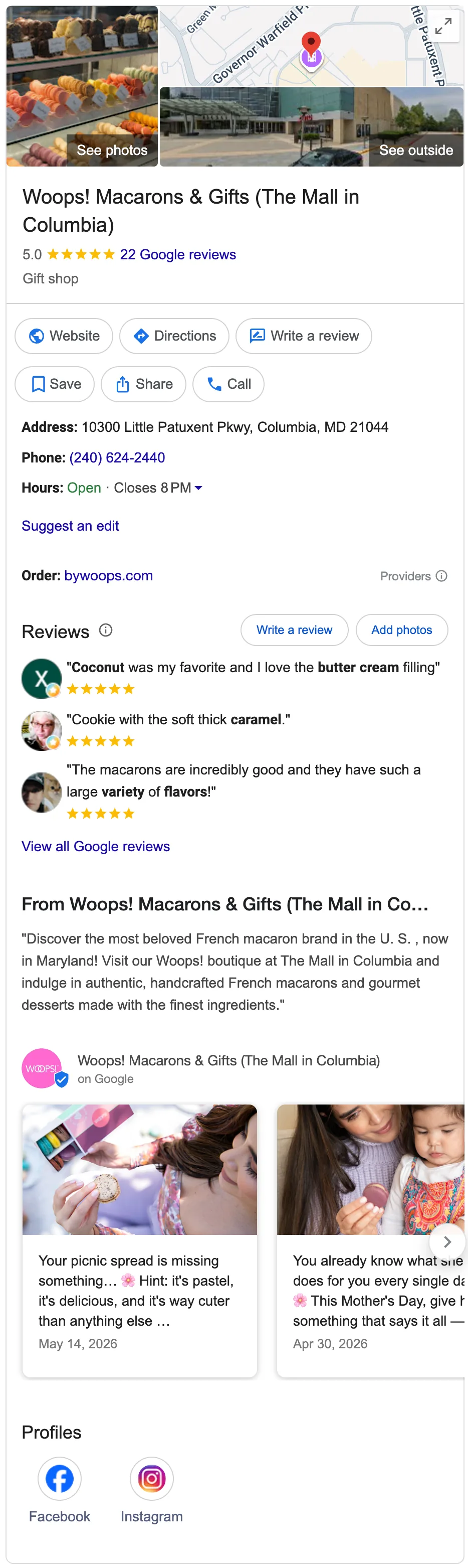
The business panel in Google Search
Search for a specific business by name and location. Google can show a detailed panel about that business, sometimes called a local knowledge panel. On desktop, it often sits beside the web results and mobile layouts arrange the information differently.
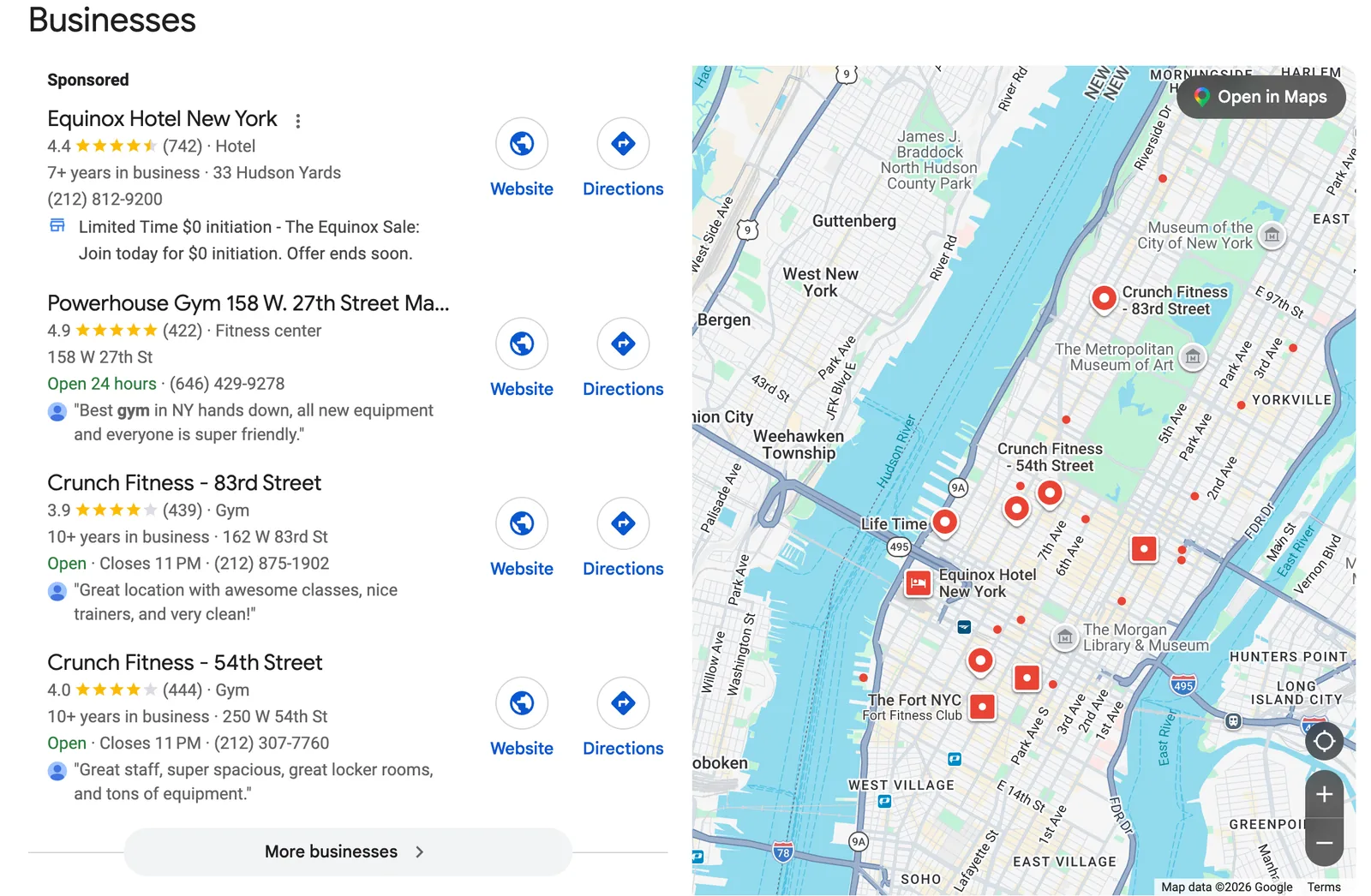
The local pack
Search for a category, such as “gyms in Manhattan,” and Google may show a map with a short list of businesses. That’s the local pack, also called the map pack. It usually includes three businesses, but the layout can vary by location and category and include sponsored placements.
Google Maps and the Local Finder
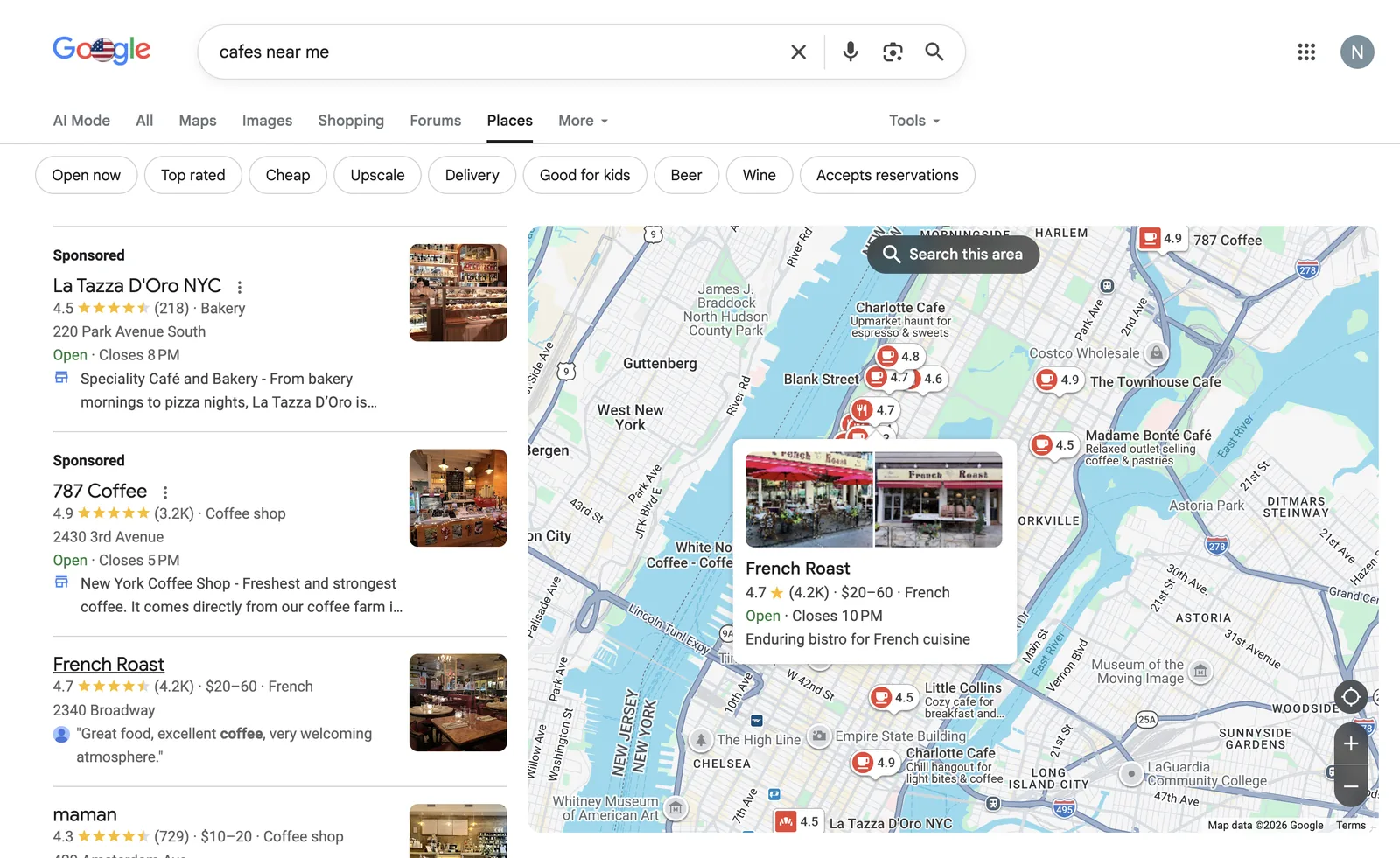
In Google Maps, customers browse businesses around a location and open individual profiles for more detail. They can read reviews or get directions from there.
Search has a longer list of its own. Say someone searches “cafes near me” and clicks through from the local pack. Google opens an expanded list with a map beside it, usually called the Local Finder. Every business in it draws on the same profile you manage, so an outdated phone number there is the same outdated number in the local pack and on Maps.
Who can have a Google Business Profile?
Google Business Profile is mainly for businesses that meet customers in person during their stated hours. That includes businesses customers visit and businesses that travel to customers. An online-only business doesn’t qualify just because it serves people in a particular city.
Your setup depends on where those meetings happen.
| Business type | Example | How to represent the location |
|---|---|---|
| Storefront | A gym that receives members at its premises | Show the eligible customer-facing address. |
| Service-area business | A mobile auto detailer that visits customers | Hide the operating address if customers aren’t served there. List the areas served. |
| Hybrid business | An auto repair shop with a garage and roadside service | Show the eligible storefront address and add the service area. |
| Online-only business | A fitness coach who works entirely through video calls | Doesn’t qualify under the standard in-person requirement. |
Google’s service-area guidelines explain the address rules in more detail. Working from home doesn’t disqualify a business on its own. The problem starts when the profile shows your home as a place customers can visit and you never actually receive them there.
A rented mailing address or virtual office won’t count as an eligible location either. Coworking spaces can qualify in some cases, but Google has specific rules for them, so check those before you set up the profile.
A few business types get exceptions. A seasonal business, like a ski rental shop that only opens in winter, still qualifies as long as it keeps its signage up year-round. If your business doesn’t fit the usual storefront or service-area model, Google’s eligibility guidelines cover the other cases.
Why do you need a profile if you already have a website?
Your website and your Business Profile answer different parts of a customer’s search.
A gym’s website can explain membership options and class schedules, but someone planning a visit may get everything they need from its Google profile. They can check the address, read a few reviews, and click Directions without ever visiting the business website.
Or consider an insurance agency with two offices. A customer who searches for one branch needs that branch’s details. A great homepage won’t rescue a profile that still points to the old office.
That’s why we’d treat an accurate profile as part of running an eligible local business. Even people who hear about you through a referral might check Google before calling. The profile gives them somewhere to confirm what they’ve been told.
It also gives new customers a way to discover you in local results. Google says complete, accurate business information helps it match profiles to relevant searches. It doesn’t promise that completing the fields will put you first.
What you can manage on your Google Business Profile
The available fields depend on your business category and region. Start with the details a customer needs to use your business. Filling every optional field can wait.
Business details that people act on
Use the business name customers recognize. Check the phone number and website destination. For a business with several branches, the linked page should help someone contact the branch they selected.
Hours deserve particular care. An auto dealership’s showroom might close later than its service department. Don’t assume the hours shown for one explain the other. Use the relevant hours fields for your setup, and set special hours for temporary changes.
Posting an announcement about a holiday closure doesn’t fix the hours field. Change the field too.
For agencies, keeping those details straight across client locations becomes a recurring job. Synup’s listings management brings location information and publishing status into one place. Your team can push changes to connected publishers and spot listings that need attention. Check the published result after the update, because Google still reviews submitted changes.
Categories and services
Your primary category tells Google what kind of business you run. Choose the most specific category that accurately describes the main business. Add secondary categories only when they describe other parts of the business.
A gym that also offers personal training should describe the training where the profile supports service details. Someone looking for supervised sessions needs more than the word “gym.”
Keep extra search phrases out of the business name. Adding “best gym near me” to a name that never appears that way in the real world breaks Google’s naming rules.
Attributes that answer specific questions
Attributes answer more specific questions. For example, a supported accessibility attribute helps a visitor check whether they can use the entrance. Google varies the available attributes by category and location, so another business’s profile won’t necessarily have the same fields as yours.
Photos and business updates
Use photos that help someone recognize the premises or understand what they’ll find inside. An exterior image is particularly useful when several businesses share a building. A logo doesn’t tell a first-time visitor which door to use.
Google Posts gives you room for an announcement or a time-limited offer. A gym introducing a trial membership could publish the offer and link to its signup page. Include the terms a customer needs before they click.
We’d fix a broken contact link before spending time on another post as there’s little value in attracting someone to a route that doesn’t work.
Customer reviews and your replies
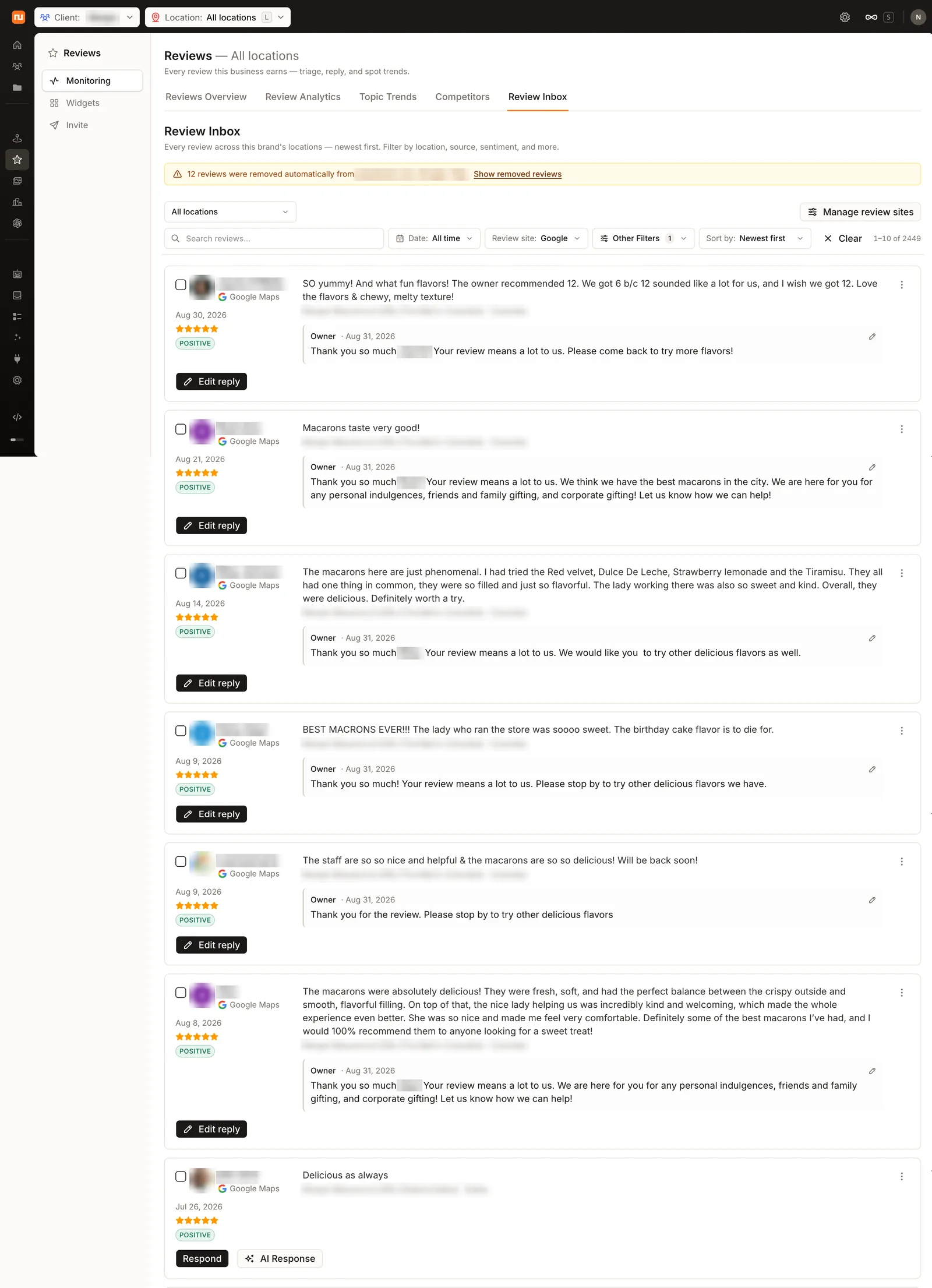
Customers write the reviews. You can reply and ask customers to share honest feedback, using a review link or QR code. Google prohibits incentives for reviews. It also recommends replies that address what the customer actually said.
An owner’s reply sits in public, beside the review. Use it to address a concern or add useful context. Repeating the business description underneath a complaint about a missed appointment won’t help anyone.
Synup’s review monitoring collects reviews across client locations so your team can find unanswered feedback. Sydekick, Synup’s AI agent for local marketing, can draft a reply in the client’s voice. Use the approvals inbox to review proposed work before it goes out under the business’s name.
Links that help customers take the next step
Your profile can link to your website and depending on the business, it may also support a booking link or ordering option. Actions available to a restaurant will differ from those of an insurance office. So check the fields in your own profile before promising a client a particular button.
Google’s built-in chat shut down in July 2024. Eligible profiles can now add WhatsApp or text messaging instead, though availability depends on the region.
Your profile can exist before you claim it
Finding your business on Google doesn’t prove that anyone at the business manages the profile.
Google builds local business information using several sources. Business owners supply details, but public web content and user contributions also play a part. That’s why a listing can already exist when you first search for your business. It helps to separate what you’re checking.
| What you find | What it tells you | What it doesn’t tell you |
|---|---|---|
| A public listing | Google has a record of the business. | Whether you have access to manage it. |
| A verified profile you manage | Google has accepted your verification and you have management access. | Whether every public detail is accurate. |
| A profile with current information | Someone has checked the details customers see. | Whether it ranks well or produces inquiries. |
Claiming and verifying gives you management access. It doesn’t turn the profile into a page where you control everything. Customers still contribute reviews and photos. Google can update details using other sources, so you need to check changes after the initial setup.
How to claim and manage your Google Business Profile
Find the existing listing first
Search Google Maps for the business name and city. If an unverified listing exists, use the claim option. If someone else has verified it, follow Google’s ownership request process. Create a profile only when there isn’t an existing one for the business.
Don’t create a duplicate because you’ve misplaced the old login. That just gives you another problem to sort out.
Complete the verification Google offers
Sign in with the Google Account you’ll use to manage the business, then follow the verification instructions. Google determines the available methods and you can’t assume that a postcard or phone option will appear because the documentation shows one.
Some businesses need more than one verification method and changes to primary business details can also trigger a request to verify again with additional documentation.
Check the public profile after editing
Once you have access, find your business while signed into the linked Google Account. Open the profile’s management controls in Search or Maps and correct the details customers need. Then look at the live version. Follow its website link. Check that the displayed hours match the business’s actual arrangements. A saved edit and a correct public profile aren’t always the same thing.
Give other people their own access
If an agency manages the profile, keep the business owner as primary owner and add the agency with the access it needs. A manager can handle routine profile work, including edits and review replies. Make sure each person uses their own Google Account.
Record who controls the profile when you onboard a client as you’ll want that answer before a staff member leaves.
How to tell whether your profile is working
Google Business Profile Performance shows how people find and interact with your profile. Start by checking relevant search terms and the actions that matter to the business.
Read the labels carefully. Calls counts clicks on the call button, not conversations with your team. Direction requests don’t confirm that someone visited. Google’s reporting can also include activity from ads.
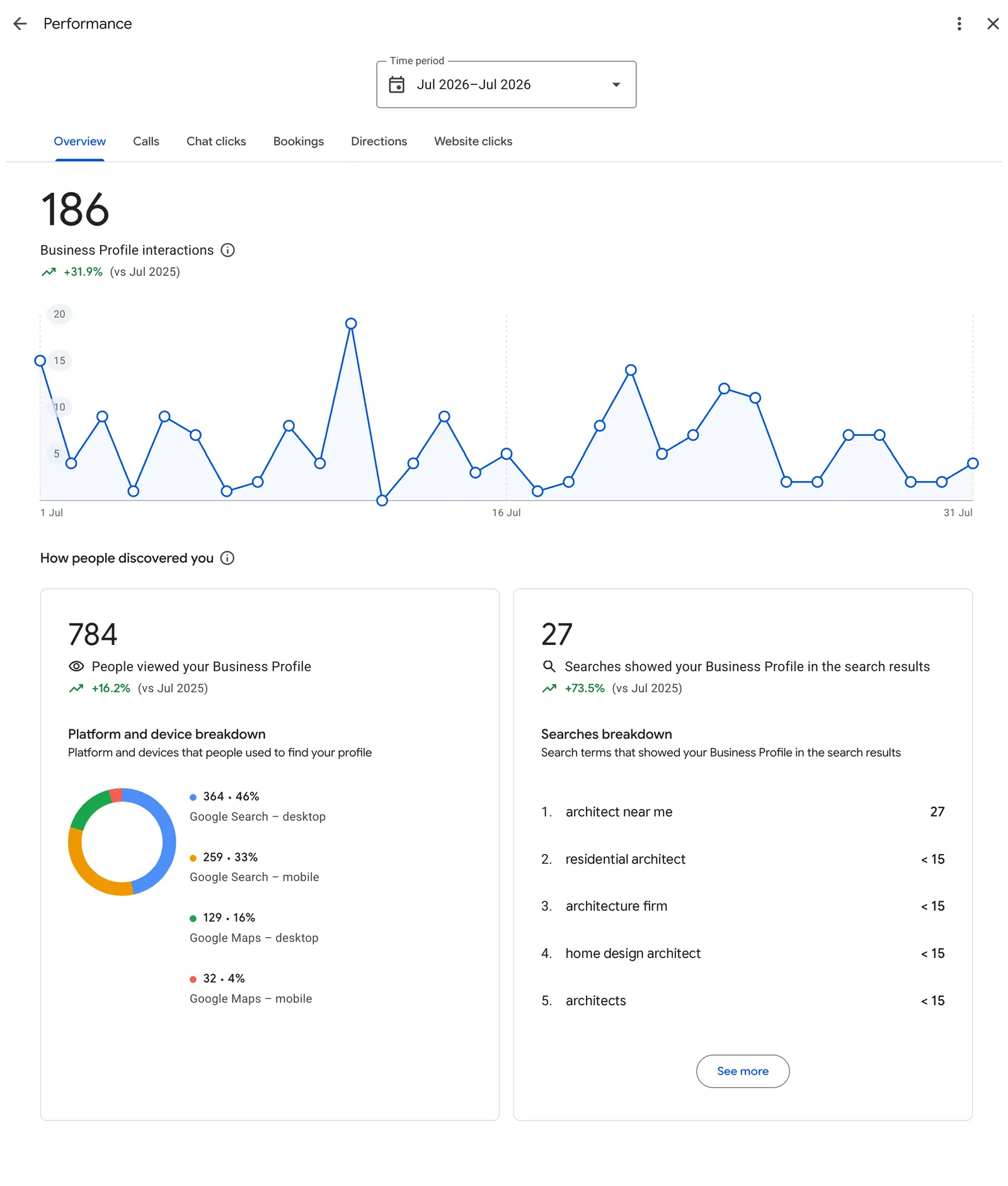
For an insurance office, the useful business result might be a qualified quote request. For an auto repair shop, it might be a confirmed appointment. Compare profile activity with those records where your tracking allows it. Keep the wider listings work connected too as updating Google alone won’t automatically correct the business’s information on every other directory.
Reading is step one. Sydekick does step two.
Sydekick runs the listings, review, and visibility work these guides describe, across every location you manage.