3 updates
Featured updates
Keep work moving while Sydekick handles a task
Managing multiple clients means there’s always something else to get done. Start a task with Sydekick and keep working elsewhere in Synup while it runs.
For example, ask Sydekick to analyze reviews while you work on a client’s content calendar. When you’re ready, use the task list to check progress, respond if it needs your input, or open the findings in the original conversation.
WhereSydekick in the top bar or the full-screen workspace
Keep working while your task runs.

Let Sydekick work on your terms
Decide what Sydekick can do on its own and what needs your approval. For example, let it add internal notes to reviews, but ask you before sending a reply to a customer.
Choose Automatic, Ask first, or Off for each action. You can set a rule for an entire product area and make exceptions for individual actions. These settings apply across your agency’s clients.
WhereSydekick → Autonomy
You decide when Sydekick needs your approval.

Build a content plan with the full calendar in view
Choosing the next post is easier when you can see what’s already planned. Plan my month brings content ideas alongside published, scheduled, and draft posts, helping you spot gaps and decide what belongs next.
For example, if a client’s calendar is already full of promotions, you can look for an idea that adds something different. Review its image and connected accounts, then open it in the composer to refine the caption and check the preview.
WhereSocial → Calendar → Plan my month
Turn ideas into posts with your calendar in view.

7 updates
More improvements
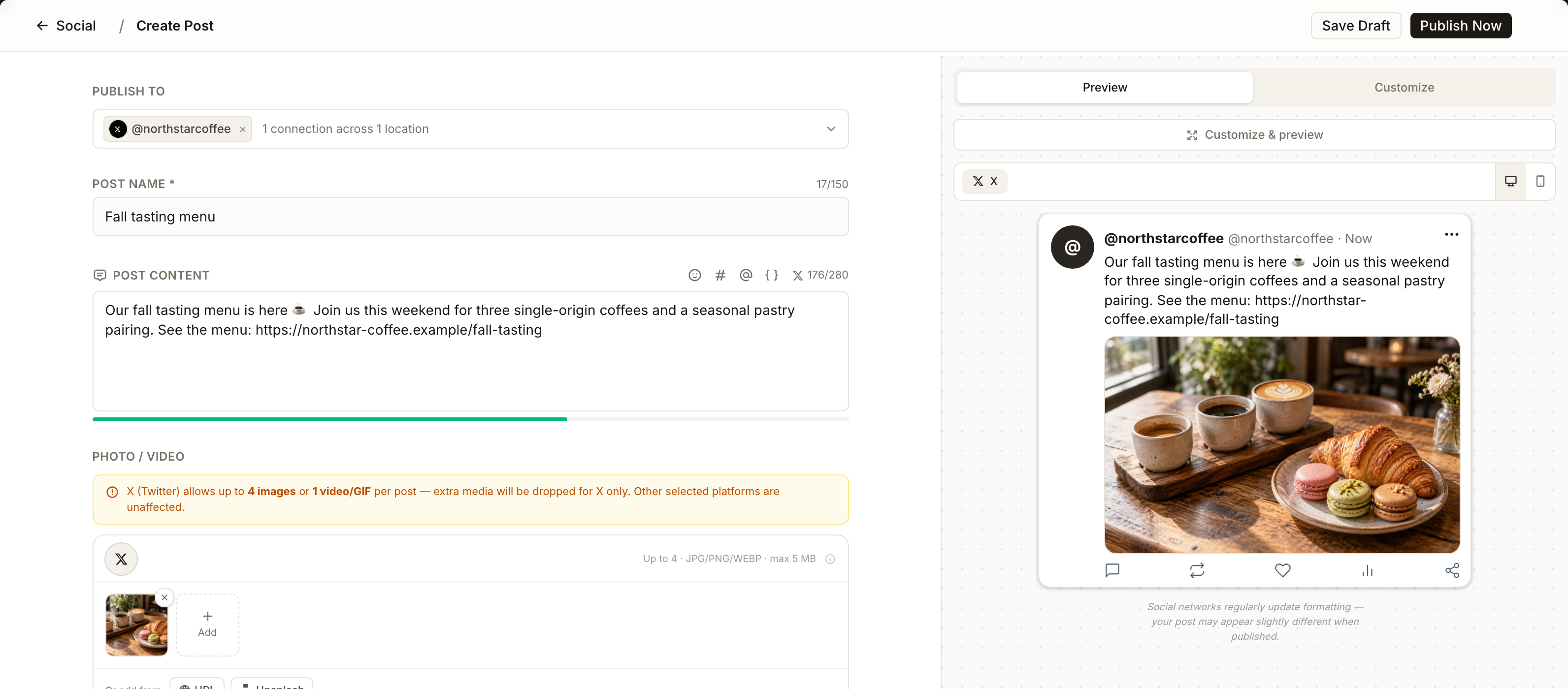
Know when your post fits X’s limit
Check your post’s length as you write, with a character count that accounts for X’s rules for links and other characters.
Writing something longer? Thread splitting uses those same rules to help you prepare the individual posts before publishing.
WhereSocial → Create post

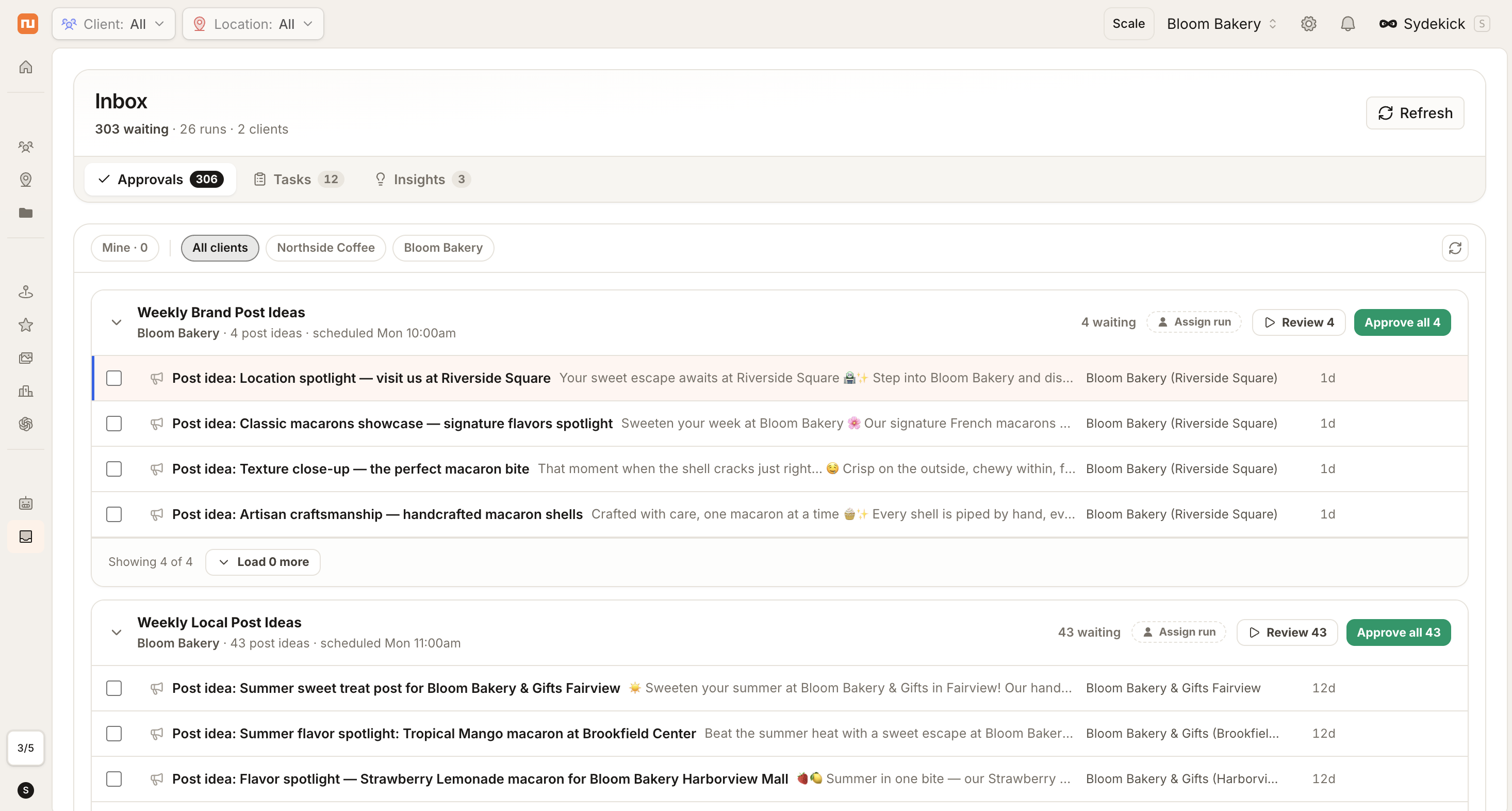
See what’s new in your approval queue
When you’re reviewing work across clients, it helps to see what’s arrived since your last visit. The Approval Inbox now shows the newest requests first.
Publishing-date labels show whether a scheduled time is still ahead or has passed, giving you more context when deciding what to review next.
WhereInbox → Approvals


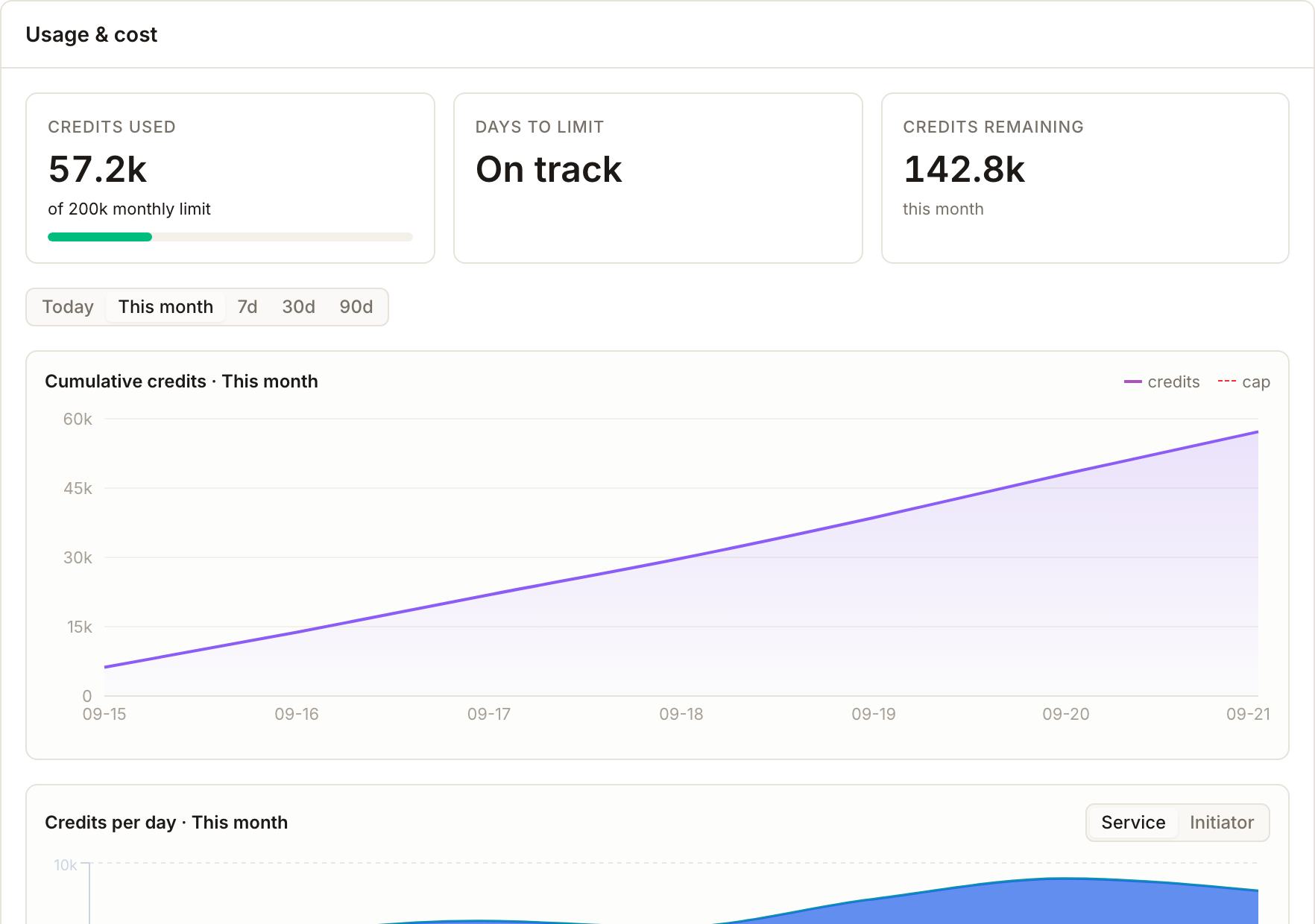
Understand how your AI credits are used
See how many credits your AI activity has used and how many you have left. Usage reports, charts, and individual run details now use the same credit unit as your balance, making them easier to compare.
Your allowance depends on your plan. This update makes usage clearer; it doesn’t change your allowance or how credits are charged.
WhereSydekick → Usage & cost; individual run details
Bring in Google locations with fewer interruptions
Importing a client’s locations shouldn’t mean starting over at every temporary Google error. Synup now retries rate-limit and server errors automatically, helping larger imports keep moving.
When the batch finishes, one notice shows which locations were imported or reconnected and which need attention. You can also see locations blocked by your plan and Google’s reason for any failures, so you know where to follow up.
WhereClients → Locations → Add Location → Google
Make the client portal feel like part of your agency
Give clients a consistent experience under your agency’s name. Your app name and icon now carry through more of the portal, including sign-in and account connection screens.
Listings PDFs downloaded from the portal also come without a Synup footer, keeping the focus on your agency when you share them with clients. These improvements use your existing white-label settings.
WhereClient portal; Settings → White label
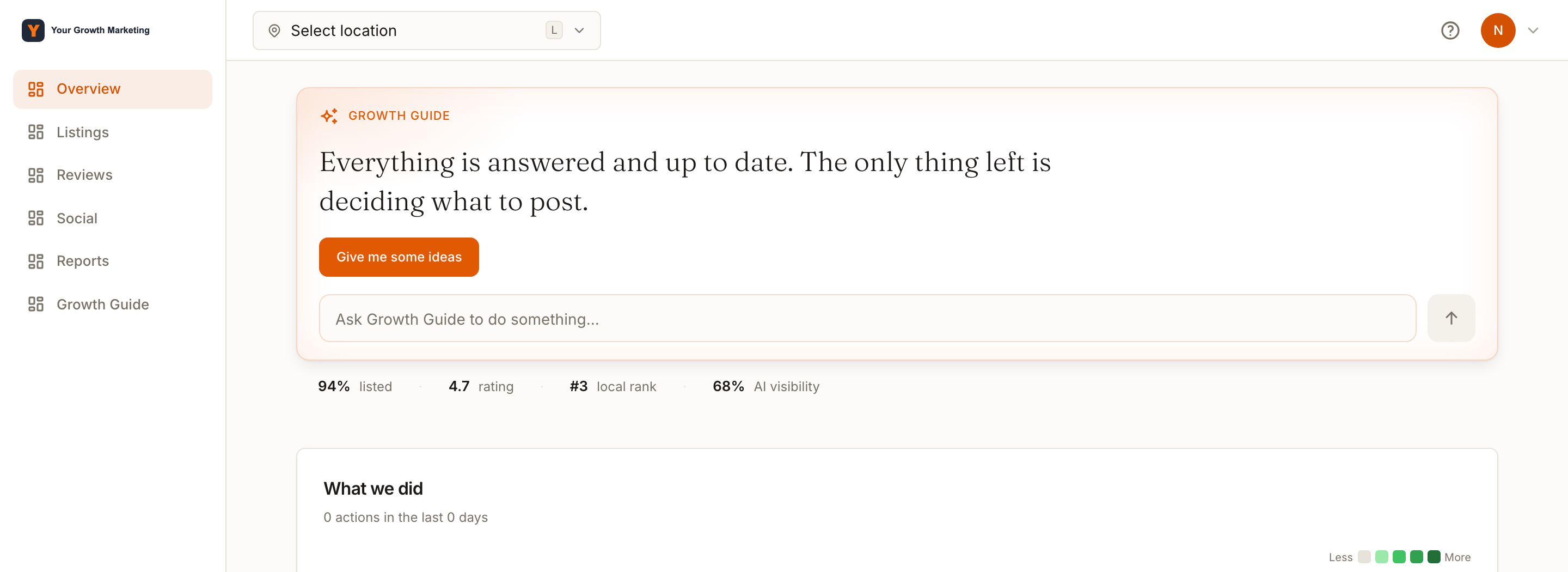
Keep your metrics in view while using Sydekick
Work with Sydekick without losing a readable view of your Dashboard. Cards now rearrange into fewer columns when the panel opens, making better use of the available space.
You can keep the conversation beside your metrics without the Dashboard becoming a crowded grid.
WhereDashboard with the Sydekick panel open
Keep Google profile updates moving with existing access
Avoid repeating a connection step when Synup already has the access it needs. If an older Google connection lacks permissions, Synup can use another valid connection to the same Google account for profile updates.
If none of the available connections has the required access, you’ll still see Reconnect needed, so you know when action is necessary.
WhereLocations → Edit profile and Listings connections