5 updates
Featured updates
Smart Scheduling
Smart Scheduling helps you adjust posting times when plans change. You choose the timing limits and can keep a fixed schedule when needed.
With calendar data available and account time zones configured, turn it on to choose suitable times in each account’s local time zone and let eligible posts adjust when the calendar changes. You set the boundaries; posts awaiting approval and those too close to publishing stay where they are.
If no safe time fits, existing times stay in place and the plan shows Needs attention. Prefer a fixed schedule? Turn Smart Scheduling off and save the change to keep the saved times.
WhereSocial → Calendar
Suggestions follow scheduling rules, not predicted engagement. Previewing a time does not reserve it or schedule a post. Series editing is available on desktop.

Media Library
Upload client images together and select them from Media Library when preparing Local and Social posts. Your team can use the same collection without repeatedly uploading each image.
When bulk upload and reuse are enabled for your workspace, follow each file’s upload progress and retry an individual file if it fails. When you need an image for a post, select it from the library instead of downloading and uploading it again.
Adding a library image creates a separate copy for that post, so your team can draw from the same collection as it prepares the week’s content.
WhereAssets; Media Library in Local and Social post composers
The post picker supports JPEG and PNG images up to 10 MiB. Other files accepted by the library may not be reusable in posts.

Publisher Sets
Group directories to match each client’s coverage agreement. Reuse those groups when clients choose the same package.
With Publisher Sets access, owners and admins can define a set for each coverage package and give it a recognizable name. Members with all-client access and access to the Clients page can assign sets to the appropriate clients. When another client chooses the same package, use the existing set instead of rebuilding the directory list.
Account managers and the delivery team get a shared reference for which directories belong in each client’s coverage.
WhereSettings → Publisher Sets; Clients → client details
Sets include only directories in your agency’s plan. Coverage changes run in the background, and removing a directory does not delete an already-live listing.

One Login, Multiple Workspaces
Use your existing account to join another agency’s workspace. Switch between the workspaces you have access to without creating another account.
Accept a workspace invitation using your existing account, keeping the same name and password. The workspace switcher gives you access to the agencies you’ve joined; each workspace requires a valid invitation or an existing membership.
Each agency still controls your access to its clients and tools. Permissions stay with that workspace when you switch.
WhereWorkspace invitations and workspace switcher

Client Portal Social Analytics
Social Analytics distinguishes missing measurements from measured zeros. Data coverage and reporting scope help you interpret the results in each client report.
Daily measurements for supported Facebook Page and LinkedIn organization Page metrics make it clearer which days have data. Check that coverage before interpreting a rise or drop across reporting periods.
In Client Portals you have access to, All locations shows brand-level reporting; selecting a location opens that location’s view. Keeping the scope visible helps clients distinguish the brand’s results from one location’s performance.
WhereSocial → Analytics; Client Portal → reporting
Available metrics depend on the connected network and collected history. X does not support this daily coverage.

Smaller improvements
Filtered Location Exports
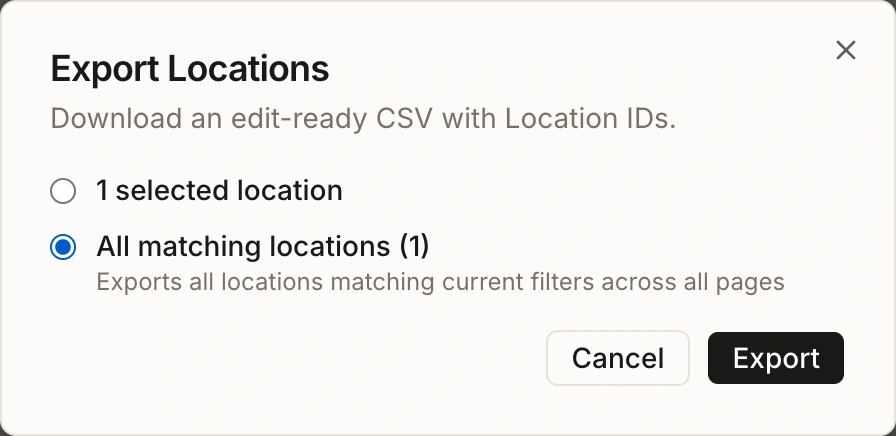
Take every location matching your filters into a client handoff, beyond the rows loaded on screen. Larger exports run in the background and can be tracked in Settings → Exports. Their download links remain available for seven days, subject to your current access.
 Enlarge screenshot
Universal Search
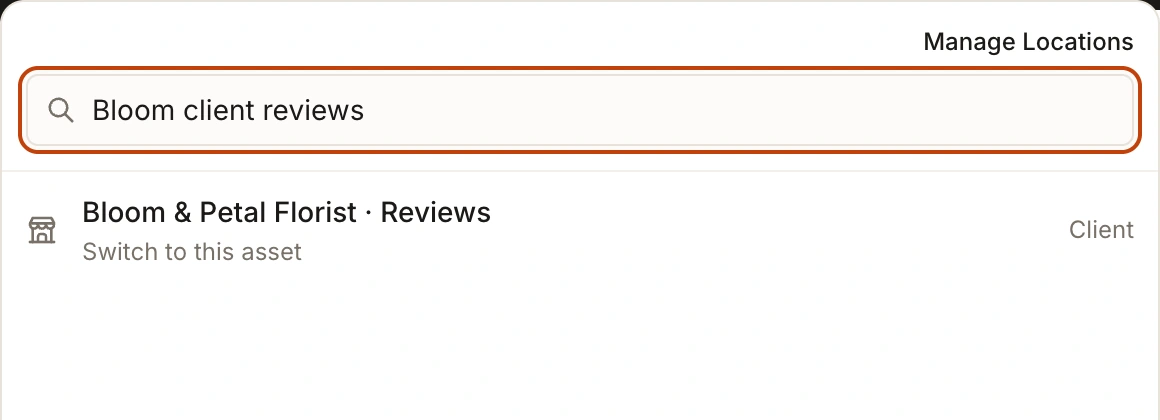
Universal Search brings client, location and page navigation together. Move to another area with the relevant client or location still selected. Access checks and prompts for unsaved work help protect what you’re working on.
 Enlarge screenshot
Custom Sender & Portal Domains
White-label accounts on Premium and higher plans can use a verified email sender domain separately from the portal domain. Keep the email identity clients recognize even when the portal uses a different address. Domain verification and the required account access still apply.